EasyManua.ls Logo

Panasonic PT-60LCX64B - User Manual

Panasonic PT-60LCX64B
112 pages
Print Icon
To Next Page IconTo Next Page
Loading...
LSQT1031 A
Digital Device Display
Operating Instructions
PT-43LCX64/PT-50LCX64/PT-60LCX64
Models No.
(USA)
Three Important Reasons to Register Your
Product Immediately!
1 Protect Your New Investment...
Register your new Device Display for insurance purposes
in case your new Device Display is stolen.
2 Product safety noti cation...
Registering your product can help us to contact you in the
unlikely event a safety noti cation is required under the
Consumer Product Safety Act.
3 Improved Product Development...
Help us continue to design products that meet your needs.
Register online at www.panasonic.com/register
For assistance, please call :
1-888-VIEW PTV(843-9788)
or, contact us via the web at:
http://www.panasonic.com/contactinfo
(Puerto Rico)
For assistance, please call :
787-750-4300
or visit us at www.panasonicpr.com
Before connecting, operating or adjusting this product, please read the instructions completely.
Please keep this manual for future reference.
This operating instruction book is designed for use with models PT-43LCX64, PT-50LCX64 and PT-60LCX64.
Illustrations in this manual show the PT-50LCX64.
* The presence of the DTV certi cation mark indicates that this product will
successfully receive digital television transmissions that conform to any and
all of the video formats described in the ATSC Digital Television Standard.
ATSC CERTIFIED *
DIGITAL TELEVISION

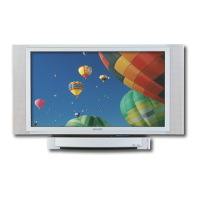
Table of Contents

Questions and Answers

  • B
    Bethany WhiteJul 30, 2025
    Why does my Panasonic PT-60LCX64B Monitor display unnatural colors via HDMI?
    • J
      Jorge SpearsJul 30, 2025
      If your Panasonic Monitor's picture is displayed with unnatural colors (red and blue appear reversed) when using an HDMI connection, change the Color Corr. setting from NORMAL to INVERT.
  • B
    baileyjessicaAug 3, 2025
    What to do if Panasonic PT-60LCX64B Monitor displays a lamp replacement message?
    • C
      Cory LawrenceAug 3, 2025
      If the Panasonic Monitor displays an OSD message indicating that the lamp needs replacement and the LAMP indicator is red, you should replace the lamp with a new one.
  • R
    Rebecca TylerAug 9, 2025
    Why is my Panasonic PT-60LCX64B remote control not working?
    • K
      Karen Ochoa MDAug 9, 2025
      If the remote control for your Panasonic Monitor isn't working, try the following: * Check if the batteries are dead or inserted incorrectly. * Ensure the remote control sensor isn't in direct light from fluorescent lamps or other strong light sources. * Verify that you have correctly set the Remote Control code.
  • V
    vaughandonaldAug 14, 2025
    What to do if my Panasonic Monitor has no picture and the LAMP indicator blinks red?
    • J
      Jean ThomasAug 14, 2025
      If there is no picture on your Panasonic Monitor even when the power is on, and the LAMP indicator is blinking red, replace the lamp with a new one. If the issue persists, consult your nearest dealer.
  • M
    millercoreyAug 19, 2025
    What does it mean when the TEMP indicator flashes and Panasonic PT-60LCX64B turns off?
    • F
      Felicia BooneSep 12, 2025
      If the Panasonic Monitor power turns off and the TEMP indicator flashes 2 or 4 times every 5 seconds, check if the vents are clogged or if the set is being used in a hot location. Ensure the vents are clear and the environment is adequately cooled.
  • J
    James HansenAug 23, 2025
    Why is the image cut off in ZOOM mode on my Panasonic PT-60LCX64B?
    • L
      Lisa YoungAug 23, 2025
      If the image is cut off at the top and bottom during ZOOM modes on your Panasonic Monitor, check if the screen position has been changed and adjust it accordingly.

Summary

IMPORTANT SAFETY INSTRUCTIONS

Before Using

Safety Precaution

Instructions to prevent the unit from tipping or falling over.

Installation

Connecting the Antenna; Cable to the RF IN Terminal

Guides on connecting antenna or cable to the RF IN terminal for signal reception.

Antenna Connection

Explains how to connect home antennas (VHF/UHF) to ANT (A) or ANT (B) terminals.

Digital Cable Module Connection

Details how to connect a Digital Cable Module (DCM/POD) for digital channels.

How to connect the “1, 2, 3” Input Terminals

Instructions for connecting VCRs and other peripheral equipment using input terminals.

How to connect the COMPONENT VIDEO Input Terminals

Explains connecting digital equipment via component video for accurate color reproduction.

How to connect the RGB IN Terminals

Explains connecting a PC to the RGB IN terminal for display output.

How to connect the HDMI input terminal

Guides on connecting set-top boxes or DVD players via HDMI for digital A/V.

Power ON; OFF

Turning the Power ON and OFF

Procedures for turning the device on and off, and indicator status.

First Time Setup

Guides through initial setup steps like input, auto scan, and language selection.

Basic Menu Navigation

Tuning channels

Automatic channel setting

Explains how to automatically scan for and store receivable channels.

Auto Scan

Details the process of automatically scanning for all available channels.

Manual channel setting

Procedure to manually add or delete channels from the list.

Device display operation

Channel and Program Tuning

Explains differences in tuning for digital vs. conventional TV.

Direct Tuning Method

Step-by-step guide to directly enter channel numbers using the remote.

Changing the input signal

How to select different input sources using the TV/VIDEO or SD buttons.

ASPECT Controls

Mute; Freeze; SAP

Picture in Picture (PIP) Screen

Display PIP screen

Splits the screen to show two broadcasts simultaneously.

Split screen

Splitting the screen

Divides the screen to display two different sources.

Searching for the desired channel (Channel search)

Favorite Channel Feature

Picture Adjustments

Adjusting screen position and size

Audio Adjustments

Lock Feature

Enter Secret Code

Sets a 4-digit code to block programs or change rating settings.

Lock Set

Configures locking functions like blocking all channels or specific modes.

Channel Lock

Allows blocking up to four channels per RF input.

Block Program

Blocks movies/TV programs based on MPAA, TV Ratings, Canadian ratings.

U.S. TV Rating

Configures age-based and content-based ratings for blocking programs.

Canadian English Language Ratings

Blocks programs based on Canadian English language rating systems.

Canadian French Language Ratings

Blocks programs based on Canadian French language rating systems.

Closed Caption Feature

Channel Caption Feature

Color Temp Feature

Video NR (Noise Reduction) Feature

3 D Y;C Feature

Setting when 480 p signals are input through COMPONENT VIDEO INPUT

3 D I;P Feature

Automatically changing screen size

RGB IN Input Feature

Sleep Timer Feature

Demo Mode Feature

Signal Meter Feature

Photo Viewer (SD Card;PC Card)

Remote Control Quick Reference Guide (Operating peripheral equipment)

Programming The Remote

Guides on programming the remote to control external components like VCR, DVD, etc.

Operating Components with Remote Control

Guides on using the remote for VCR, Cable Box, DBS, and DVD operations.

Replacing the lamp unit

Lamp replacement procedure

Step-by-step instructions for safely replacing the lamp unit.

Warning Indicators

Troubleshooting

Panasonic PT-60LCX64B Specifications

General IconGeneral
BrandPanasonic
ModelPT-60LCX64B
CategoryMonitor
LanguageEnglish

Related product manuals