EasyManua.ls Logo

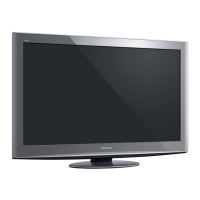
Panasonic viera TH-P54V20A - User Manual

Panasonic viera TH-P54V20A
80 pages
Print Icon
To Next Page IconTo Next Page
Loading...
Customers Record
The model number and serial number of this product may be found on its rear panel. You should note
the model number and the serial number in the space provided below and retain this book, plus your
purchase receipt, as a permanent record of your purchase to aid in identification in the event of theft
or loss, and for Warranty Service purposes.
Model Number Serial Number
Printed in Japan
M0510-1050
Web Site: http://panasonic.net
© Panasonic Corporation 2010
1. The product is warranted for 12 months from the date of purchase. Subject to the conditions of this warranty Panasonic or its
Authorised Service Centre will perform necessary service on the product without charge for parts or labour if, in the opinion of
Panasonic, the product is found to be faulty within the warranty period.
2. This warranty only applies to Panasonic products purchased in Australia and sold by Panasonic Australia or its Authorised Distributors
or Dealers and only where the products are used and serviced within Australia or it's territories. Warranty cover only applies to service
carried out by a Panasonic Authorised Service Centre and only if valid proof of purchase is presented when warranty service is
requested.
3. This warranty only applies if the product has been installed and used in accordance with the manufacturer’s recommendations (as
noted in the operating instructions) under normal use and reasonable care (in the opinion of Panasonic). The warranty covers
normal domestic use only and does not cover damage, malfunction or failure resulting from use of incorrect voltages, incorrect
installation, accident, misuse, neglect, build-up of dirt or dust, abuse, maladjustment of customer controls, mains supply problems,
thunderstorm activity, infestation by insects or vermin, tampering or repair by unauthorised persons (including unauthorised
alterations), introduction of sand, humidity or liquids, commercial use such as hotel, office, restaurant, or other business or rental
use of the product, exposure to abnormally corrosive conditions or any foreign object or matter having entered the product.
4. This warranty does not cover the following items unless the fault or defect existed at the time of purchase:
(a) Cabinet Part(s) (e) DVD Video, Blu-ray, or Recordable Discs
(b) Video or Audio Tapes (f) Video / Audio Heads from wear and tear in normal use
(c) SD cards or USB devices (g) Information stored on Hard Disk Drive, USB stick or SD card
(d) User replaceable Batteries (h) DTV reception issues caused by TV Aerial / Cabling / Wall socket(s) etc
5. Some products may be supplied with Ethernet connection hardware. The warranty is limited on such products and will not cover
(a) Internet and or DLNA connection / setup related problems
(b) Access fees and or charges incurred for internet connection
(c) The use of incompatible software or software not specifically stipulated in the product operations manual; and
(d) Any indirect or consequential costs associated with the incorrect use or misuse of the hardware, its connection to the internet
or any other device.
6. If warranty service is required you should:
Telephone Panasonic’s Customer Care Centre on 132600 or visit our website and use the Service Centre Locator for the
name/address of the nearest Authorised Service Centre.
Send or bring the product to a Panasonic Authorised Service Centre together with your proof of purchase receipt as a proof of purchase
date. Please note that freight and insurance to and / or from your nearest Authorised Service Centre must be arranged by you.
7. The warranties hereby conferred do not extend to, and exclude, any costs associated with the installation, de-installation or
re-installation of a product, including costs related to the mounting, de-mounting or remounting of any screen, (and any other
ancillary activities), delivery, handling, freighting, transportation or insurance of the product or any part thereof or replacement of
and do not extend to, and exclude, any damage or loss occurring by reason of, during, associated with, or related to such
installation, de-installation, re-installation or transit.
Panasonic Authorised Service Centres are located in major metropolitan areas and most regional centres of Australia, however,
coverage will vary dependant on product. For advice on exact Authorised Service Centre locations for your product, please telephone
our Customer Care Centre on 132600 or visit our website and use the Service Centre Locator.
Unless otherwise specified to the consumer the benefits conferred by this express warranty are additional to all other conditions,
warranties, guarantees, rights and remedies expressed or implied by the Trade Practices Act 1974 and similar consumer protection
provisions contained in legislation of the States and Territories and all other obligations and liabilities on the part of the manufacturer
or supplier and nothing contained herein shall restrict or modify such rights, remedies, obligations or liabilities.
Feb 2010
Panasonic Warranty
THIS WARRANTY CARD AND THE PURCHASE DOCKET (OR SIMILAR PROOF OF PURCHASE)
SHOULD BE RETAINED BY THE CUSTOMER AT ALL TIMES
If you require assistance regarding warranty conditions or any other enquiries,
please contact our Customer Care Centre via the Panasonic website www.panasonic.com.au or
by phone on 132 600. If phoning in, please ensure you have your operating instructions available.
Panasonic Australia Pty. Limited
ACN 001 592 187 ABN 83 001 592 187
Locked Bag 505, Frenchs Forest, NSW 2086
PRO-031-F11 Issue: 2.0 18-02-2010
RQA0245

Question and Answer IconNeed help?

Do you have a question about the Panasonic viera TH-P54V20A and is the answer not in the manual?

Summary

Panasonic Warranty Information

Safety Precautions

Handling Power Cord and Plug

Guidelines for safe use and handling of the power cord and plug.

Installation and Environmental Safety

Precautions regarding TV placement, moisture, heat, foreign objects, and children.

Unauthorized Modifications and Accessories

Warnings against opening the TV or using unapproved accessories.

Important Installation Notices

Stable TV Placement and Handling

Guidelines for securing the TV, cleaning, transport, and handling precautions.

Environmental and Operational Considerations

Notes on ventilation, impact, volume, standby, equipment proximity, and image retention.

Accessories and Options

Pedestal Assembly and Attachment

Instructions and safety warnings for assembling and attaching the TV pedestal.

Optional Accessories

Preventing TV from Falling

Safety measures to prevent the TV from falling, including securing to furniture.

Basic Connection Guide

Connecting the Aerial

Instructions for connecting the TV aerial for broadcast reception.

Identifying TV Controls

Remote Control Layout

Identification and function of buttons on the remote control.

Auto Tuning Procedure

Watching TV - Basic Operations

Power, Mode, and Channel Selection

How to turn on the TV, select modes, and change channels.

Using TV Guide (Digital TV)

Navigating the TV Guide

How to view and navigate the electronic program guide.

Watching External Inputs

Input Selection and Equipment Control

How to select external input sources and view connected equipment.

Operating Equipment with TV Remote

Remote Control Functions for External Devices

How to use the TV remote to control connected VCRs, DVD players, etc.

Using VIERA TOOLS

Accessing and Operating VIERA Tools Features

Steps to access and use special features via VIERA TOOLS.

Navigating TV Menus

Menu Display and Item Selection

How to display menus, select items, and navigate through options.

Menu Settings - PC and Tuning

Tuning Menu Settings

Options for channel list management, auto tuning, and signal condition.

Tuning and Editing Channels

Channel Selection Modes

How to select between Digital TV and Analogue TV modes.

Digital TV Tuning Menu: Favourites and Channel List

Creating Favourite Channels

Steps to create and manage favorite channel lists.

Digital TV Tuning Menu: Auto and Manual Tuning

Automatic and Manual Channel Tuning

Procedures for automatically or manually tuning TV channels.

Analogue TV Tuning Menu

Analogue Auto and Manual Tuning

Procedures for automatically or manually tuning analogue TV channels.

Advanced Picture Settings

Picture Adjustment and Lock Settings

Detailed picture adjustments and locking them with a PIN.

Advanced Picture Settings: Adjustments and Copying

Detailed Picture Adjustments

Fine-tuning white balance, colour management, and gamma settings.

Child Lock Feature

Setting Up Channel and Input Locks

Procedures for setting up child lock for channels and inputs, and changing PIN.

Shipping Condition (Reset Settings)

Resetting TV to Factory Defaults

How to reset all TV settings to their original factory condition.

Updating TV Software

Automatic and Manual Software Updates

Procedures for updating the TV's software automatically or manually.

USB HDD Recording Setup

Registering and Setting Up USB HDD

Steps to register a USB HDD for recording and playback.

USB HDD Recording Operations

Recording TV Programmes to USB HDD

How to record current programmes using the USB HDD.

USB HDD Recording Modes

One Touch Recording

Recording the current programme immediately via USB HDD.

REW LIVE TV Recording

Recording the current programme continuously for playback control.

Using Network Services (DLNA; VIERA CAST)

Network Connections

Network Connection Examples

Diagrams illustrating wired and wireless network connection methods.

Network Setup Procedures

LAN Cable Network Setup

Wireless LAN Network Setup

Using DLNA Features

Accessing Media Servers and Files

How to select media servers and browse files for viewing.

Network Service Operations

VIERA CAST Internet Services

VIERA Link Functions Overview

VIERA Link Functions - Live TV and Recording

Pause Live TV Operation

How to pause and resume live TV programmes.

Direct TV Recording

How to record the current programme immediately via DIGA Recorder.

VIERA Link HDAVI Control - Equipment Control

Operate Connected Equipment

Controlling connected devices using the TV remote via VIERA Link.

VIERA Link HDAVI Control - Speaker Control

Speaker Selection and Volume Control

How to select and control speaker output between TV and connected equipment.

HDMI and PC Connections

HDMI Connection Details

Information on HDMI interface, features, and applicable equipment.

Maintenance Procedures

Cleaning Display, Cabinet, and Pedestal

Instructions for cleaning the TV surfaces and accessories.

Frequently Asked Questions - Screen and Sound

Screen Image and Sound Issues

Troubleshooting common problems like noisy images, no display, or distorted sound.

Frequently Asked Questions - Connectivity and TV Type

Frequently Asked Questions - Digital TV and General

Digital TV Signal and Picture Quality

Solutions for pixelation, no signal, and distorted images.

Summary

Panasonic Warranty Information

Safety Precautions

Handling Power Cord and Plug

Guidelines for safe use and handling of the power cord and plug.

Installation and Environmental Safety

Precautions regarding TV placement, moisture, heat, foreign objects, and children.

Unauthorized Modifications and Accessories

Warnings against opening the TV or using unapproved accessories.

Important Installation Notices

Stable TV Placement and Handling

Guidelines for securing the TV, cleaning, transport, and handling precautions.

Environmental and Operational Considerations

Notes on ventilation, impact, volume, standby, equipment proximity, and image retention.

Accessories and Options

Pedestal Assembly and Attachment

Instructions and safety warnings for assembling and attaching the TV pedestal.

Optional Accessories

Preventing TV from Falling

Safety measures to prevent the TV from falling, including securing to furniture.

Basic Connection Guide

Connecting the Aerial

Instructions for connecting the TV aerial for broadcast reception.

Identifying TV Controls

Remote Control Layout

Identification and function of buttons on the remote control.

Auto Tuning Procedure

Watching TV - Basic Operations

Power, Mode, and Channel Selection

How to turn on the TV, select modes, and change channels.

Using TV Guide (Digital TV)

Navigating the TV Guide

How to view and navigate the electronic program guide.

Watching External Inputs

Input Selection and Equipment Control

How to select external input sources and view connected equipment.

Operating Equipment with TV Remote

Remote Control Functions for External Devices

How to use the TV remote to control connected VCRs, DVD players, etc.

Using VIERA TOOLS

Accessing and Operating VIERA Tools Features

Steps to access and use special features via VIERA TOOLS.

Navigating TV Menus

Menu Display and Item Selection

How to display menus, select items, and navigate through options.

Menu Settings - PC and Tuning

Tuning Menu Settings

Options for channel list management, auto tuning, and signal condition.

Tuning and Editing Channels

Channel Selection Modes

How to select between Digital TV and Analogue TV modes.

Digital TV Tuning Menu: Favourites and Channel List

Creating Favourite Channels

Steps to create and manage favorite channel lists.

Digital TV Tuning Menu: Auto and Manual Tuning

Automatic and Manual Channel Tuning

Procedures for automatically or manually tuning TV channels.

Analogue TV Tuning Menu

Analogue Auto and Manual Tuning

Procedures for automatically or manually tuning analogue TV channels.

Advanced Picture Settings

Picture Adjustment and Lock Settings

Detailed picture adjustments and locking them with a PIN.

Advanced Picture Settings: Adjustments and Copying

Detailed Picture Adjustments

Fine-tuning white balance, colour management, and gamma settings.

Child Lock Feature

Setting Up Channel and Input Locks

Procedures for setting up child lock for channels and inputs, and changing PIN.

Shipping Condition (Reset Settings)

Resetting TV to Factory Defaults

How to reset all TV settings to their original factory condition.

Updating TV Software

Automatic and Manual Software Updates

Procedures for updating the TV's software automatically or manually.

USB HDD Recording Setup

Registering and Setting Up USB HDD

Steps to register a USB HDD for recording and playback.

USB HDD Recording Operations

Recording TV Programmes to USB HDD

How to record current programmes using the USB HDD.

USB HDD Recording Modes

One Touch Recording

Recording the current programme immediately via USB HDD.

REW LIVE TV Recording

Recording the current programme continuously for playback control.

Using Network Services (DLNA; VIERA CAST)

Network Connections

Network Connection Examples

Diagrams illustrating wired and wireless network connection methods.

Network Setup Procedures

LAN Cable Network Setup

Wireless LAN Network Setup

Using DLNA Features

Accessing Media Servers and Files

How to select media servers and browse files for viewing.

Network Service Operations

VIERA CAST Internet Services

VIERA Link Functions Overview

VIERA Link Functions - Live TV and Recording

Pause Live TV Operation

How to pause and resume live TV programmes.

Direct TV Recording

How to record the current programme immediately via DIGA Recorder.

VIERA Link HDAVI Control - Equipment Control

Operate Connected Equipment

Controlling connected devices using the TV remote via VIERA Link.

VIERA Link HDAVI Control - Speaker Control

Speaker Selection and Volume Control

How to select and control speaker output between TV and connected equipment.

HDMI and PC Connections

HDMI Connection Details

Information on HDMI interface, features, and applicable equipment.

Maintenance Procedures

Cleaning Display, Cabinet, and Pedestal

Instructions for cleaning the TV surfaces and accessories.

Frequently Asked Questions - Screen and Sound

Screen Image and Sound Issues

Troubleshooting common problems like noisy images, no display, or distorted sound.

Frequently Asked Questions - Connectivity and TV Type

Frequently Asked Questions - Digital TV and General

Digital TV Signal and Picture Quality

Solutions for pixelation, no signal, and distorted images.

Panasonic viera TH-P54V20A Specifications

General IconGeneral
BrandPanasonic
Modelviera TH-P54V20A
CategoryPlasma TV
LanguageEnglish

Related product manuals