27
Basic Operation
Using the Applications menu
Layout of the Applications menu screen
You can sort pre-installed apps and downloaded apps by
group, in the alphabetical order, or veiw downloaded apps
alone.
Press Menu.
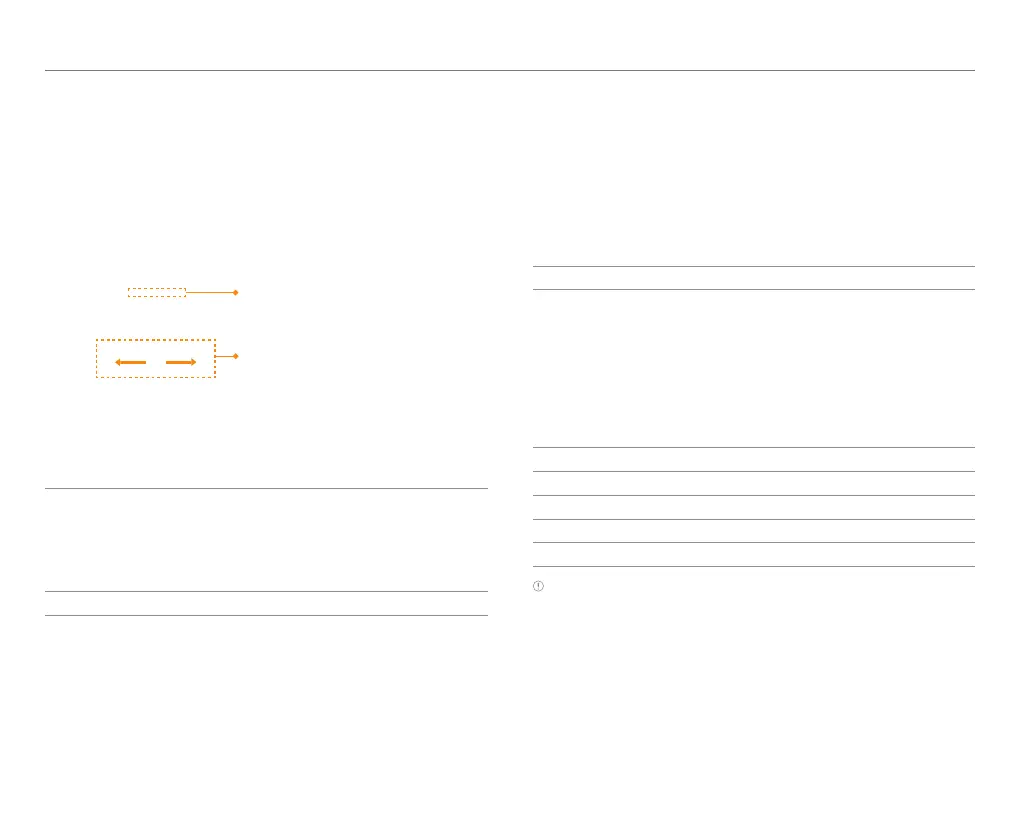
Tap an icon to run the app.
x Tap and hold an icon to
create a shortcut on the
Home screen.
x Flick the screen to the
left or right to move to
the previous or next
page.
1
Sort apps.
x Tap Groups to manually arrange icons.
x Tap Alphabetical to sort icons in the alphabetical
order (flick up and down to search for apps).
x Tap Downloads to view downloaded apps.
2
Create a new group.
Using the menu options
Use the menu options to configure the menu screen.
Press Menu.
Tap XX.
1
Search for an app.
2
Rearrange or delete an app; Hide an app; View an app
information.
x Tap and hold an app to move it to a new location.
x Tap and hold an app, and drag it to Storage to hide.
x Tap and hold an app, and drag it to App Info to view
the app information.
x Tap XX to delete an app.
3
Edit group order or rename group titles.
4
Access the Android Market.
5
Share an app with other people.
6
Change Icons.
7
View the tutorial.
Note Available items when you tap XX differ depending on sorting
method (Groups, Alphabetical, or Downloads).



 To Next Page