—13—
—15—
—14—
Menu mode (setup mode)
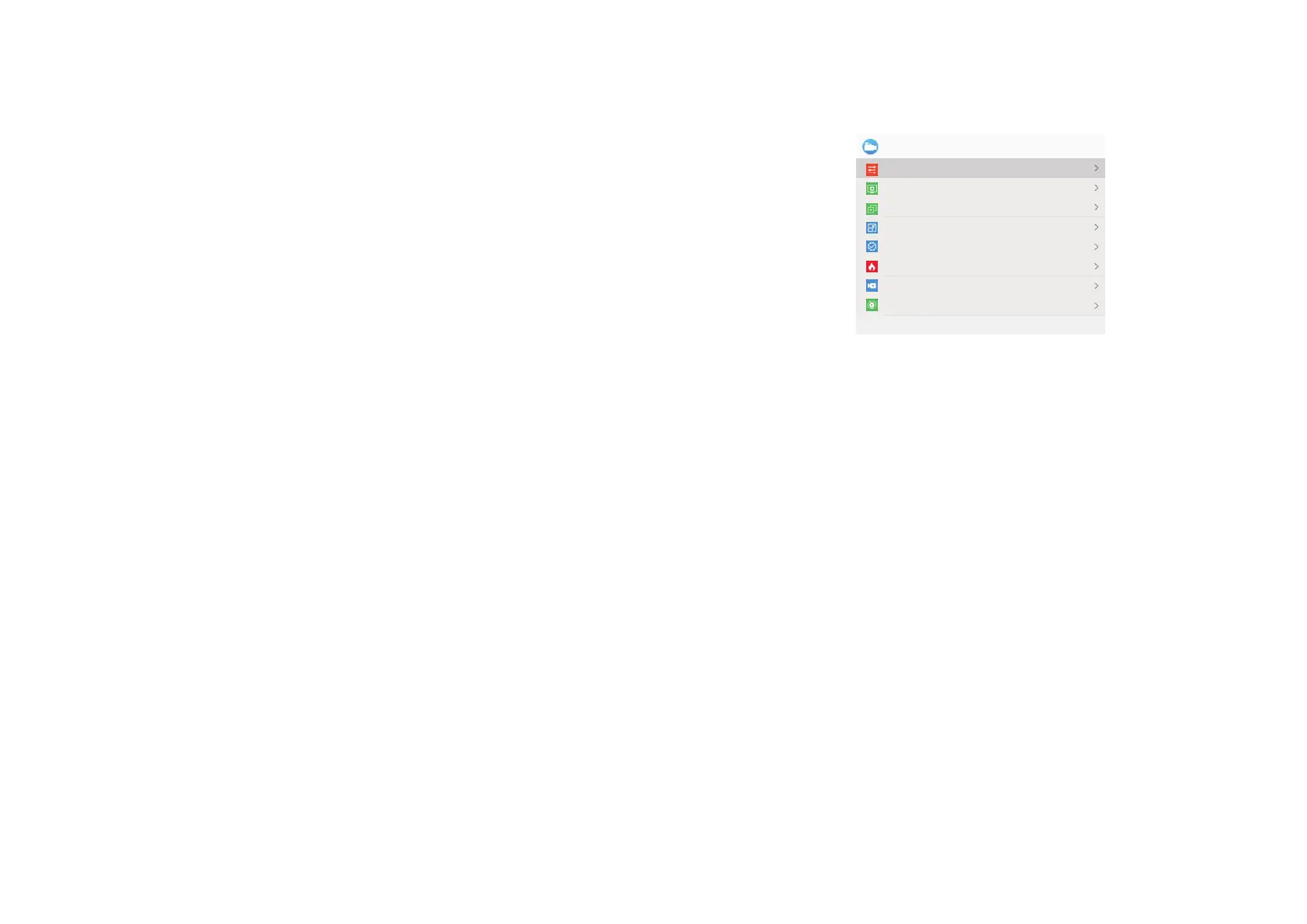
Press [menu key] to enter the menu setting mode, and the interface is shown
as pictures below (at this time, the shortcut key is not function)
the target option value. Long press [menu key] to exit.
Image default settings:
The contrast value is 90, the brightness value is 65, the sharpness value is 2,
and the mode is 0.
2. Display setting: press [+ key] [- key] to move the cursor to the display setting
option, and press [menu key] to switch the contrast/ brightness / color option,
press [+ key] [- key] to adjust the option value. Long press [menu key] to exit.
Default value:
contrast is 3, brightness is 3, and color temperature is 3
3.Magnify Center Position: press [+ key] [- key] to move the cursor to the
magnify center position, press [menu key] to switch the X / Y axis option, press /
long press [+ key] [- key] to adjust the option value. Long press [menu key] to exit.
4. Picture in picture: press [+ key] [- key] to move the cursor to the picture in
picture option, and press [+ key] [- key] to select on/off the shortcut [+ key] picture
in picture function, press [menu key] to save and exit.
1. Image setting: press [+ key] [- key] move the cursor to the image setting
option, and press [menu key] to enter the sub menu, press [menu key] to switch the
contrast / brightness / sharpness / mode options, and press [+ key] [- key] to adjust
5.Shutter Correction: press [+ key] [- key] to move the cursor to the shutter
correction option, and press [menu key] to enter picture correction. Manual picture
correction can obtain better picture effect.
6. Hot Track: press [+ key] [- key] to move the cursor to the hot track option,
and press [menu key] to enter sub-menu. Press [+ key] [- key] to switch on and off
the thermal imaging tracking function. Press [menu key] to confirm and exit.
7.Auto Recording: press [+ key] [- key] to move the cursor to the automatic
video recording option, and press [menu key] to enter the sub-menu. Press [+ key] [-
key] to select on / off automatic video recording option, press [menu key] to
confirm and exit.
8.Loop Recording: press [+ key] [- key] to move the cursor to the loop recording
option, press [menu key] to enter the sub-menu, press [+ key] [- key] to select cyclic
recording off / 3minutes / 5minutes / 10minutes, press [menu key] to confirm and
exit.
1/3
Menu
Image Setting
Hot Track
Magnify Center Position
Display Setting
Picture In Picture
Shutter Correction
Auto Recording
Loop Recording
Long press MENU button to exit
—12—
2.Press the [+ key] to switch magnification function : 1,2,4,6,8 times. When the
picture in picture function is on, press the [+ key] to switch between magnifications
of 1,2,4,6,8; long press to enter the playback function menu.
In the playback interface menu, press [+ key] [- key] to switch the video /
picture mode in the TF card. When the interface is in video, press [menu key] can
play video. Press [+ key] [- key] to adjust the playback speed accordingly.
When playing video, press [menu key] to pause, press [+ key] [- key] to play by
frame, long press [menu key] exit to the previous folder to switch files, and long
press [menu key] again exit to the display interface.
3.Press [menu key] to enter the menu interface; long press to turn on / off the
video recording function.
4.Press [- key] to turn on / off the red dot indicator; long press to switch display
mode.


 To Next Page
 Loading...