Getting Started - Setting Device Password
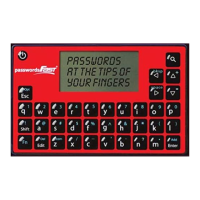
● Turn on device. It will display the “Create Password” screen.
● Type in your password (this is the device password and the only one you have to remember) and then press
the Enter key; confirm password (re-type your password) and then press Enter; type a security phrase* and
then press Enter. The screen now says “Device Initialized!”. Press Enter to Continue.
*Note: The security phrase is a one-time phrase which is used for making the encryption stronger. You will not be
asked to enter this again nor is it necessary for you to remember the phrase.
Fn - Add – This allows you to add an entry. Press Fn (let go), then press Add (let go).
Add Description – press Enter when complete; Add Username – press Enter when complete,
Suggest Password – choose Yes to autogenerate a password then press enter. Modify the autogenerated password if
desired, then press enter again. Press enter to confirm. Choose No to enter your own password-press enter when
complete. Press enter to confirm.
Once you confirm, the device takes you back to the Password Entries Screen. All entries are sorted alphabetically.
Fn - Del – This allows you to delete an entry. Find the entry you want to delete by using up/down arrow keys or
search function. Press Fn (let go), then press Del (let go). Press enter to confirm.
Edit – This allows you to edit an entry. Find the entry you want to edit by using up/down arrow keys or search
function. Press Edit to modify the entry Description, Username and/or Password. Password auto generation is also
available when editing entries.
Esc – Always takes you to the previous screen, and also cancels Function Lock and Shift Lock.
View Entry – Find the entry you want to view by using up/down arrow keys or search function.
Press enter.
Fn - Opt – Opens the Device Options screen which allows you to do the following:
● Passwd Generator – Press Enter when Generate Passwd is selected to generate a standalone password, and
Esc to go back. Modify all other settings using the left/right arrow keys, press Enter to save changes:
o Suggestions: On (default)/Off
o Password Size: 10 (default) 8-32 characters in length
o Lowercase: Yes (default)/No
o Uppercase: Yes (default)/No
o Numbers: Yes (default)/No
o Symbols: Yes (default)/No
● Increase/decrease Screen Level, Timeout, and Login Trys using left/right arrows, press Enter to save changes
● Change Master Password
● Reset Device
– Allows you to search for a desired entry. Once pressed, enter a search phrase and press enter to list all
matching entries. Search phrases can be partial words and are not case sensitive.
Reset Device – You can reset the device back to factory settings and create a new device password. WARNING: this
will delete all existing password entries! At the “Enter Password” screen, press Fn then press Opt, then follow the
prompts.


 To Previous Page
 Loading...