7. Programming the Back Buttons:
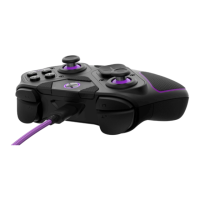
A. To program the back buttons, hold the “Profile” button on the back of the controller and press
the back button you would like to map an input to. Once the LED is flashing, press any button on
the controller to map that button’s function to the selected back button. The LED will blink
quickly 3 times indicating successful programming.
B. To clear or disable a back button, hold the “Profile” button and double press the back button
you wish to disable. The LED will blink quickly 3 times indicating successful clearing.
C. You can also program the back buttons, as well as other buttons, in the Victrix Control Hub app,
available on your console or PC in the Microsoft Store.
8. Creating Custom Profiles:
Three custom profiles of back button mappings can be stored on the Pro BFG controller.
A. To save a button mapping profile, follow the steps outline in the Programming the Back Button
Section. When mapping inputs to the back buttons, the “Profile” LED will blink in the color of the
currently active Profile (either Purple. Blue, or Green).
B. To toggle between your 3 saved profiles, press and release the “Profile” button on the back of
the controller. The “Profile” LED will illuminate in Purple, Blue, or Green to indicate which Profile
is active.


 To Next Page