17. Charging the Battery
The Pro BFG can be used in both Wired and Wireless/Bluetooth modes and includes a rechargeable
Lithium-Ion battery.
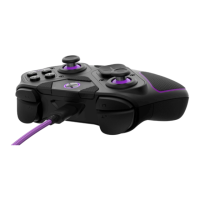
A. To recharge your controller, connect the included USB-C Cable to the USB-C port on the
controller, and the other end into your Xbox Series X|S, Xbox One, or Windows 10/11 USB Port.
B. The purple LED ring around the Xbox button will light up and begin fading in and out to indicate
it is charging.
C. Once fully charged, the LED ring will remain solid and on.
D. When your controller reaches a low battery level, the LED ring will begin flashing quickly to warn
you of the low battery.
E. When the battery level is critically low, an audible warning tone will play every minute through a
connected headset.
18. Victrix Control Hub App:
The Pro BFG controller is compatible with the Victrix Control Hub app. With the free app, you can map
buttons, recalibrate sticks and triggers, adjust deadzones and EQ settings, run diagnostics, update
firmware, and more.
A. To use the Victrix Control Hub app, go to the Microsoft Store on your console or PC and search
for “Victrix Control Hub.”
B. Once downloaded and open, you will be prompted to plug in a compatible Victrix controller.
C. When you plug in a controller for the first time, you will be required to update your firmware to
the latest version available.
D. Once the update is complete, you may use the app to customize your Pro BFG even further.


 To Next Page