
 Need help?
Do you have a question about the PECSU Q7 and is the answer not in the manual?
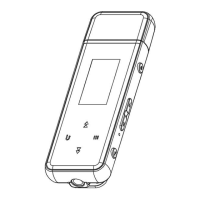
Short press for play/pause/confirm; long press to switch device on/off.
Short press to adjust volume; long press for continuous volume change.
Single press for recording; long press to access recording interface.
Buttons for selection, fast forward/backward, and accessing the submenu.
Back button returns to previous menu; USB port for charging and data.
Press and hold reset hole for 3 seconds to restore factory settings.
Long-press the power button to turn the device on or off.
Connect via USB cable; display shows charging icon. Notes on charging.
Charge with screen backlight off to prolong display life. Device may heat up.
Use 3.5mm headphones. Connect via USB port for data transfer.
Supports TF card up to 128GB (Q7S). Lyric files require LRC format.
Address non-responsive buttons or garbled screen characters by restarting.
Resolve noise, no sound, or volume control problems by checking connections/settings.
Troubleshoot file transfer failures by checking USB cable and PC connection.
Restore factory settings or contact support for unusual device behavior.
Understand factors affecting battery life like temperature and usage.
Avoid direct sunlight, extreme temperatures, humidity, dust, and harsh environments.
Not waterproof. Clean with soft cloth. Avoid dropping or applying excessive force.
Avoid high volume. Perform regular disk defragmentation for optimal performance.
Do not disconnect during operations. Store files correctly to prevent data loss.
Memory display may differ due to FAT partition and firmware. Backup before formatting.
Specifies models Q7/Q7S and Bluetooth version support for Q7S.
Details Micro SD card support, screen size, and resolution.
Includes weight, built-in memory, RAM, and product materials.
Approximate charging time and extended playback time under specific conditions.
Lists supported audio, E-book, recording formats, FM radio bands, and languages.
Details compatible computer systems and Micro SD card formatting.
Explains how lyrics are displayed synchronously with songs.
This document serves as the user's manual for the PECSU Q7/Q7S device, a compact and portable MP3 player. It provides essential information on the device's functions, operational procedures, maintenance guidelines, and troubleshooting tips to ensure optimal performance and user satisfaction.
The PECSU Q7/Q7S is primarily designed for audio playback, supporting various formats such as MP3, WMA, AAC, WAV, APE, and FLAC. It features a built-in recording function, allowing for one-key recording directly from the device. The Q7S model includes Bluetooth V5.0 connectivity, enabling wireless audio streaming, while the Q7 model does not support Bluetooth. Both models offer expandable storage via a Micro SD card slot, supporting up to 128GB, though the Q7 without Bluetooth does not support this expansion. The device also includes an FM radio function, covering both campus and common frequency bands. For visual feedback, it is equipped with a 0.96-inch TFT display.
The device's interface is straightforward, featuring dedicated buttons for power, volume control (up and down), navigation (last/fast-backward, next/fast-forward, back), and a home button to access the submenu. A wearable back clip is integrated for convenient portability. The USB port serves a dual purpose for both charging and data transmission, allowing users to transfer audio files and other data to and from a computer.
Power Management: To power on the device, a long press of the power button is required, which will illuminate the display. Similarly, a long press of the power button will turn off the device and the display.
Volume Control: Volume adjustment is intuitive. A short press of the volume up (+) or down (-) buttons will increase or decrease the volume, respectively. For continuous adjustment, a long press of these buttons is necessary.
Navigation and Selection: The device offers easy navigation through its menus and audio tracks. Short presses of the "Last / Fast-Backward" and "Next / Fast-Forward" buttons allow for left/up and right/down cursor selection in menus. During music playback, these buttons function as "last song" and "next song." A long press of these buttons enables quick switching between options or fast-forward/fast-back through a track. The "Back" button allows users to return to the upper menu.
Recording: The device supports one-key recording. A long press of the "Record" button will directly enter the recording interface, making it quick and convenient to capture audio.
Home Button Functionality: The "Home" button provides access to the device's submenu, offering additional settings and options.
Reset Function: In case of device malfunction, a reset function is available. By pressing and holding the reset hole with a pin for 3 seconds, the device will restart and restore factory settings.
Charging: The device is charged via its USB port. When connected to a power source, the display will show a charging icon and the current power level. It is recommended not to charge for more than 6 hours to prevent internal damage. After a full charge, an additional half-hour of charging is suggested to maximize playback time. The battery is a polymer lithium battery, and for optimal battery life, the first three charges should be for more than 2 hours each, and the battery should be fully depleted before recharging. If using a power adapter, ensure it is certified and meets standard requirements. When charging via a computer's USB port, the device can be charged whether it is on or off. It is advisable to turn off the screen backlight during charging to prolong display life. The device body may warm up during charging, which is normal.
Data Transmission: Files can be transferred by plugging the device's USB port directly into a computer.
TF Card Expansion: For models supporting TF card expansion (Q7S), users can insert a standard micro SD card up to 128GB to expand storage.
Lyric Synchronization: The device supports lyric display in LRC format. For lyrics to synchronize with the song, the lyric file must have the same name as the song file and be placed in the same directory.
Environmental Precautions: To ensure the longevity of the device, avoid direct sunlight exposure, extreme temperatures (hot or cold), dusty, humid, or harsh environments. Keep the product away from electromagnetic fields, smoke, and wet conditions.
Cleaning: The device is not waterproof. Do not clean it with water or chemical reagents. Instead, use a soft flannel cloth to clean the surface.
Handling: Do not disassemble or modify the product without authorization. For any issues, contact customer support. Avoid pressing the screen with excessive force, vibrating or hitting the product violently, dropping it, or placing heavy objects on it.
Hearing Protection: To protect hearing, avoid setting the volume too high. If ear discomfort is experienced, reduce the volume or stop using the device.
Disk Defragmentation: Regular "disk defragmentation" is recommended. The device can be connected to a PC via its USB port and formatted using the Windows operating system. Before formatting, ensure all important files are backed up, as formatting will erase existing data.
Connection Stability: When connecting the device to a computer for data transfer or formatting, ensure a stable connection. Disconnecting the product during formatting or file transfer may lead to data loss or program errors. When used as a mobile hard disk, follow correct file management procedures to prevent data loss. Avoid keeping the device connected to a computer's USB port for extended periods, as this can cause the device to heat up. Unplug it when not in use.
Virus Protection: If the device becomes infected with a virus from a computer or downloaded files, leading to damaged machine files or firmware, the user can upgrade the firmware on a virus-free computer and then format the device to resolve the issue.
Memory Display: Due to differences in capacity calculation and the space occupied by the product's system firmware and FAT partition table, the displayed memory capacity on the device may differ from what is shown when connected to a PC. This is normal and depends on the firmware version and Flash-type.
Troubleshooting:
 General
| Voice Recording | Yes |
|---|---|
| Storage Capacity | 8GB |
| Display | 1.8-inch TFT LCD |
| Battery | Built-in lithium battery |
| Supported Formats | MP3, WMA, WAV, APE, FLAC |
| FM Radio | Yes |

 To Next Page
