EasyManua.ls Logo

PEIKER CEE CEECOACH PLUS - User Manual

PEIKER CEE CEECOACH PLUS
41 pages
Print Icon
To Next Page IconTo Next Page
Loading...
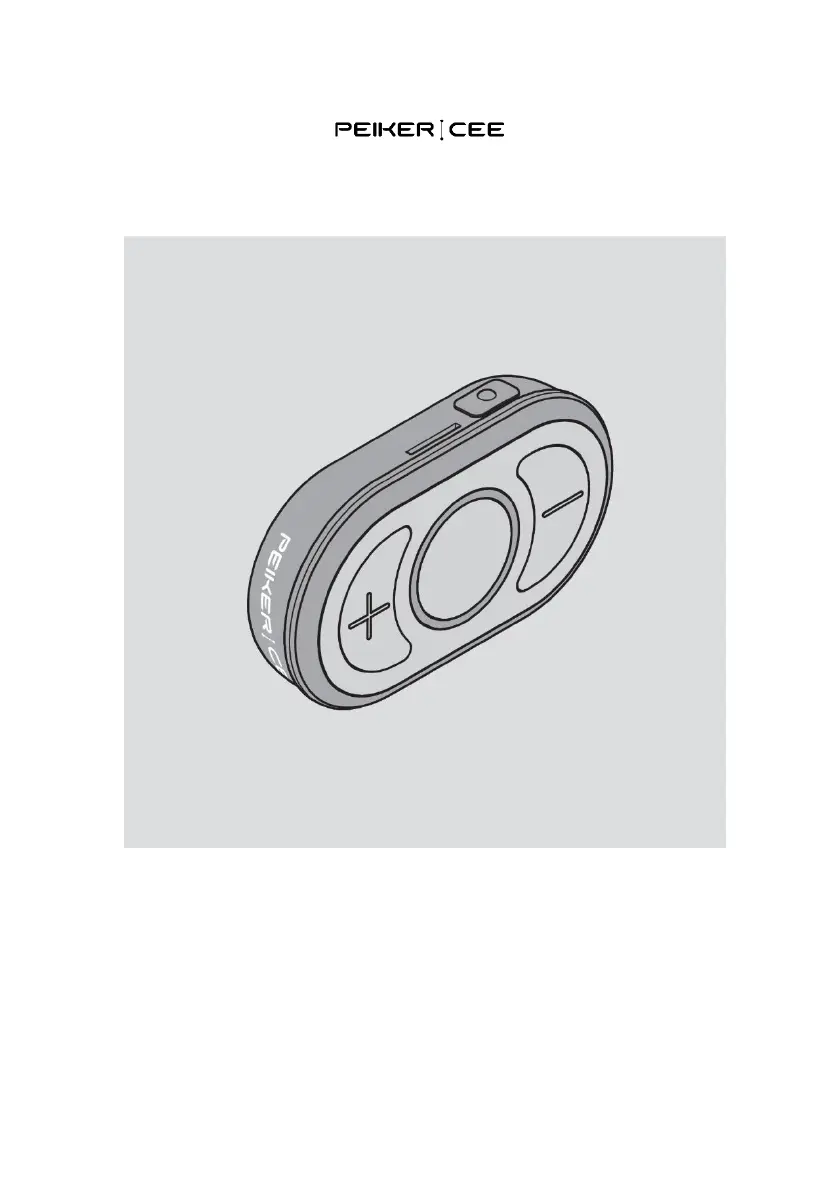
Communication device
CEECOACH
PLUS
Instruction manual
English translation of the original instruction manual
10/2020

Other manuals for PEIKER CEE CEECOACH PLUS

Questions and Answers

  • H
    hkleinAug 5, 2025
    Why communication does not work on my PEIKER CEE CEECOACH PLUS?
    • E
      Erin YangAug 5, 2025
      If communication isn't working, it might be because the microphone is switched off. Ensure that the microphone is switched on. Alternatively, participants may not be in the transmission and reception area. Make sure that you are in the transmit and receive area.
  • K
    Katie SmithAug 12, 2025
    How to fix pairing issues with a Bluetooth headset on my PEIKER CEE Conference System?
    • E
      Ernest HernandezAug 12, 2025
      If your device cannot be paired with a Bluetooth® headset, it could be due to several reasons. First, ensure that the Bluetooth® headset allows pairing. Second, verify that the Bluetooth® headset is charged. If these steps don't resolve the issue, repeat the procedure in section "Connecting the device to a Bluetooth® headset" starting on page15.
  • T
    Taylor OwensAug 21, 2025
    Why does communication not work on my PEIKER CEE CEECOACH PLUS Conference System?
    • R
      Rhonda GarciaAug 21, 2025
      Communication issues with your PEIKER CEE Conference System may arise if the microphone is switched off. Ensure that the microphone is switched on. Another potential cause is being outside of the send and receive mode reception area. Verify that you are within the transmitting and receiving area.
  • J
    John PerryAug 27, 2025
    What to do if my PEIKER CEE CEECOACH PLUS Conference System device cannot be paired with the Bluetooth headset?
    • B
      Brittney MackAug 27, 2025
      If your PEIKER CEE Conference System device is unable to pair with the Bluetooth headset, there might be a couple of reasons. First, ensure that the Bluetooth headset allows pairing. Second, check if the Bluetooth headset is adequately charged; if not, charge it and repeat the pairing process.

Summary

Manual Information

Keep manual available

This manual is part of the device; ensure it is always accessible.

Online available information

Information on new features and updates can be found on the website and social media.

Design features in the text

Explains text formatting like normal text, enumeration, action steps, and tips.

Security and Safety

Intended use

Device used for group communication in sports and leisure sector with up to 16 participants.

Basic Safety Instructions

General safety guidelines for device usage, covering explosions and suffocation.

Avoid damage to property and malfunctions

Precautions to prevent device damage and operational issues from incorrect use or cleaning.

Warning notice design

Explains symbols and formatting used for warnings like WARNING and CAUTION.

Material damage indication design

Explains symbols and formatting for material damage indications like ATTENTION.

Device Description

Scope of delivery

Lists all items included in the product package, with item numbers and designations.

Task and function

Explains the primary purpose and capabilities of the device for group communication.

Control Elements

Identifies and labels the physical buttons and indicators on the device with their functions.

Light ring indications

Explains the meaning of different light ring colors and patterns for battery and connection status.

Getting Started

Unpacking and checking delivery

Steps to unpack the device and verify all components are present and undamaged.

Putting into operation

Guide to prepare the device for its first use, including initial setup steps.

Connecting to Bluetooth headset

Instructions for pairing the device with a Bluetooth-compatible headset.

Device Usage

Wearing the device

Methods for attaching the device securely to a belt or upper arm.

Switching device on;off

Procedure to power the device on and off using the main button.

Microphone mute function

How to switch the microphone on and off, indicated by voice and light ring.

Adjusting volume

Steps to increase or decrease the audio volume using the plus/minus keys.

Creating a group

Process to connect multiple devices to form a communication group.

Device Management

Software updates

Guide for downloading and installing software updates for the device.

Charging the device

Instructions on how to connect the device to a power source for charging.

Resetting to basic settings

Procedure to restore the device to its factory default settings.

Maintenance and Support

Troubleshooting common issues

Solutions for problems like connection failures or communication issues.

Cleaning instructions

Guidelines for safely cleaning the device using mild detergents.

Storage and transport

Recommendations for storing and transporting the device to maintain its condition.

Disposal guidelines

Environmentally friendly methods for disposing of the device at its end of service life.

Technical and Legal Information

Technical data

Specifications of the device including participants, connections, power, and dimensions.

Guarantee statements

Details of the manufacturer's warranty period and conditions.

EU Declaration of Conformity

Statement confirming the device meets EU regulations and directives.

FCC regulatory notes

Information regarding compliance with FCC rules for digital devices.

RF radiation exposure statement

Compliance statement regarding radio frequency exposure limits.

Canada IC notices

Information regarding compliance with Industry Canada regulations for radio devices.

PEIKER CEE CEECOACH PLUS Specifications

General IconGeneral
BrandPEIKER CEE
ModelCEECOACH PLUS
CategoryConference System
LanguageEnglish