BATTERY USAGE GUIDELINES
The Smart-Ex® 03 phone comes with a removable battery. For any battery-related queries contact Pepperl+Fuchs customer
support.
Use only Pepperl+Fuchs certified charger and USB cable to charge your Smart-Ex® 03.
Charging the Battery
The battery delivered with your smartphone is not fully charged. We recommend to fully charge the battery before using the
smartphone for the first time. The full capacity of the battery is reached after 3 to 4 complete charge/discharge cycles.
There is a risk of explosion while charging if the battery has been replaced by an incorrect type.
Dispose of used batteries according to the instructions
1. Insert the charger plug into a power outlet.
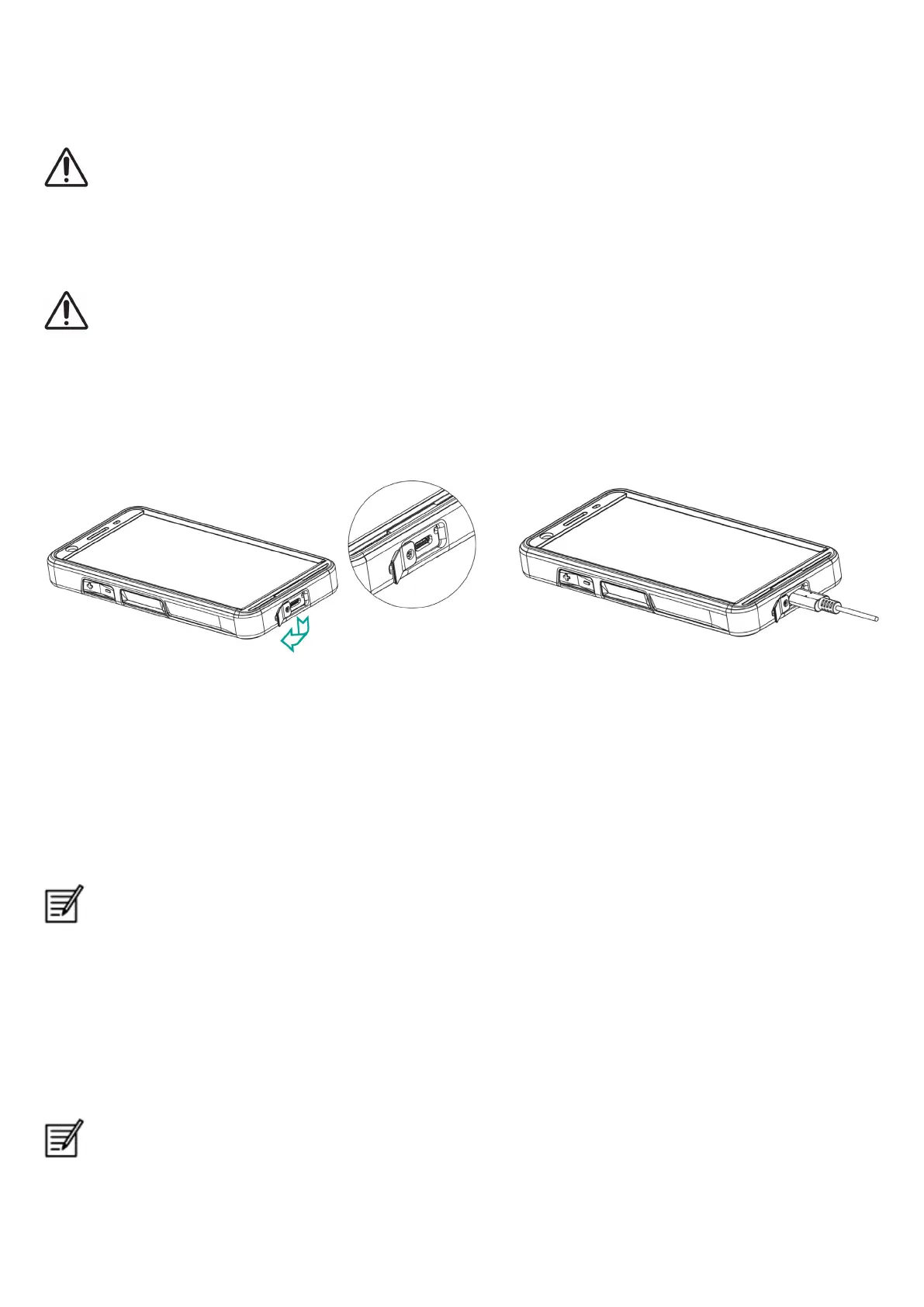
2. Connect to Phone: The charging port is located at the lower end of the phone. Insert the USB (C type) connector to the
charging port. Open the USB cover and rotate it 180° to fix it in place. After that the USB (C type) connector can easier be con-
nected.
3. Charging Animation/Icon:
If the battery is being charged when the phone is switched off, a battery charging animation with charged percentage is
displayed.
If the battery is being charged while the phone is switched on, the battery charge icon on the home screen top-right corner
shows animation indicating that the battery is being charged. After the phone is fully charged the charging animation stops
and you can disconnect the charger from the phone.
The LED indicator at the top of the phone, shows RED when the charging is in progress and changes to GREEN once the
charging is complete.
Charging your Smart-Ex® 03 with a different cable/charger and/or in a hazardous environment will compromise the
intrinsically safe nature of the device.
Verifying and Optimizing Battery Usage
To check the battery usage status, select Settings -> Battery. The current battery charge status and the charge level details are
displayed.
The discharge graph (visible upon tapping the Battery usage option) shows the battery level over time since you last charged the
device. The list at the bottom of the screen shows the breakdown of battery usage for individual applications and services. Touch
any listed item for more details. The details screen for some applications includes options that allow you to adjust settings affect-
ing power usage, or stop the app completely.
If you stop some system apps or services such as Google service, your device may not work correctly.
18


 To Next Page
 Loading...