Tips to extend the battery life
Follow these tips to extend your phone’s battery life.
■
If you are using Wi-Fi, Bluetooth or GPS, use the Quick Settings or Phone Settings to turn it off.
■
Limit usage of location-based application.
■
Set screen brightness to Auto and set a shorter sleep timeout (1 minute). The display settings are located in Settings -> Dis-
play.
LED INDICATORS
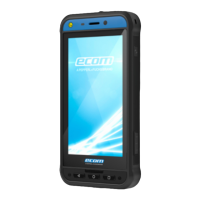
At the top end of the phone an LED indicator is placed (next to the red button). This LED indicator flashes with three different col-
ors, namely red, blue and green.
■
Red color: The Red color blinking LED light indicates that the battery level is low (less than 15%) and the phone needs to be
charged. A constant red colored indicates that charging is in progress.
■
Blue color: Blue color blinking LED light indicates missed events, such as a missed call, new message or a calendar notifica-
tion.
■
Green color: Green color indicates that the battery has been charged completely and the charger should be unplugged from
the power source.
CALL SCREEN FUNCTIONS AND INDICATORS
You can modify the call settings as per your choice.
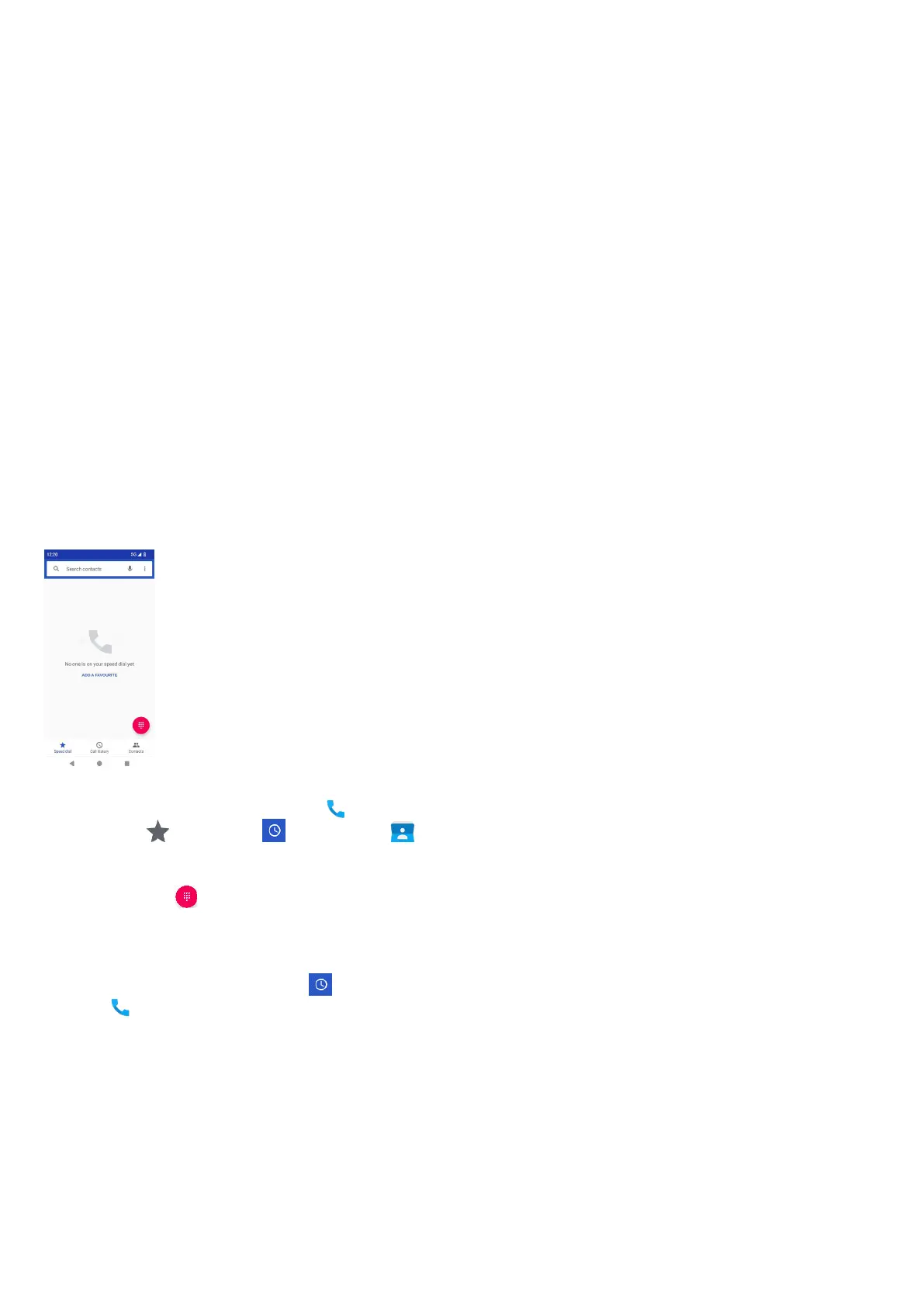
From Home or All Apps screen, tap Phone ( ). The Phone screen displays a list of calls made recently. The action panel displays
the Speed dial ( ), Call History ( ) and Contacts ( ) icons.
The Search bar at the top of the screen allows you to search for a contact. Enter the first few letters/numbers of the contact name/
phone number to be searched. All the contacts containing the search text are displayed.
Tap on the dial pad ( ) to call a number directly.
To dial a number use one of the following options:
■
Speed dial: Tap the specific contact/number from the frequently called numbers to make a call.
■
Call history: Tap the call history icon ( ) to view the call history. To make a call, tap the contact/number and tap the phone
icon ( ).
■
Contacts: Tap a specific contact and tap the phone number to dial a call.
19


 To Next Page
 Loading...