2 | P a g e
Support Line: 0714 224 098/ 020 232 4766
Prepared by: Pergamon limited
CONNECTING TIMS MACHINE TO WIFI NETWORK
a. CONNECTING TO MOBILE/PHONE HOTSPOT
• Go to mobile Hotspot setting and note down the Wi-Fi name
and password (change the name to a simple name e.g., Wi-Fi
name: Technical and Password:123456789).
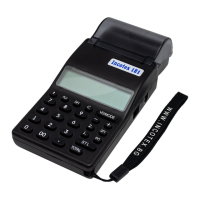
• Go to TIMS machine (Mercury 181/130W/133)
• Power on and go to mode 1/Registration mode
• Press button and Wait for the device to show F,
Started.
• Go to mobile phone or Laptop.
• Go to Wi-Fi list and connect to Wi-Fi broadcasted as
(KRAMW0090009234)
• Go to your browser e.g., Chrome,
Mozilla, or Firefox
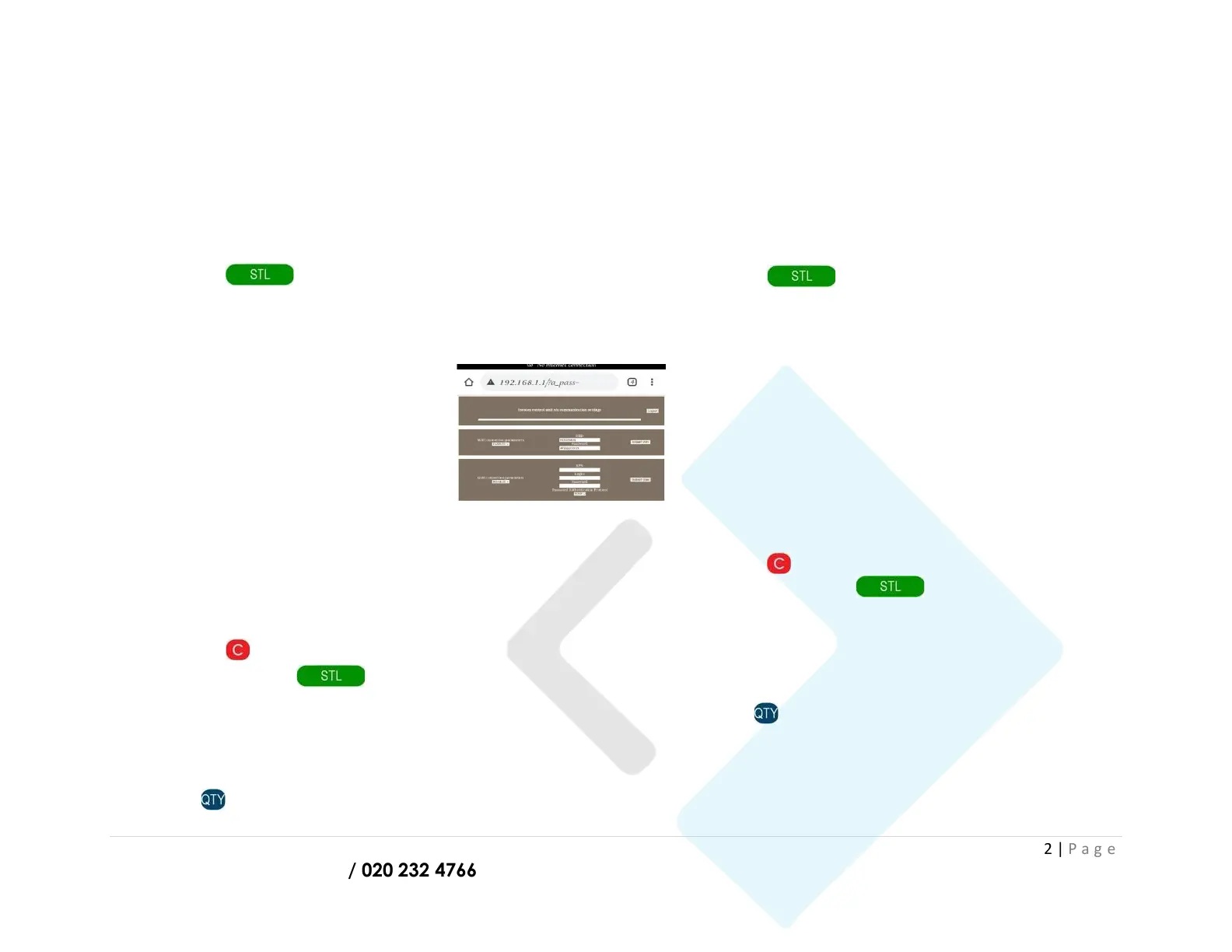
• Enter default IP address 192.168.1.1
on your Browser and search
• Enable Wi-Fi connection
parameters
• Key in the SSID (WIFI name) and the
password for the Wi-Fi noted down in the first step.
• Submit WIFI and log out
• Go to your Hotspot setting and turn on Hotspot and turn on
mobile data.
• Go back to your TIMS device.
• Press button on the machine.
• Press 1 then Button to make a connection
test.
o When you get connection test: Fault! Recheck
you Wi-Fi name and password
o When you get connection test: ok (well done Wi-
Fi set up successfully done)
• Press to print a status report.
b. CONNECTING TO WIFI FROM ROUTER
• Get Wi-Fi name and Password from your IT Technician
note down the Wi-Fi name and password (e.g., Wi-Fi name:
Technical and Password:123456789).
• Go to TIMS machine (Mercury 181/130W/133)
• Power on and go to mode 1/Registration mode
• Press button and Wait for the device to show
F, Started.
• Go to mobile phone or Laptop.
• Go to Wi-Fi list and connect to Wi-Fi broadcasted as
(KRAMW0090009234)
• Go to your browser e.g., Chrome, Mozilla, or Firefox
• Enter default IP address 192.168.1.1 on your Browser and
search
• Enable Wi-Fi connection parameters
• Key in the SSID (WIFI name) and the password for the
Wi-Fi noted down in the first step.
• Submit WIFI and log out
• Go back to your TIMS device.
• Press button on the machine.
• Press 1 then Button to make a
connection test.
o If you get connection test: Fault! Recheck your Wi-
Fi name and password repeat the setup process.
o If you get connection test: ok (well-done Wi-Fi set
up successfully done).
• Press to print a status report.


 To Next Page
 Loading...