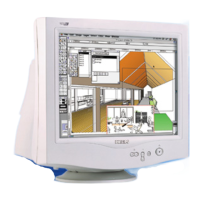
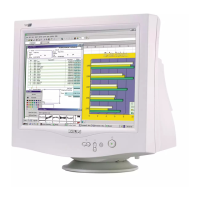
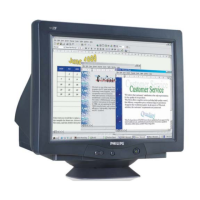
upgrades automatically to LightFrame™ 2. But remember: Your monitor must have the LightFrame™
feature to upgrade to LightFrame™ 2.
Q: Can I install LightFrame™ 2 over an older version? Must previous versions be uninstalled?
A: The LightFrame™ 2 installation program scans your system, removes old versions and upgrades
automatically to LightFrame™ 2. Heres how: If you downloaded the upgrade from the Philips Web site,
remember the directory into which you saved the upgrade. When you click on the Setup icon, LightFrame™
2 scans your system, removes old versions and upgrades automatically to LightFrame™ 2. To upgrade from
a CD-ROM disk, click on the Setup icon located in the \PC\LightFrame™ folder, select Install LightFrame™ 2
and follow on screen prompts.
Q: What will happen when my system is no longer connected to a LightFrame™-enabled monitor
for example, when I take my notebook on the road?
A: Philips exclusive LightFrame™ feature requires the combined operation of hardware that resides in your
monitor and software installed on your system. It only works when a monitor with built-in hardware receives
commands from system software. Without both the LightFrame™ hardware-equipped monitor and system
software, LightFrame™ does not function.
Q: Whats new in LightFrame™ 2?
A: LightFrame™ 2 is full of neat new features: Here are just a few:
- Automatic detection of photos and videos on Web pages.
- Full screen highlighting through a Windows keyboard shortcut.
- Improved compatibility with multimedia applications.
To experience these and other new features, start using LightFrame™ 2 today!
LightFrame™2 applications and operating systems
Q: Can I use LightFrame™2 in DOS mode?
A: Yes, but in DOS, LightFrame™ 2 highlights the entire screen and must be manually switched on from the
OSD menu. Heres how: Open your monitors OSD controls. Go to LIGHTFRAME in the EXTRA
CONTROLS menu. Press the left/right button to switch LightFrame™ on or off.
Q: Can I use LightFrame™ 2 with my favorite game?
A: Absolutely. LightFrame™ can be used with any Windows game. When a DOS game runs in a DOS
window, LightFrame™ must be manually switched on from the OSD menu. Heres how: Open your
monitors OSD controls. Go to LIGHTFRAME in the EXTRA CONTROLS menu. Press the left/right button
to switch LightFrame™ on or off.
Q: Does LightFrame™ 2 work on Mac computers?
A: Yes. Using drives that come with your monitor, LightFrame™ operates under MacOS8 or MacOS9. Due
to hardware limitations, LightFrame™ is activated manually on Mac computers and functions are limited.
Q: Can I use LightFrame™ on a computer running Unix, Linux or other operating system?
A: Presently no application software exists for Unix or Linux. Unix is predominately used for high-end
professional applications. Because their users seldom view photos or video, our high-end large screen
products do not support LightFrame™.
file:///D|/rita/LF2/LF2/LFa1/multi_manual/english/107B3/PRODUCT/PRODUCT.HTM (4 of 12) [8/29/2001 2:47:29 PM]



 To Next Page