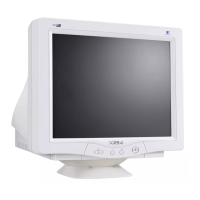
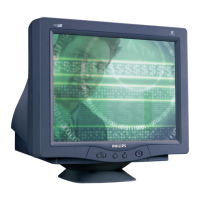
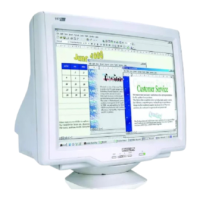
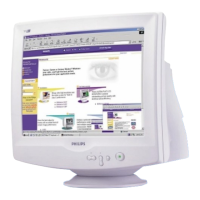
monitor.
Q:Can I activate LightFrame™ on my entire screen?
A:Yes you can. And with LightFrame™ 3 this becomes even easier. There are three ways to do
this: 1) click the full screen button in the LightFrame control bar with your mouse. 2) Press the
"windows" hotkey on your keyboard and press "L". 3) Via the OSD menu, scroll to Extra controls,
press "OK", then LightFrame On.
Q:When I apply LightFrame™ to a text document I get blurry characters, what is wrong?
A:Nothing is wrong. The effect which you see is due to the sharpness enhancement that
LightFrame™ is doing on your monitor. This sharpness improves a photo or video significantly
however on black text on a light background the effect is less favorable. Please keep in mind that
LightFrame™ is developed to enhance your photos and videos and not really for text or synthetic
pictures.
You can decrease this effect by lowering the sharpness setting in the LightFrame™ 3 control panel.
Q: How can I tell if my monitor comes with LightFrame™ 3?
A: All Philips LightFrame™ 3 monitors display this logo on their front bezel:
Q: How do I use the LightFrame™ 3 control bar that appears at the top my screen?
file:///D|/EDFU/crt_17_5/edoc/ENGLISH/107P/PRODUCT/PRODUCT.HTM (6 of 12)2005-04-07 ¤U¤È 03:58:31


 To Next Page