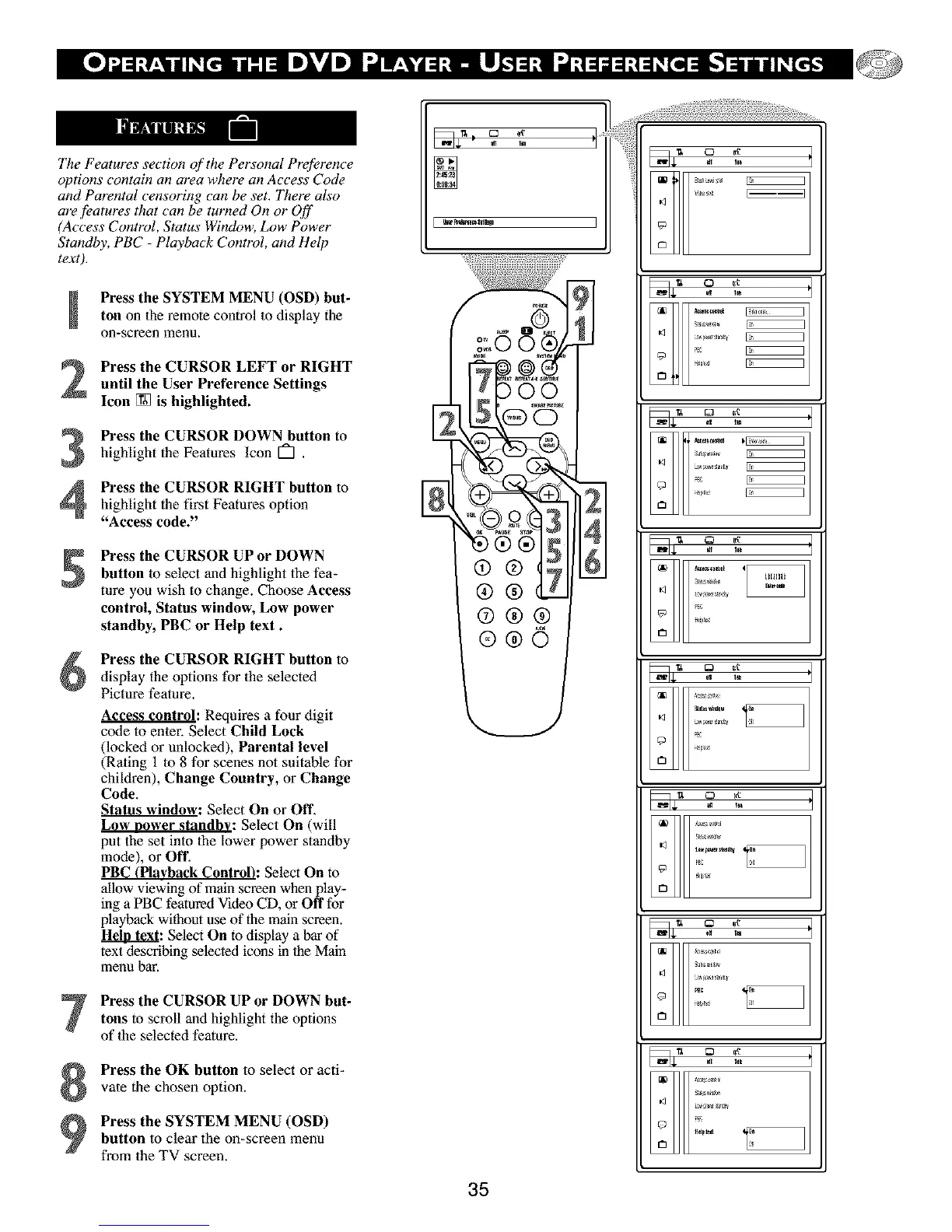
The Features section of the Personal Preference
options contain an area where an Access (_de
and Parental censoring can be set. "ITwre also
are .features that can be turned On or Off
(Access Control, Status Window, Low Power
Standby, PBC - Playback Control, and Help
text).
Press the SYSTEM MENU (OSD) but-ton on the remote controlto display the
on-screen menu,
Press the CURSOR LEFT or RIGHTuntil the User Preference Settings
Icon [] is highlighted.
Press the CURSOR DOWN button tohighlight the Features Icon [_1 .
Press the CURSOR RIGHT button tohighlight the first Features option
"Access code."
Press the CURSOR UP or DOWNbutton to select and highlight the fea-
ture you wish to change. Choose Access
control, Status window, Low power
standby, PBC or Help text.
Press the CURSOR RIGHT button todisplay the options for the selected
Picture feature.
Access control: Requires a four digit
code to enwr. Select Child Lock
(locked or unlocked), Parental level
(Rating 1 lo 8 for scenes not suitable for
children), Change Country, or Change
Code.
Status window: Select On or Off.
Low nower standby: Select On (will
put the set into 1he lower power standby
mode), or Off.
PBC lPlavhack Controlk Select On to
allow viewing of main screen when play-
ing a PBC featured Video CD, or Off for
playback without use of the main screen.
Heln text: Select On to display a bar of
text describing selected icons in the Main
menu bar.
Press the CURSOR UP or DOWN but-
tons to scroll and highlight the options
of the selected feature.
Press the OK button to select or acti-
vate the chosen option.
Press the SYSTEM MENU (OSD)
button to clear the on-screen menu
from the TV screen.
° ° I
35
Qtl 1_
3N3_ _
_E
te_;e
_m
_N
Sal _s_J_
N_


 To Next Page