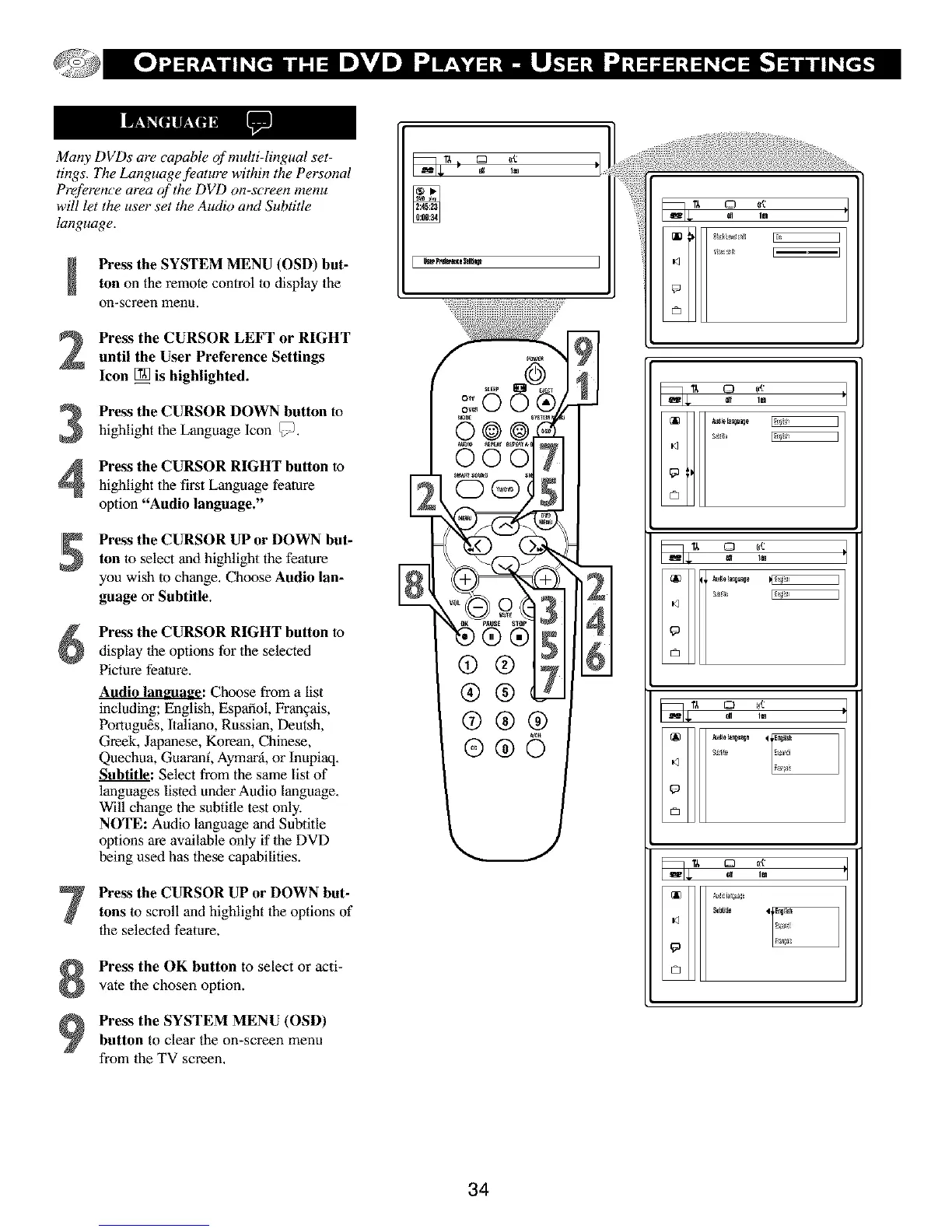
Many DVDs are capable of multi-lingual set-
tings. The Lunguage f_ature within the Personal
Preference area of the DVD on-screen menu
will let the user set the Audio and Subtitle
language.
Press the SYSTEM MENU (OSD) but-
ton on the remote control to display the
on-screen menu,
Press the CURSOR LEFT or RIGHT
until the User Preference Settings
Icon [_ is highlighted.
3
4
Pre_ the CURSOR DOWN button to
highlight the Language Icon _.
Pre_ the CURSOR RIGHT button to
highlight the first Language fealure
option "Audio language."
Press the CURSOR UP or DOWN but-
ton to select and highlight the feature
you wish to change. Choose Audio lan-
guage or Subtitle.
Press the CURSOR RIGHT button to
display the options for the selected
Picture feature.
Audio language: Choose from a list
including; English, Espafiol, Fran_ais,
Portugu_s, llaliano, Russian, Deutsh,
Greek, Japanese, Korean, Chinese,
Quechua, Guarani, Aymar_i, or Inupiaq.
_: Select from the same list of
languages listed under Audio language.
Will change the subtitle test only.
NOTE: Audio language and Subtitle
options are available only if the DVD
being used has these capabilities.
Press the CURSOR UP or DOWN but-
tons to scroll and highlight the options of
the selected feature.
Press the OK button to select or acti-
vate the chosen option.
Press the SYSTEM MENU (OSD)
button to clear the on-screen menu
from the TV screen.
c_
©
34


 To Next Page