Quick Use and Hookup Guide
Import_tt Notice/Warning ..................... 1
Basic T_r Operation .......................... 1
Remote Battery Installation ................... 1
Remote Control Button Descriptions ............ 1
Hooking Up t.he TV
Basic Cable T_r Connections .................. 2
Basic Cable Box C*mnec_ons ................. 2
Basic Antenna T_ r Connecti(ms ................ 2
Usirlg the AVI Inputs ........................ 3
Usirlg the AV2 51puts ........................ 3
Usirlg the C*m_ponent Video 51puts ............. 3
Using the S-Video Inputs ..................... 4
Using the Monitor (Audio_;ideo) Outputs ....... 4
Using the Side AudioArldeo Inputs ............. 4
IMPORTANT
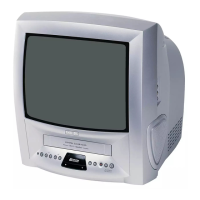
NOTE: This owner's manual h used with sever',d different telavi_on
medals, Not all features (and dra_) _'ussed in thi_ manual will
necvlsarily match thnsefound wi_ your W.lesi_on set, 'l_tis i_normal
and does not require that you contact your dealer or request serx_t_
L_[_] The region code for this set is ALL or 1.
DVDs must be labeledfbr ALL regiocLsorfor
Region 1in ordar to play an this TV]DVD
Player, You can not play Discs that arc labelcAfor other regions. Look
tbr the s3rn_ls above o_tyo_ DVDs, If _ region ss.nbuls do not
appear on your DVDs, you csm not play the DVD in this'I"V,13"_
Player,
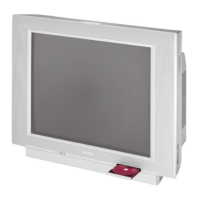
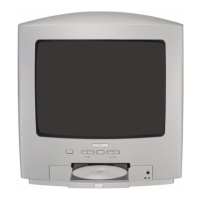
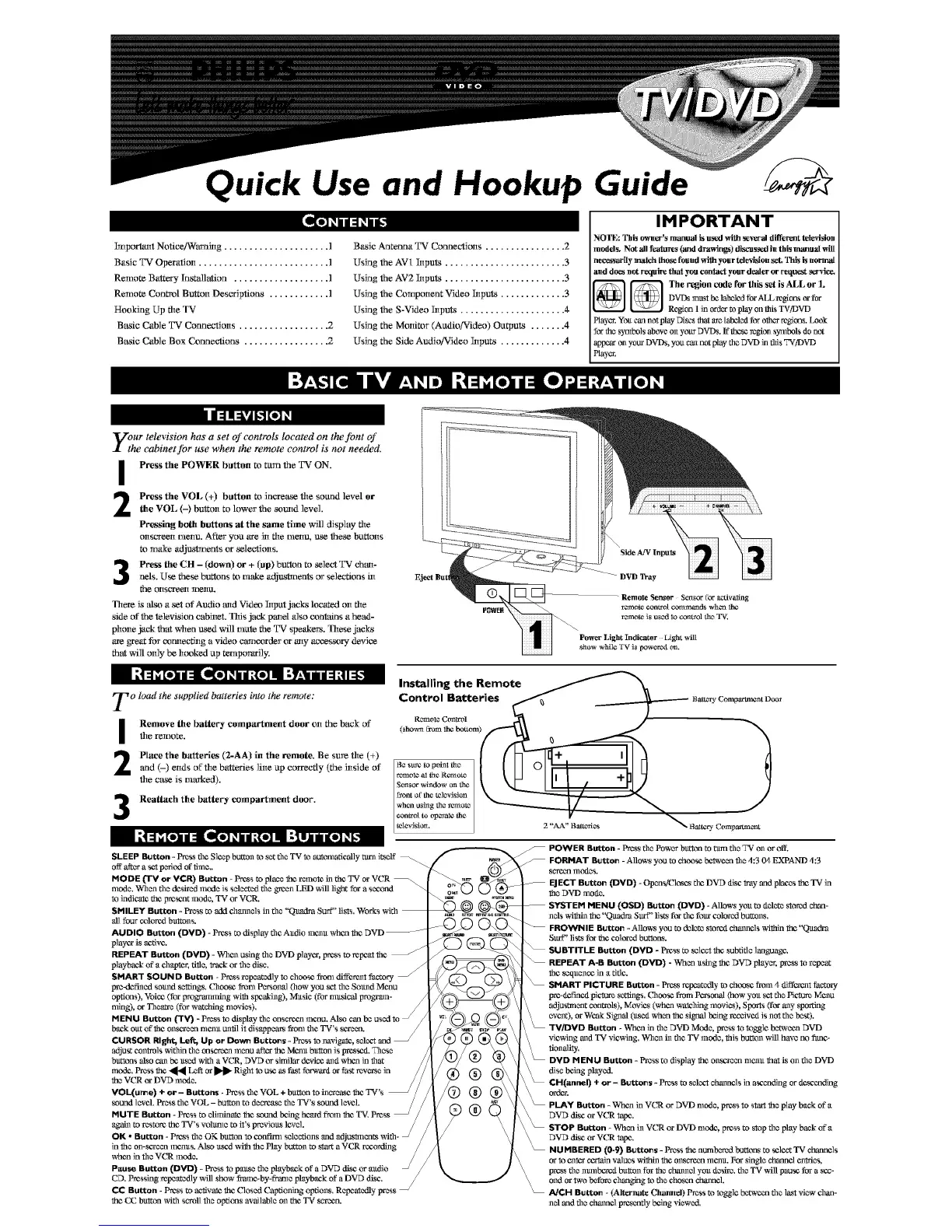
ytur television has a set _" controls located on the font _"
he cabinet for use when the remote control is not needed,
I
2
3
Press rite POWER button m turn the T_ r ON.
Press rise VOL (+) button m incret_se the sound level or
the VOL (-) button to lower the somld level.
Pressing both buttons at tise same time will display fire
oltscTeelt meltu. After you are itt fire meltu, use these bttL_llts
to make adjustmems or 8ele/utioils.
Press the CH - (down) or + (,up) bu_m m select TV chml-
nels. U_ these burros m mtdce adjustments or selections in
the OilSGTeeil llleilU.
There is tdso a set of Audio mtd Videe Irlput jacks locat_ (lit file
dide (llt`the television cabinet. This jtmk pmtd also _xmtains a be_!-
phone jack that when used will mute the TV spe'_em. These jacks
are g_eat for a_mtecfing a video camcorder or arty ac_saay devioe
that will on]y be h(mked up temporarily.
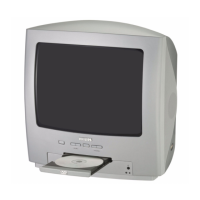
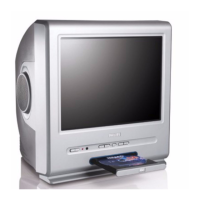
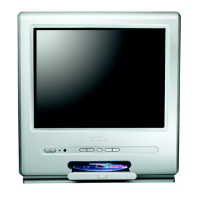
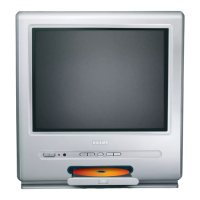
DVD Tray
To load the supplied batteries into the remote:
I
2
Remove the battery compartment door on the back of
rite remote.
Place rite batteries (2-AA) in rite remote. Be sure rite (+)
and (-) ends of file batteries line up correctly (the inside of
fire cruse is marked).
Reattach the battery compartment d_or.
Installing the Remote
Control Batteries _ X_ __ -- Battc_yCompartrncntDoo_
(shm_ from the bottom
se_or_,to_,_th_ \ M..___ II I / r[/
cont_otto opetal_the I€
televisi_xa. 2 "AA" B att_rrle_ X Ballot- Complaint
SLEEP Button - Press the Sleep button to set the TV to otrtomotically _xrn itself
off aff.c'ra set peried of time..
MODE ('TM or VCR) Button - Press to place _e r_note in the TV or VCR
n]edc. When the desired mode is selected the green LED will light for a see,and
to indica_ the preset mode,TV orVCR.
SMILEY Button - Press toaddd]aanels in the "Quadra Surf" lists. Works with
all four colored buttons.
AUDIO Button (DVD) - Pm*s todisplay the A_J_liomc_m.twhan the DVD
playur is active.
REPEAT Button (DVD) - W]rea_using the DVD playur, press to repeatthe
playback of"a chupter, title, track or the disc,
SMART SOUND Button - Press repeatedly to choo_ fl'_n] differc_ factor
pre_k_fined sound s_eltings,Clre_'_ from P_onal (how you set the Sound Manu
options), Voice, (for i_3gr'amTifing with SlX_aki_g),Mu_c (for musical program-
ruing), or Theatre (forwatching movies).
MENU Button ('I'V) - Press to dispfa)
b_,k out of'the onseman nre_mtuntil it disappears fl'_n] the TV's scman.
CURSOR Right, Left, Up or Down Buttons - Press to navigata,
adjust controls within the onscrc_n menu after the Menu button is prosseA.Those
buttons also can bc used with a VCR, DVD or similar device and when in that
mode. Press the _ Left or _ Righ_to use as fast fbrwas_or fastreverse in
the VCR or DVD mode.
VOL(ume) ÷ or- Buttons - Press the VOL + lat_m to increa,_ the TV's
sound level• Press the VOL- bult_n to decrease the TV's sound level• /
MUTE Button - Press toali_ifina_ the sound being be_l from the T_, Press
again torestore the TV's volma]e toit's previous level.
in the on-scman magnus.Ak,_ _,_zl with the Play button to s_r_ a VCR reczrMing
when in the V(5_ mode.
Pause Button (DVD) - Press to pause the pfayb_,k of a DVD dL_ or audio
CD. Pressing re;peatedly will show fl'amc, by-frame pfayb_,k of a DVD di,,_,.
CC Button - Press to acfivam the Closed Captioning options. Reix_atedly press _
the CC bu_on With scroll the options available on the TV scr_n.
©
®
\
\
POWER Button - Pros the Power button to turn the TV on or off.
FORMAT Button - Allows you to chonsc butwcen the 4:3 0,1EXPAND 4:3
screen mo_cs.
ECT Button (DVD) - Opanw'Clnsns the D_,q) disc tray and pisces the TV in
the DVD mode.
U (OSD) Button (DVD) - Allows you to d_lcte s'tered chan-
nels wiNn the "QuadraSusP' lists for the funs colored buttons.
Button - Allo,_ you to delete storedchannels within the "Qandra
Surf" lists for the colored buttons.
SUBTITLE Button (DVD - Press tos_elc*'tthe subtitle ]anb'_lage.
REPEAT A-B Button (DVD) - When _t_g the DVD pfayer, pressto repeat
_the s_equnncein a title.
SMART PICTURE Button - Prass _y to choascfrom 4 diffoem factory
prc-definad picture scrags, Choose floro Pcrsanal (how you sc_the Picture Menu
event), or Weak Signal (used. when the sisal being reccivad is not the best).
Button - When in the DVD Mode, press to toggle betw_n DVD
• When in the TV mode, this button will have no time-
- Press to display the onscrean meam that is on the DVD
disc being played.
CH(annal) + or - Buttons - Press to select cbunncls in oseanding or dnsccndkig
oi_tcr.
, pre*s to start the play bank of a
_ DVD dL_ or V{5_ tape,
STOP Button -When i_ VCR or DVD n]c_, press to s_op the play back of a
DVD dLmor VCR tape.
IMBERED (0-9) Buttons - Pressthe num_md buttons to select TV channels
or to enter certain values within the onscre_n metal. For single channel entries,
press the nmnbcrcA button for the channel you desire, the TV will pause for o scc-
\ end or two before changing to the chosen cbunncl.
\
NCH Button - (Alternate Charred) Press m Iogglc between the last view chan-
nat andthe cbunncl prasantly buing viewed,


 To Next Page
 Loading...