EasyManua.ls Logo

Philips 222EL2SB/00 - User Manual

Philips 222EL2SB/00
92 pages
Print Icon
To Next Page IconTo Next Page
Loading...
Description Page
Important Safety Notice--------------------------------------2
Technical Data--------------------------------------------- 3~6
Installation-------------------------------------------------------7
On Screen Display---------------------------------------10~11
Lock/unlock, Aging,Factory mode------------------------12
---------------------------------13
Mechanical Instructions ------------------------------14~15
Color adjustment --------------------------------------------16
Electrical instruction ----------------------------------19~20
DDC Instructions & Serial Number -----------------23~29
DDC DA TA -----------------------------------------------30~31
------------------------32~35
Philips Pixel Defect Policy
F AQs (Frequently Asked Questions)--------------17~18
Firmware Upgrade for CPU-
Horizontal frequencies
30-83kHz
T ABLE OF CONTENTS
Description Page
-----------------------------------36
Wiring Diagram----------------------------------------------37
Block Diagram------------------------------------------------38
Power &LED
Control Diagram & C.B.A. -----------------------------53~54
Failure Mode Of Panel -
SAFETY NOTICE
Chassis:
21.5
REFER
T
O BACK COVER FOR
IMPOR
T
ANT SAFETY GUIDELINES
ANY PERSON
A TTEMPTING T
O
SER VICE THIS CHASSIS
MUST FAMILIARIZE
HIMSELF
WITH THE
CHASSIS
AND BE AWARE OF THE NECESSAR Y SAFETY PRECAUTIONS
TO BE USED WHEN
SER VICING ELECTRONIC
EQUIPMENT CONTAINING
HIGH VOL
T
AGES.
CAUTION:
USE
A SEPARATE
ISOLATION TRANSFORMER FOR THIS UNIT WHEN SERVICING.
Published by Philips Consumer Lifestyle Copyright reserved Subject to modification JMay 24 2010
Scaler Diagram & C.B.A. ------------------------------39~45
GB
MERIDIAN 2
Troubleshooting---------------------------------------------8~9
Service Tool-----------------------------------------------21~22
222EL2SB/00
222EL2SB/10 (EU)
222EL2SB/62
222EL2SB/69
222EL2SB/75
222EL2SB/96
222EL2SB/93
LCD Colour Monitor
inch FHD TFT
Exploded View ----------------------------------------------85
Spare/ arts List------------------------86
Recommended P
PCBA photos--------------------------------------------------87
Repair tips-----------------------------------------------88~89
Repair Flow chart--------------------------------------90~91
Safety Test Requirments-----------------------------------92
Diagram & C.B.A. ---------------------46~52
General product specification------------------------55~84
222EL2SB/00 (AP)
222EL2SB/67
222EL2SB/01
222EL2SB/70

Table of Contents

Question and Answer IconNeed help?

Do you have a question about the Philips 222EL2SB/00 and is the answer not in the manual?

Overview

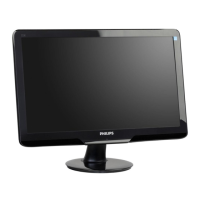
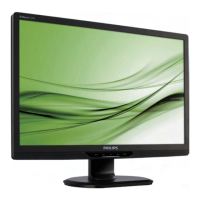
This document provides a service manual for the Philips 21.5-inch FHD TFT LCD Colour Monitor, chassis MERIDIAN 2, covering models 222EL2SB/00, 222EL2SB/10 (EU), 222EL2SB/62, 222EL2SB/69, 222EL2SB/75, 222EL2SB/96, 222EL2SB/93, 222EL2SB/00 (AP), 222EL2SB/67, 222EL2SB/01, and 222EL2SB/70.

Function Description

The Philips 222EL2 LCD monitor is a multi-scan color TFT LCD monitor designed for optimal performance at its native resolution of 1920x1080@60Hz. It supports both analog (D-SUB) and digital (DVI-D) inputs, making it compatible with standard PCs, Macs, and workstations. The monitor incorporates various features to enhance user experience and comply with environmental and safety standards.

Key functions include:

  • D-SUB analog R/G/B separate inputs with H/V sync separated, Composite (H+V) TTL level, and SOG sync.
  • DVI digital Panel Link TMDS inputs.
  • Auto Picture Adjustment for both VGA and DVI modes.
  • 12 factory preset modes and 10 user modes, with 46 preset modes for VGA and 46 for DVI.
  • User-friendly On-Screen Display (OSD) for mode identification and adjustments.
  • Power management capabilities compliant with Microsoft On Now and EPA requirements.
  • SmartControl & Smart Management for enhanced control.
  • SmartContrast for dynamic backlight control based on frame brightness.
  • SmartImage Lite with three modes (Office, Standard, Internet, Game) for optimized viewing.
  • TrueVision (formerly PerfectTunell or FGA, Factory Gamma Alignment) for accurate color.
  • Philips LOGO displayed during power-on.
  • HDCP support for protected content.
  • Kensington Lock for security.

Important Technical Specifications

Display

  • Panel Type: AUO M215HW01 V6 (or CMO M215H3-LA1 for some models)
  • Resolution: 1920x1080 (Full HD)
  • Outside Dimensions: 495.6(H) x 292.2(V) x 9.9(D) mm (AUO) / 495.6(H) x 292.2(V) x 11.5(D) mm (CMO)
  • Pixel Pitch: 0.248mm x 0.248mm
  • Color Pixel Arrangement: 1920 horizontal by 1080 vertical
  • Display Surface Treatment: Hard coating (3H), Anti-glare treatment
  • Color Depth: 16.7M colors (8-bit with A-FRC)
  • Backlight: LED Backlight
  • Active Area (W x H): 476.64(H) x 268.11(V) mm
  • View Angle (CR=10): >=160 for Right/Left (Typ), >=160 for Up/Down (Typ)
  • Contrast Ratio: >=1000:1 (Typ)
  • White Luminance: 250 nit (center, Typ)
  • Color Gamut: >=72%
  • Response Time: 5 ms (Typ)

Scanning Frequencies

  • Horizontal: 30-83 KHz
  • Vertical: 56-76 Hz
  • Video Dot Rate: D-sub < 205 MHz; DVI < 165 MHz

Power

  • Input: 90-264 V AC, 50/60 ± 2 Hz
  • Power Consumption: Normal on: < 30 W (max), < 21W (typ)
  • Power Cord: 1.8 M length, 3 leads with protective earth plug.

Environmental Conditions

  • Operating Temperature: 0 to 35 °C
  • Operating Humidity: 80% max
  • Operating Altitude: 0-3658m
  • Operating Air Pressure: 600-1100 mBAR
  • Storage Temperature: -20 to 60 °C
  • Storage Humidity: 95% max
  • Storage Altitude: 0-12192m
  • Storage Air Pressure: 300-1100 mBAR

Reliability

  • Mean Time Between Failures (MTBF): 50,000 hours (including LCD panel and CCFL)

Usage Features

On-Screen Display (OSD)

The OSD provides a user-friendly interface for adjusting monitor settings.

  • Accessing OSD: Press the "OK" button.
  • Navigation: Use "Up" and "Down" arrows to adjust menu items.
  • Return: Press the "Back" button to return to the previous OSD level.
  • 4:3 Display: Change to 4:3 display mode.
  • Power On/Off: Switch monitor power.
  • Signal Input: Change signal input.
  • SmartImage Lite: Select from Office, Standard, Internet, and Game modes.
  • Resolution Notification: Alerts the user if the monitor is not running at its native 1920x1080@60Hz resolution. This alert can be turned off in the Setup menu.

Power Management

The monitor supports various power-saving modes:

  • Power-On: Active mode, <30W max, White LED.
  • Power Saving (Standby): Off HSYNC/VSYNC, blanked video, <0.5W, Blinking White LED (3sec On, 3sec Off).
  • DC Power Off: N/A, <0.5W, LED Off.

Hot-Key Definitions

Specific hot-keys are available for quick access to functions like SmartImage Lite.

Pixel Defect Policy

Philips adheres to a strict pixel defect policy, defining acceptable levels for bright dot defects, black dot defects, and total dot defects to ensure product quality. Monitors exceeding these tolerances qualify for repair or replacement under warranty.

Maintenance Features

Troubleshooting

The manual provides a comprehensive troubleshooting guide for common issues:

  • No Picture (Power LED not lit): Check power cord, power button.
  • No Picture (Power LED is white blinking): Check computer power, signal cable connection, bent pins, Energy Saving feature.
  • AUTO button doesn't function: Auto function is only for VGA-Analog mode.
  • Visible signs of smoke or sparks: Immediately disconnect power and contact customer service.
  • Image is not centered: Use "Auto" function or Phase/Clock adjustments in OSD (VGA mode only).
  • Image vibrates on the screen: Check signal cable connection.
  • Vertical flicker appears: Use "Auto" function or Phase/Clock adjustments in OSD (VGA mode only).
  • Horizontal flicker appears: Use "Auto" function or Phase/Clock adjustments in OSD (VGA mode only).
  • Image appears blurred, indistinct or too dark: Adjust contrast and brightness in OSD.
  • "After-image", "burn-in" or "ghost image": Activate screen saver, periodic screen refresh. Severe cases are not covered by warranty.
  • Image appears distorted. Text is fuzzy or blurred: Set PC's display resolution to monitor's recommended native resolution.
  • Green, red, blue, dark, and white dots on screen: These are normal characteristics of LCD technology; refer to pixel policy.
  • "Power on" light is too strong and disturbing: Adjust power LED Setup in OSD.

Mechanical Instructions

Detailed instructions for disassembly and reassembly are provided, including:

  • Preparation before disassembly (cleaning, identifying work area, preparing tools).
  • Step-by-step guide for tearing off Mylar, disassembling the stand, removing the bezel, turning over the monitor, removing the rear cover, drawing control board cables, and disassembling the Main-BKT.
  • Specific instructions for AUO and CMO panels for lamp cable removal and FFC unlocking.
  • Disassembly of Power board, ITF-board, and LED drive board.

Color Adjustment

  • Alignment Procedure: Step-by-step guide for color adjustment using a Timing/pattern generator and LCD color Analyzer CA-110.
  • Accessing Factory Mode: Special key combination (AUTO + MENU + POWER) to enter factory mode.
  • Color Temperature Adjustment: Aligning white color presets (11500K, 9300K, 8200K, 7500K, 6500K, sRGB, 5000K) using Philips PerfecTune (FGA) function.

DDC Instructions

  • DDC Data Re-programming: Instructions for reprogramming DDC data (Analog DDC IC, Digital DDC IC & EEPROM) if memory ICs or main EEPROM are replaced.
  • I2C Board Jump Wire Configuration: Specific jumper settings for J10, J9, J5/J6, and J7/J8.
  • Philips-IMS EDID Tools Program: Step-by-step guide for using the Q-EDID Software to load DDC files, update serial numbers, and write EDID data to the EEPROM.

Firmware Upgrade for CPU

  • Hardware Requirement: List of necessary tools including I2C board, DSUB VGA cables, printer cable, and PC/Notebook with parallel port.
  • Jumper Configuration: Ensure correct jumper settings on the I2C circuit board.
  • MStar ISP Utility Software: Step-by-step guide for using the utility to select port type, I2C speed, connect, load firmware, and run the upgrade process.

Cleaning the LCD Surface

  • Normal Cleaning: Use a clean, soft cloth.
  • Extensive Cleaning: Use isopropyl alcohol. Avoid other solvents like ethyl alcohol, ethanol, acetone, hexane.

LCD Screen Resistance to Scratches

The panel surface should not be subjected to excessive shocks or sharp/blunt objects to avoid damage and potential warranty invalidation.
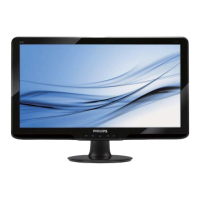
Philips 222EL2SB/00 Specifications

General IconGeneral
BrandPhilips
Model222EL2SB/00
CategoryMonitor
LanguageEnglish

Related product manuals