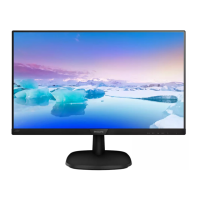
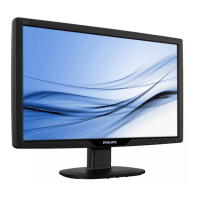
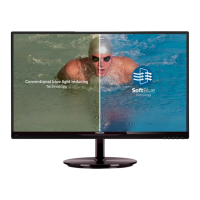
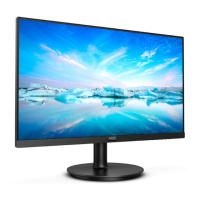
This document describes the Philips 223i5L LCD monitor, a flat panel display designed for general computer use.
Function Description
The Philips 223i5L is a 21.5-inch widescreen (16:9 aspect ratio) LED-backlit TFT-LCD monitor. It is designed for optimal performance at its native resolution of 1920 x 1080 at 60 Hz. The monitor supports both analog (VGA) and digital (DVI) inputs, allowing connection to various PCs, workstations, and Mac systems. It features an On-Screen Display (OSD) menu for adjusting screen performance and selecting functions. The monitor also incorporates power management features compliant with VESA DPM standards, automatically reducing power consumption when not in use.
Important Technical Specifications
- Monitor Panel Type: TFT-LCD
- Backlight: LED
- Panel Size: 21.5" W (54.6cm)
- Aspect Ratio: 16:9
- Pixel Pitch: 0.248 x 0.248 mm
- Brightness: 200 cd/m²
- SmartContrast: 10,000,000:1
- Contrast Ratio (typ.): 600:1
- Response Time (typ.): 5ms
- Optimum Resolution: 1920 x 1080 @ 60Hz
- Viewing Angle: 90° (H) / 65° (V) @ C/R > 10
- Display Colors: 16.7M
- Vertical Refresh Rate: 56Hz - 76Hz
- Horizontal Frequency: 30kHz - 83kHz
- sRGB: YES
- Signal Input: VGA (Analog), DVI (Digital)
- Input Signal: Separate Sync, Sync on Green
- VESA Mount: 100x100 mm
- Tilt: -5 / +20 degrees
- Power On Mode: 22.07 W (typ.), 23.46 W (max.)
- Sleep (Standby) / Off Mode: 0.5W
- Power LED indicator: On mode: White, Standby/Sleep mode: White (blinking)
- Power Supply: Built-in, 100-240VAC, 50-60Hz
- Product with stand (WxHxD): 503 x 376 x 203 mm
- Product with stand weight: 2.622kg
- Operating Temperature: 0°C to 40°C
- Operating Humidity: 20% to 80% RH
- MTBF: 30,000hrs
- Regulatory Approvals: CE Mark, FCC Class B, CCC, EPA, CEL, CECP, WEEE, China RoHS
Usage Features
Installation and Setup:
The monitor is easily assembled by placing it face down on a soft surface, attaching the base column until it clicks, and then firmly inserting the base stand into the column. It connects to a PC via VGA or DVI cables. Users should ensure the power cord is firmly plugged in and the computer's power cable is connected.
On-Screen Display (OSD):
The OSD menu provides comprehensive control over monitor settings. Navigation is done using buttons on the front bezel. Key OSD functions include:
- Picture: Adjusts Picture Format (Wide Screen, 4:3), Brightness, Contrast, SmartContrast (On, Off), and Gamma (1.8, 2.0, 2.2, 2.4, 2.6).
- Color: Adjusts Color Temperature (6500K, 9300K), sRGB, and User Define (Red, Green, Blue levels).
- Language: Supports multiple languages including English, Spanish, French, German, Italian, Portuguese, Russian, Simplified Chinese, Turkish, Dutch, Swedish, Finnish, Polish, Czech, Korean, Japanese, Hungarian, Ukrainian, Brazilian Portuguese, Greek, and Traditional Chinese.
- OSD Settings: Controls Horizontal and Vertical OSD position, Transparency, and OSD Time Out (5s, 10s, 20s, 30s, 60s).
- Setup: Provides options for Auto adjustment, H. Position, V. Position, Phase, Clock, Resolution Notification (On, Off), Reset, and Information.
- Resolution Notification: An alert "Use 1920 x 1080 @ 60 Hz for best results" is displayed if the monitor is powered on at a different resolution. This can be switched off in the OSD.
- Physical Function: The monitor allows for tilt adjustment from -5° to 20°.
SmartControl Lite Software:
This software provides an intuitive graphical interface for adjusting monitor settings directly from the computer. Features include:
- Adjust Menu: Allows adjustment of Brightness, Contrast, Focus, Position, and Resolution.
- Color Menu: Adjusts RGB, Black Level, White Point, and performs Color Calibration.
- Options Menu: Includes Preferences (enable context menu, task tray icon, run at startup, transparency), Input selection (Analog In, Digital In), and Audio adjustments (Volume, Mute).
- Help Menu: Provides access to the User Manual and Version information.
- Context Sensitive Menu: Offers quick access to "Select Preset" and "Tune Display" options from the desktop right-click menu.
- Task Tray Menu: Provides quick access to Help, Technical Support, Check for Upgrade, About, and Exit options.
Power Management:
The monitor automatically reduces power consumption when not in use, complying with VESA DPM standards. It "wakes up" upon detection of input from a keyboard, mouse, or other device.
Maintenance Features
General Care:
- Keep the monitor away from direct sunlight, bright lights, and heat sources to prevent discoloration and damage.
- Ensure ventilation holes are not blocked to allow proper cooling.
- When moving, grasp the frame, not the LCD panel, to avoid damage.
- Unplug the monitor if not in use for extended periods or when cleaning.
Cleaning:
- For general cleaning, use a clean, soft, slightly damp cloth.
- For extensive cleaning, isopropyl alcohol can be used.
- Never use organic solvents like alcohol (except isopropyl), ammonia-based liquids, ethanol, acetone, or hexane.
- The screen can be wiped with a dry cloth when power is off.
Safety Precautions:
- Use only approved power cords.
- Avoid severe vibration or high impact.
- Do not expose the monitor to dust, rain, water, or excessive moisture. If it gets wet, wipe it dry immediately.
- If foreign substances or water enter the monitor, turn off power, disconnect the cord, and send it to a service center.
- Do not store or use in locations exposed to extreme heat, direct sunlight, or cold.
Burn-in/Ghost Image Prevention:
- Always activate a moving screen saver or a periodic screen refresh application when the monitor is unattended or displaying static content for extended periods. This helps prevent "burn-in" or "ghost imaging," a phenomenon where static images can temporarily or permanently remain on the screen.
- Failure to use these precautions may result in severe, irreparable damage not covered by warranty.
Service and Repair:
- The casing cover should only be opened by qualified service personnel.
- For repair or integration documents, contact the local service center.
- If the monitor does not operate normally, or if unsure about operating instructions, consult a service technician.

 Need help?

 To Next Page
 General