18
TitleBarOptions
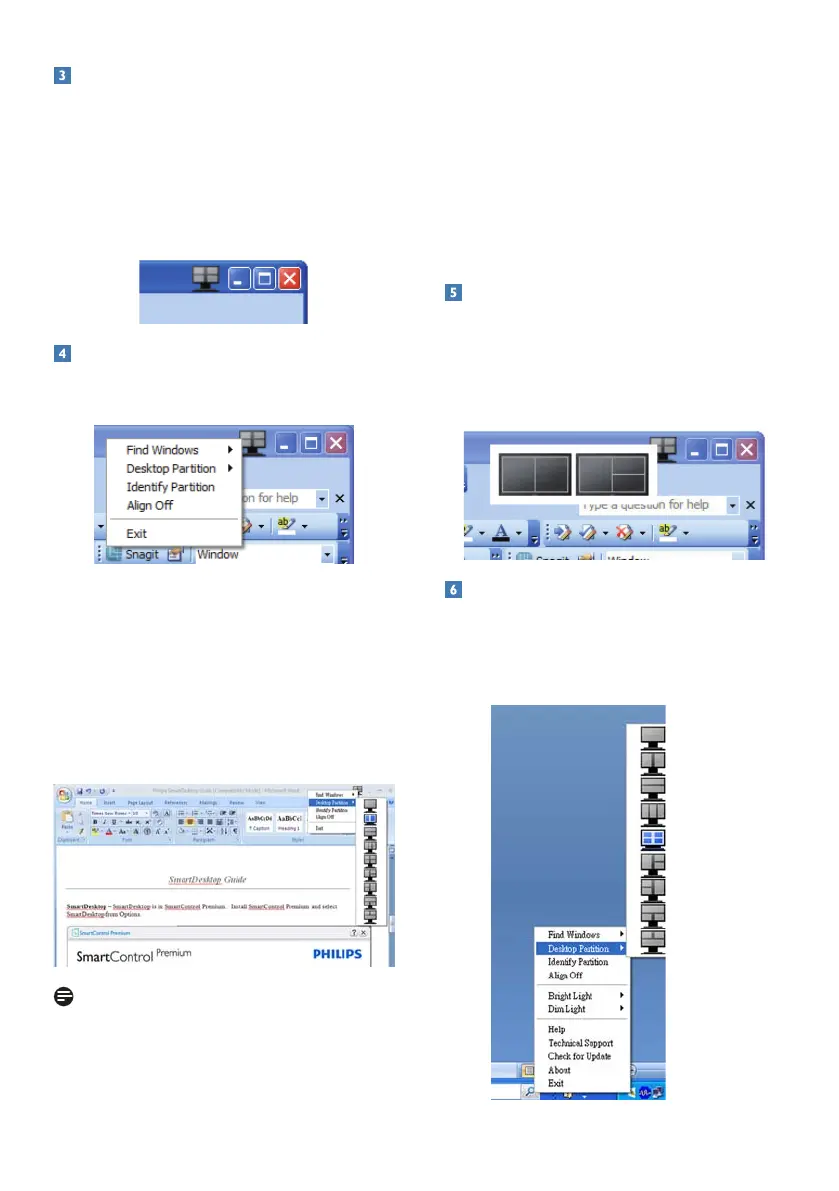
Desktoppartitioncanbeaccessedfromthetitle
baroftheactivewindow.Thisprovidesaquick
andeasywaytomanagethedesktopaswellas
sendinganywindowtoanypartitionwithout
havingtodraganddrop.Movethecursorinto
theactivewindow’stitlebartoaccessthedrop
downmenu.
RightClickMenu
RightclickontheDesktopPartitioniconto
viewthedropdownmenu.
1. FindWindows–Insomecases,theuser
mayhavesentmultiplewindowstothe
samepartition.FindWindowwillshow
allopenwindowsandmovetheselected
windowtotheforefront.
2. DesktopPartition–DesktopPartition
showsthecurrentselectedpartitionand
allowstheusertoquicklychangetoanyof
thepartitionsshowninthedropdown.
Note
Ifmorethanonedisplayisattached,theuser
canselectthetargeteddisplaytochangethe
partition.Thehighlightediconrepresentsthe
currentactivepartition.
3. IdentifyPartition–Displaystheoutline
gridonthedesktopforthecurrent
partition.
4. AlignOn/AlignOff–Enables/disablesthe
draganddropautoalignfeature.
5. Exit–ClosesDesktopPartitionand
DisplayTune.Tore-initialize,launchDisplay
Tunefromthestartmenuorshortcuton
thedesktop.
LeftClickMenu
LeftclickontheDesktopPartitioniconto
quicklysendtheactivewindowtoanypartition
withouthavingtodraganddrop.Releasingthe
mousewillsendthewindowtothehighlighted
partition.
TaskTrayRightClick
Thetasktrayalsocontainsmostofthefeatures
supportedinthetitlebar(withtheexception
ofautomaticallysendingawindowtoany
partition).




 To Next Page