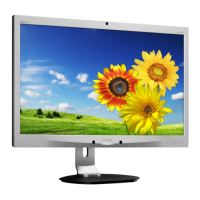
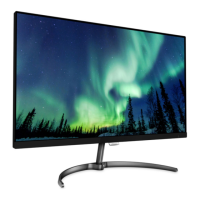
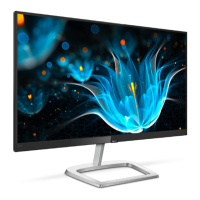
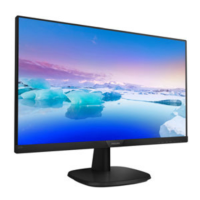
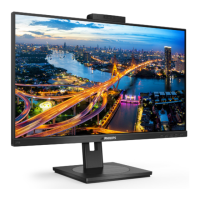
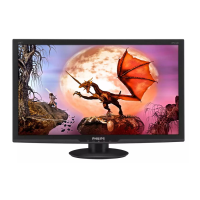
This document describes the Philips S line 271S7 monitor, a display device designed for various applications, from office work to multimedia consumption.
Function Description
The Philips 271S7 is a monitor that provides a visual display for computers. It features SmartImage presets to optimize display for different types of content, dynamically adjusting brightness, contrast, color, and sharpness in real-time. This includes modes for Office, Photo, Movie, Game, Economy, and LowBlue Mode, each tailored to specific viewing experiences. The SmartContrast feature dynamically enhances contrast for richer dark backgrounds and brighter images, improving overall visual clarity. The monitor also includes a LowBlue Mode, which reduces harmful shortwave blue light to protect eye health, especially during prolonged use.
The monitor supports various input signals, including VGA (Analog), HDMI 1.4 (Digital), and DisplayPort 1.2, allowing connectivity with a wide range of devices. It also has built-in speakers for audio output and an earphone jack for private listening.
The On-Screen Display (OSD) provides a user-friendly interface for adjusting various monitor settings, such as input selection, picture settings (brightness, contrast, sharpness, SmartResponse, SmartContrast, Gamma, Pixel Orbiting, Over Scan), audio settings (volume, mute), color settings (color temperature, sRGB, user define), language, OSD settings (horizontal, vertical, transparency, OSD time out), and setup options (resolution notification, reset, information).
Important Technical Specifications
- Monitor Panel Type: IPS Technology
- Backlight: LED
- Panel Size: 27" W (68.6 cm)
- Aspect Ratio: 16:9
- Pixel Pitch: 0.311(H) mm x 0.311(V) mm
- Contrast Ratio (typ.): 1,000:1
- Optimum Resolution: 1920 x 1080 @ 60 Hz
- Viewing Angle: 178° (H) / 178° (V) @ C/R > 10
- Display Colors: 16.7 M (6 bit+FRC)
- Flicker Free: Yes
- Picture Enhancement: SmartImage
- Vertical Refresh Rate: 50 Hz – 76 Hz
- Horizontal Frequency: 30 kHz – 83 kHz
- sRGB: Yes
- LowBlue Mode: Yes
- Connectivity:
- Signal Input/Output: VGA (Analog), HDMI 1.4 (Digital), DisplayPort 1.2
- Input Signal: Separate Sync, Sync on Green
- Audio In/Out: PC audio-in, headphone out
- Built-in speaker: 2 W x 2
- OSD Languages: English, German, Spanish, Greek, French, Italian, Hungarian, Dutch, Portuguese, Brazil Portuguese, Polish, Russian, Swedish, Finnish, Turkish, Czech, Ukrainian, Simplified Chinese, Traditional Chinese, Japanese, Korean
- Plug & Play Compatibility: DDC/CI, sRGB, Windows 10/8.1/8/7, Mac OS X
- Tilt: -5 / +20 degree
- Swivel: -175 / +175 degree
- Height adjustment: 115mm
- Pivot: 90 degree
- Consumption:
- AC Input Voltage at 100VAC, 60Hz: 25.9 W (typ.) Normal Operation, <0.3W Sleep (Standby), <0.3W Off
- AC Input Voltage at 115VAC, 60Hz: 25.7 W (typ.) Normal Operation, <0.3W Sleep (Standby), <0.3W Off
- AC Input Voltage at 230VAC, 50Hz: 25.4 W (typ.) Normal Operation, <0.3W Sleep (Standby), <0.3W Off
- On Mode (ECO mode): 10.9W (typ.)
- Power LED indicator: On mode: White, Standby/Sleep mode: White (blinking)
- Power Supply: Built-in, 100-240V AC, 50-60Hz
- Dimensions (WxHxD):
- Product with stand: 614 x 513 x 257 mm
- Product without stand: 614 x 372 x 56 mm
- Product with packaging: 690 x 458 x 252 mm
- Weight:
- Product with stand: 7.18 kg
- Product without stand: 4.87 kg
- Product with packaging: 9.69 kg
- Operating Condition:
- Temperature range (operation): 0°C to 40 °C
- Relative humidity (operation): 20% to 80%
- Atmospheric pressure (operation): 700 to 1060hPa
- Non-operating Condition:
- Temperature range (Non-operation): -20°C to 60°C
- Relative humidity (Non-operation): 10% to 90%
- Atmospheric pressure (Non-operation): 500 to 1060hPa
- Environmental and energy:
- ROHS: YES
- Packaging: 100% recyclable
- Specific Substances: 100% PVC BFR free housing
- Cabinet:
- Color: Silver/Black
- Finish: Texture
Usage Features
The Philips 271S7 offers flexible usage features to enhance user comfort and productivity.
- Ergonomic Adjustments: The monitor stand allows for extensive ergonomic adjustments, including:
- Tilt: -5 to +20 degrees, enabling users to find an optimal viewing angle.
- Swivel: -175 to +175 degrees, providing wide horizontal rotation for sharing the screen or adjusting viewing position.
- Height Adjustment: Up to 115mm, allowing users to set the screen at eye level to reduce neck and eye strain.
- Pivot: 90 degrees, enabling the monitor to rotate into portrait mode, which is beneficial for reading long documents, coding, or specific graphic design tasks.
- Easy Setup: The monitor is designed for straightforward installation. It involves attaching the base to the stand, then securing the stand to the monitor using VESA mounting screws. The base assembly can be removed for VESA-compliant wall-mount installations.
- Connectivity: Multiple input options (VGA, HDMI, DisplayPort) ensure compatibility with various devices. The monitor also includes a Kensington anti-theft lock slot for security in public or shared environments.
- On-Screen Display (OSD) Control: The OSD menu is navigated using physical buttons on the monitor bezel. These buttons allow users to:
- Switch the monitor power ON and OFF.
- Access and confirm OSD menu selections.
- Adjust OSD menu settings (up/down).
- Adjust speaker volume.
- Change the signal input source.
- Return to previous OSD level.
- Select SmartImage modes (Office, Photo, Movie, Game, Economy, LowBlue Mode, Off).
- SmartImage Modes: Pre-configured display settings optimize the visual experience for different content types.
- Office: Enhances text readability and reduces eye strain.
- Photo: Provides vibrant colors and sharp details for images.
- Movie: Ramps up luminance, deepens color saturation, and sharpens details for video content.
- Game: Improves luminance, sharpens details, and reduces input lag for gaming.
- Economy: Adjusts brightness and contrast for lower power consumption.
- LowBlue Mode: Reduces harmful blue light for eye protection.
- SmartContrast: Automatically adjusts backlight intensity to enhance contrast, making dark areas darker and bright areas brighter for a more dynamic picture.
- Power Management: The monitor supports VESA DPM compliance, automatically reducing power consumption when not in use. It enters sleep or off modes based on input signal detection, contributing to energy savings.
- Resolution Notification: The monitor can display a notification if it is not running at its native resolution (1920 x 1080 @ 60 Hz), guiding users to optimal display settings.
Maintenance Features
Maintaining the Philips 271S7 involves several aspects to ensure its longevity and optimal performance.
- Cleaning:
- The screen should be cleaned with a soft, clean cloth, gently wiped with a slightly damp cloth. Avoid using substances like alcohol, ammonia, or solvent-based liquids, as they can damage the monitor.
- The cabinet can be cleaned with a soft, clean cloth.
- Pixel Defect Policy: Philips adheres to a strict pixel defect policy for its flat panel monitors. The policy defines acceptable levels for bright dot defects, black dot defects, and total dot defects.
- Bright Dot Defects: A bright dot appears as a pixel or sub pixel that is always lit 'on'.
- Black Dot Defects: A black dot appears as a pixel or sub pixel that is always dark or 'off'.
- Proximity of Pixel Defects: Specific tolerances are set for the proximity of pixel defects.
- The warranty covers repairs or replacements if the number of pixel defects exceeds the specified tolerances.
- Troubleshooting & FAQs: The manual provides a comprehensive troubleshooting guide for common issues, including:
- Common Problems: No picture (power LED not lit or white), screen says "Attention" or "Check cable connection."
- Imaging Problems: Image not centered, image vibrates, image appears blurred or indistinct, green/red/blue/dark/white dots on screen, "power on" light too strong or disturbing.
- "Burn-in" or "Ghost Image": Explains that static images over an extended period can cause temporary "burn-in" and advises activating a moving screen saver program or periodically changing the display content to prevent this.
- General FAQs: Addresses questions about monitor resolution, refresh rate, CD-ROM content, color settings, and how to unlock/lock the hot keys.
- Warranty Information: Philips provides a warranty for its monitors, with details on local standard warranty periods and extended warranty options. Users are advised to visit the Philips support website for specific warranty information in their region.
- Disposal and Recycling: The monitor is designed with environmental considerations. It is marked with the European Directive 2012/19/EU symbol, indicating that it should not be disposed of with normal household waste. Philips encourages users to dispose of the product through designated waste electrical and electronic equipment collection points. The packaging is 100% recyclable, and the housing is 100% PVC BFR free.
- Safety Precautions: The manual outlines important safety precautions to prevent electric shock, fire, or damage to the monitor. These include:
- Avoiding placing objects in ventilation holes.
- Not blocking ventilation holes.
- Ensuring proper power plug and outlet access.
- Disconnecting power before cleaning or moving the monitor.
- Using approved power cords.
- Operating the monitor within specified power supply limits.
- Protecting cables from damage.
- Avoiding severe vibration or high impact conditions.
- Not knocking or dropping the monitor.
- Taking regular breaks to prevent eye discomfort.
- Adjusting the environment lighting to avoid glare and reflections.
- Consulting a doctor for persistent symptoms.
- Ensuring proper grounding.
- Avoiding excessive sound pressure from earphones.
- Service: In case of any need for repair or integration, users are advised to contact the Philips service center or qualified service personnel. The casing cover should only be opened by qualified service personnel.
This comprehensive overview highlights the Philips 271S7 monitor's capabilities, technical specifications, user-friendly features, and essential maintenance guidelines, ensuring users can maximize their experience with the device.

 Need help?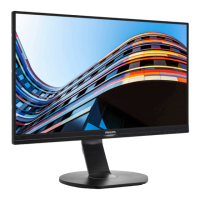

 To Next Page
 General