11
2. Setting up the monitor
MultiView in OSD menu
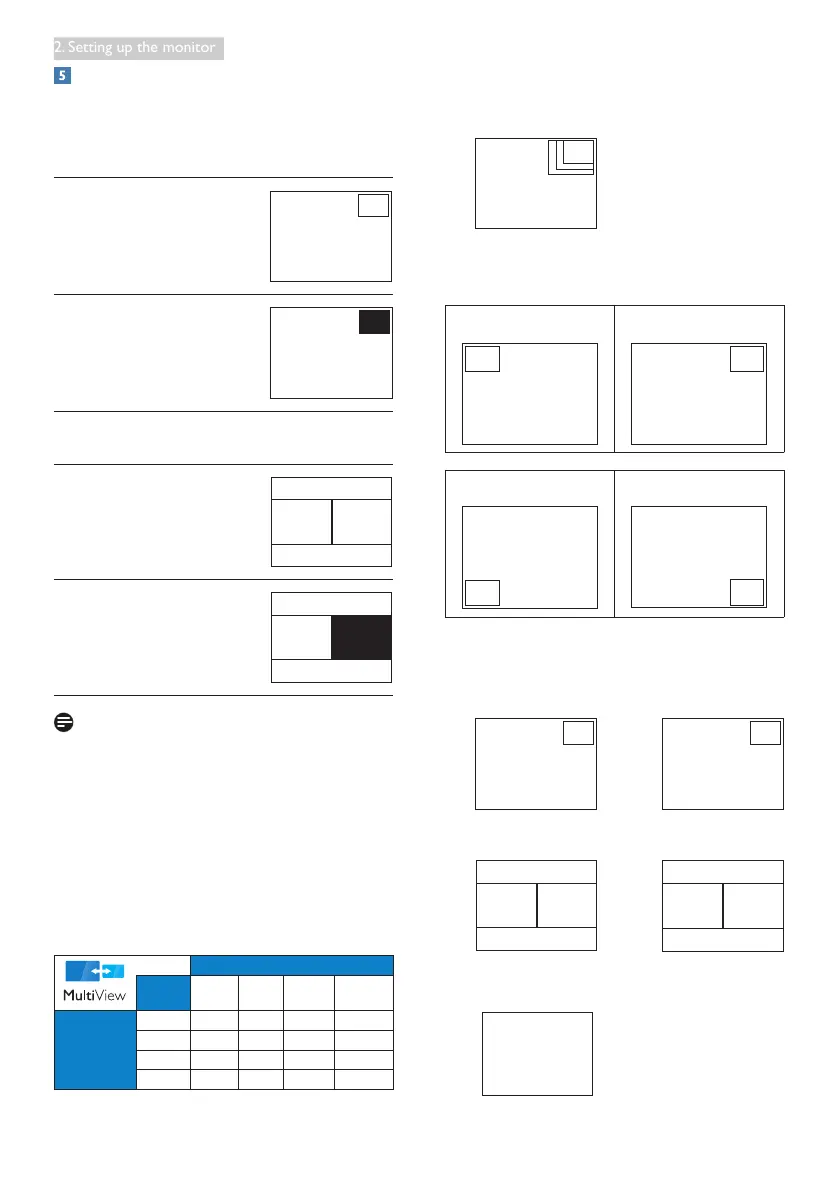
• PiP / PbP Mode: There are two modes for
MultiView: [PiP] and [PbP].
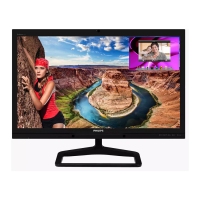
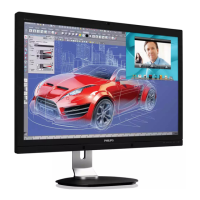
[PiP]: Picture in Picture
Open up a sub-window of
another signal source.
A (main)
When the sub source is not
detected:
A (main)
[PbP]: Picture by Picture
Open up a sub-window side-
by-side of another signal
source.
A (main) B
When the sub source is not
detected:
A (main) B
Note
The black strip shows on the top and the
bottom of the screen for the correct aspect
ratio when in the PbP mode.
• PiP / PbP Input: There are four different
video input to choose as the sub display
source: [DVI], [HDMI 1], [HDMI 2], and
[DisplayPort].
Please refer below table for compatibility of
main/sub input source.
SUB SOURCE POSSIBILITY (xl)
Inputs DP DVI HDMI 1 HDMI 2
MAIN
SOURCE
(xl)
DP ● ● ●
DVI ●
HDMI 1 ●
HDMI 2 ●
• PiP Size: When PiP is activated, there are
three sub-window sizes to choose: [Small],
[Middle], [Large].
A (main)
Small
Middle
Large
• PiP Position: When PiP is activated, there
are four sub-window positions to choose.
Top-Left Top-Right
A (main)
A (main)
Bottom-Left Bottom-Right
A
(main)
A (main)
• Swap: The main picture source and the sub
picture source swapped on the display.
Swap A and B source in [PiP] mode:
A (main)
↔
B (main)
Swap A and B source in [PbP] mode:
A (main) B
↔
B (main) A
• Off: Stop MultiView function.
A (main)




 To Next Page