10
2. Setting up the monitor
2.3 MultiView
What is it?
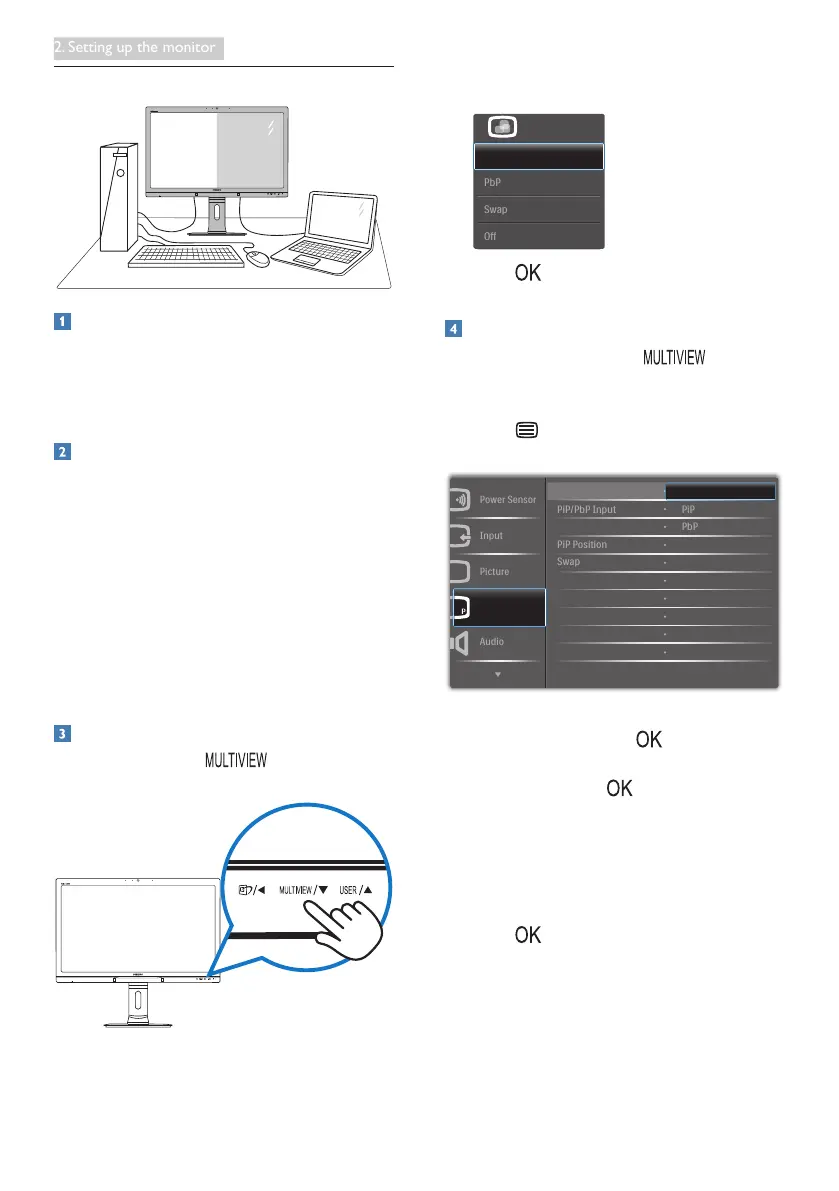
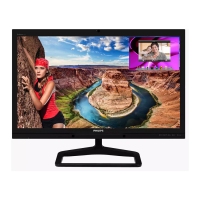
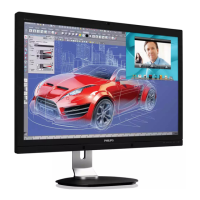
Multiview enables active dual connect and view
so that you can work with multiple devices like
PC and Notebook side-by-side simultaneously,
making complex multi-tasking work a breeze.
Why do I need it?
With the ultra high resolution Philips
MultiView display, you can experience a world
of connectivity in a comfortable way in the
ofce or at home. With this display, you can
conveniently enjoy multiple content sources at
one screen. For example: You may want to keep
an eye on the live news video feed with audio
in the small window, while working on your
latest blog, or you may want to edit an Excel le
from your Ultrabook, while logged into secured
company intranet to access les from a desktop.
How to enable MultiView by hotkey?
1. Press the hotkey directly on the
front bezel.
2. The MultiView selection menu appears.
Press ▲ or ▼ button to select.
3. Press button to conrm your selection
and then exit automatically.
How to enable MultiView by OSD menu?
Besides pressing the hotkey directly on
the front bezel, the MultiView function can also
be selected in OSD menu.
1. Press button on the front bezel to
enter OSD Menu Screen.
2. Press ▲ or ▼ button to select main menu
[PiP / PbP], then press button.
3. Press ▲ or ▼ button to select [PiP / PbP
Mode], then press button.
4. Press ▲ or ▼ button to select [PiP] or
[PbP].
5. Now you can move backward to set the
[PiP / PbP Input], [PiP Size], [PiP Position].,
or [Swap].
6. Press button to conrm your selection.




 To Next Page