10
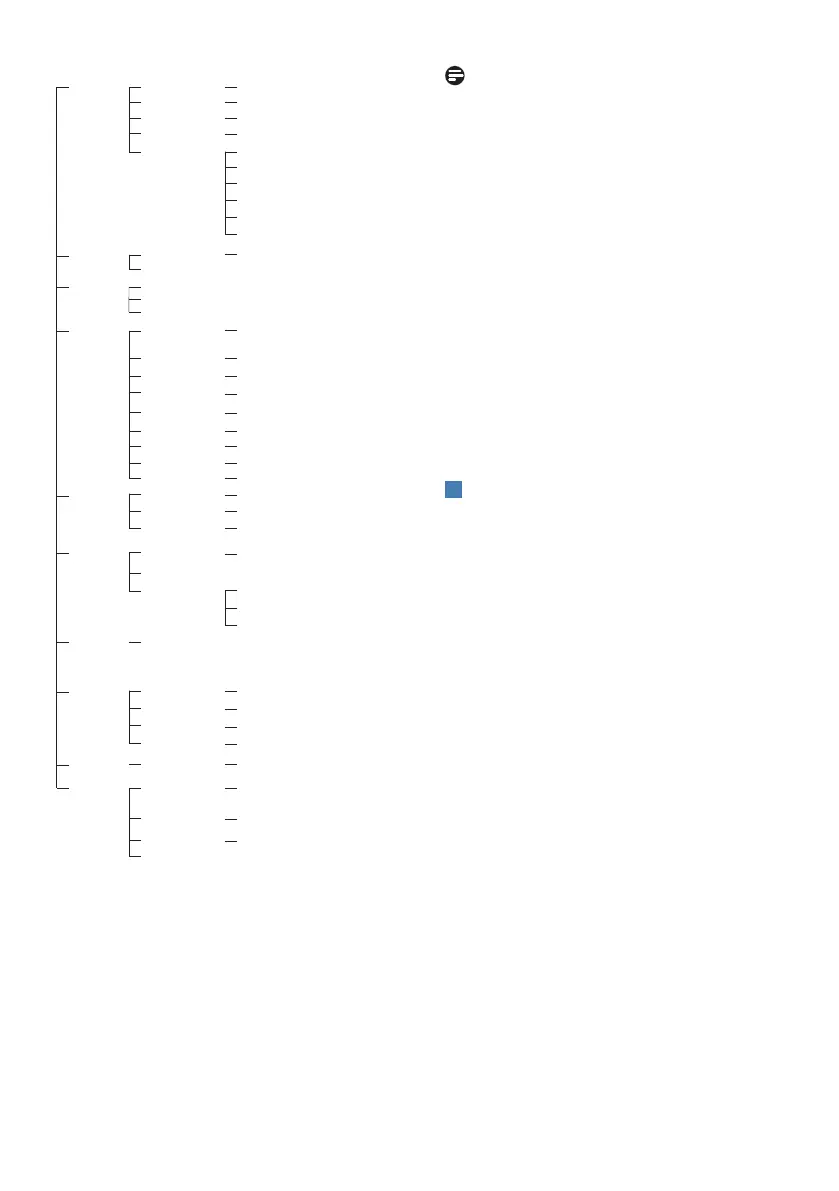
Main menu Sub menu
Picture
OSD Setting
Setup
Language
Color
Input
Audio
LowBlue
Mode
Horizontal
Vertical
Transparency
OSD Time Out
English, Deutsch, Español, Ελληνική, Français, Italiano, Magyar,
Nederlands, Português, Português do Brasil,Polski,Русский ,
Svenska,Suomi,Türkçe,Čeština,Українська, 简体中文,
繁體中文,日本語,한국어
Color Temperature
sRGB
User Dene
HDMI 1.4
DisplayPort
Sharpness
SmartContrast
Brightness
Contrast
Picture Format
SmartImage
Mute
Gamma
Pixel Orbiting
USB C
On
O
0~100
USB Setting
USB Standby Mode
0~100
O, 1, 2, 3, 4
5s, 10s, 20s, 30s, 60s
Native, 5000K, 6500K, 7500K,
8200K, 9300K, 11500K
Red: 0~100
Green: 0~100
Blue: 0~100
0~100
0~100
0~100
On, O
0~100
Wide screen, 4:3
FPS, Racing, RTS, Gamer1, Gamer2,
LowBlue Mode, EasyRead, O
On, O
Over Scan
On, O
1.8, 2.0, 2.2, 2.4, 2.6
On, O
On, O
On, O
Resolution
Notication
Reset
Yes, No
Smart Power
Volume
On, O
1, 2, 3, 4
Game Setting
SmartResponse
SmartFrame
MPRT Level
MPRT
O, Fast , Faster, Fastest
0~20
On, O
Adaptive Sync
On, O
On, O
Size (1, 2, 3, 4, 5, 6, 7)
Brightness (0~100)
Contrast(0~100)
H. position
V. position
Noise Cancelling
(27E1N5600HE)
On, O
Note
• MPRT: To reduce motion blur, LED
backlight will strobe synchronously
with screen refresh, which may
cause noticeable brightness change.
• 75Hz refresh rate or higher is re-
quired for MPRT.
• Adaptive Sync and MPRT cannot be
enabled simultaneously.
• MPRT is to adjust brightness for blur
reduction, so cannot adjust bright-
ness while MPRT is turned on.
• MPRT is gaming-optimized mode.
Turn on MPRT may cause noticeable
screen ickering. It is recommended
to turn o when you are not using
the gaming function.
4
Resolution notication
This monitor is designed for optimal
performance at its native resolution,
2560 x 1440. When the monitor is
powered on at a dierent resolution, an
alert is displayed on screen: Use 2560 x
1440 for best results.
Display of the native resolution alert can
be switched o from Setup in the OSD
(On Screen Display) menu.


 To Next Page