Quick Use and Hookup Guide
Important Notice/Warning ..................... 1
Basic TV Operation .......................... 1
Remole Battery Installation ................... 1
Remole Control Button Descriptions ............ 1
Hooking Up the TV
Basic Cable TV Connections .................. 2
Basic Cable Box Connections ................. 2
Basic Antenna TV Connections ................ 2
Using the AVI Inputs ........................ 3
Using the AV2 Inputs ........................ 3
Using the Component Video Inputs ............. 3
Using the S-Video Inputs ..................... 4
Using the Monitor (Audio/Video) Outputs ....... 4
Using the Side Audio/Video Inputs ............. 4
IMPORTANT
NOTE: This owner's manual is used with several
different television models. Not all features (and
drawings) discussed in this manual will necessar-
ily match those found with your television set.
This is normal and does not require that you con-
tact your dealer or request service.
WARNING: TO PREVENT FIRE OR SHOCK
HAZARD DO NOT EXPOSE THIS UNIT TO
RAIN OR EXCESSIVE MOISTURE.
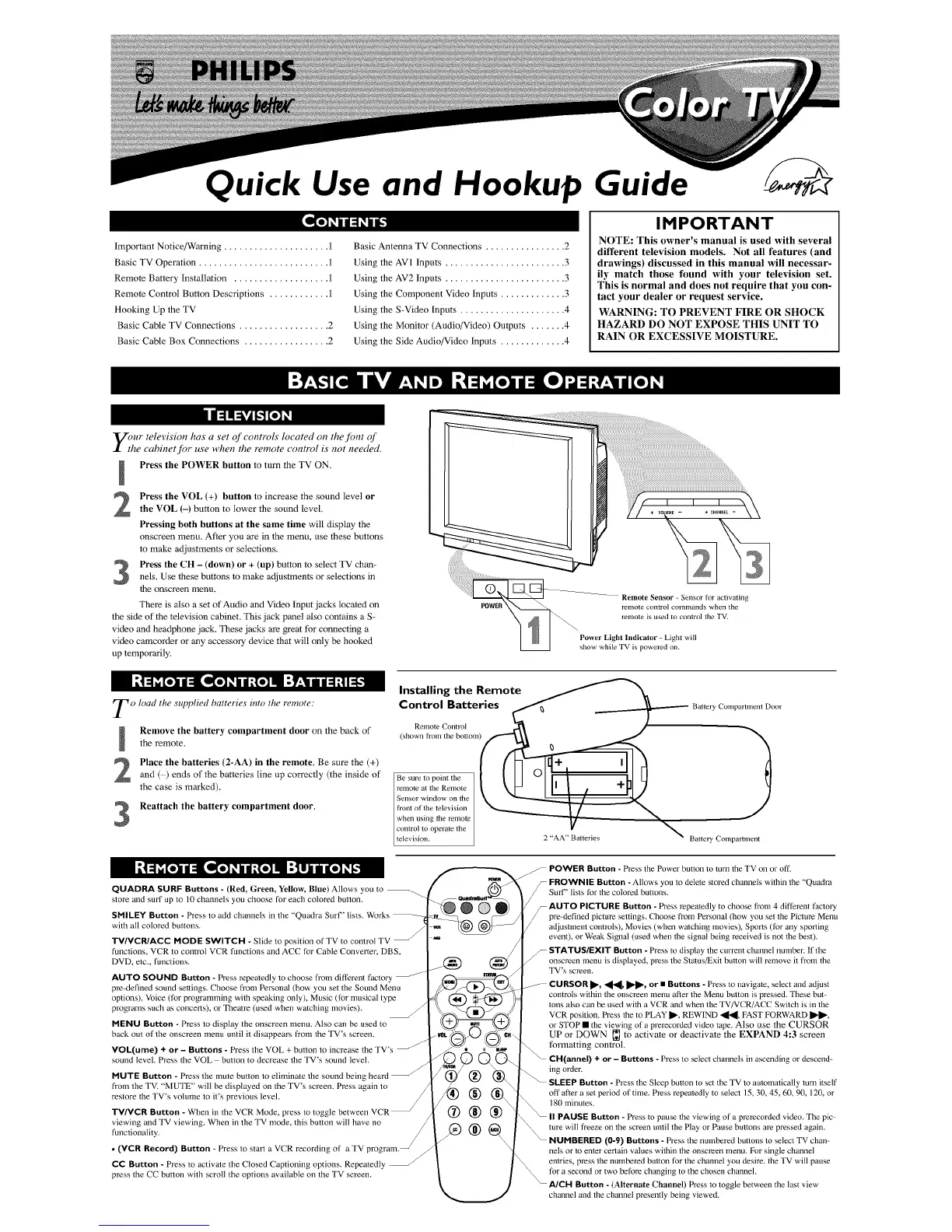
E)hur television has a set q[ controls located on the.flint q[
e cabinetjbr use when the remote control is not needed
i
2
3
Press the POWER button to turn the TV ON,
Press the VOL (+) button to increase the sound level or
the VOL (-) button to lower the sound level,
Pressing both buttons at the same time will display the
onscreen menu, After you are in the menu, use these buttons
to make adjustments or selections,
Press the CH - (down) or + (up) button Io select TV chan-
nels, Use these buttons to make adjustments or selections in
|he onscreen menu.
There is also a set of Audio and Video Input jacks located on
ihe side of the television cabinet, This jack panel also contains a S-
video and headphone jack, These jacks are great for connecting a
video camcorder or any accessory device that will only be hooked
up lempora_tly,
POWEF
Remote Sensor - Sensor for activating
remote control commands when the
remote is used to control the TV.
Power Light Indicator - Light will
show while TV is powered on.
To load the
supplied batteries into the remote:
Remove the battery compartment door on the back ofthe remote.
Place the batteries (2-AA) in the remote. Be sure the (+)
and ( ) ends of the batteries Line up correctly (the inside of
the case is marked).
Reattach the battery compartment door,
Installing the Remote
Control Batteries _ _ ---- Batte,yCompartmentDoor
(shown tronl the bottom
I (h '11 a
BesurelopointtheI t UoIhI +glLJ II
relnote tit tile Renlote I I"
+e,lsor,',,ndowonthe\ ')"W }
+oototthete,ev+n \ /
when using the iemote V "%
control to operatethe
television. 2 "AA" Batteries _ Batte+NCompartnlent
QUADRA SURF Buttons - (Red, Green, Yellow, Blue) Allows you to =
store and surf up to 10 channels you choose for each colored button.
SMILEY Button - Press to add chmmels in the "Quadra Surf" lists. Works
with all colored buttons.
/
TV/VCR/ACC MODE SWITCH - Slide to position of TV to control TV
functions, VCR to control VCR functions and ACC for Cable Converter, DBS,
DVD, etc., functions.
AUTO SOUND Button - Press repemedly to choose from different factory
pre+defined sound settings. Choose from Personal (how you set the Sound Menu
options), Voice (for programming with speaking only), Music (for musical type
programs such as concerts), or Thean-e (used wben watching movies).
MENU Button - Press to display the onscreen menu. Also cml be used to
back out of the onscreen menu until it disappears from the TV's screen.
/
VOL(ume) + or - Buttons - Press the VOL+ button to increase the TV's
sound level. Press the VOL button to decrease the TV's sound level.
MUTE Button - Press the mute button to eliminate the sound being heard
from the TVI "MUTE" will be displayed on the TV's screen. Press again to
restore the TV's volume to it's previous level.
TV/VCR Button - When in the VCR Mode, press to toggle between VCR
viewing and TV viewing+ When in the TV mode, this button will have no
functionality.
• (VCR Record) Button - Press to start a VCR recordin_
/
CC Button - Press to activate tbe Closed Captioning options. Repeatedly
press the CC button with scroll the options available on the TV screen.
POWER Button - Press the Power button to turn the TV on or off.
_ FROWNIE Button - Allows you to delete stored channels within the "Quadra
Surf' lists for the colored buttons.
_AUTO PICTURE Button - Press repeatedly to choose from 4 ditferent factory
pre-defined picture settings. Choose from Personal (how you set the Picture Menu
adjustment controls), Movies (when watching movies), Sports (for any sponing
event), or Weak Signal (used when the signal being received is not the best).
_ STATUS/EXIT Button - Press to display the current channel number, if the
onscreen menu is displayed, press the Status/Exit button will remove it from the
TV's screen.
CURSOR _, <1,<1, _']1_, or • Buttons - Press to navigate, select and adjust
controls within the onscreen menu after the Menu button is pressed. These but-
tons also can be used with a VCR and when the TV/VCR/ACC Switch is in the
VCR position. Press the to PLAY ]1_, REWIND <1.<1, FAST FORWARD _']1_,
or STOP • the viewing of a prerecorded video tape+ Also use the CURSOR
UP or DOWN [:[] to activale or deactivale the EXPAND 4:3 screen
formatting control.
CH(annel) + or - Buttons - Press to select channels in ascending or descend-
_ing order.
SLEEP Button - Press the Sleep button to set the TV to automatically turn itself
off after a set period of time. Press repeatedly to select 15, 30, 45, 60, 90, 120, or
180 minutes+
Button - Press to pause the viewing of a prerecorded video. The pic-
ture will freeze on the screen until/be Play or Pause buttons are pressed again.
(0-9) Buttons - Press the nmnbered buttons to select TV chan-
nels or to en/er certain values within/be onscreen menu. For single channel
emries+ you desire./be TV will pause
for a second or two before changing to the chosen channel.
(Alternate Channel) Press to toggle between die last view
channel and/be channel presently being viewed.



 To Next Page
 Loading...