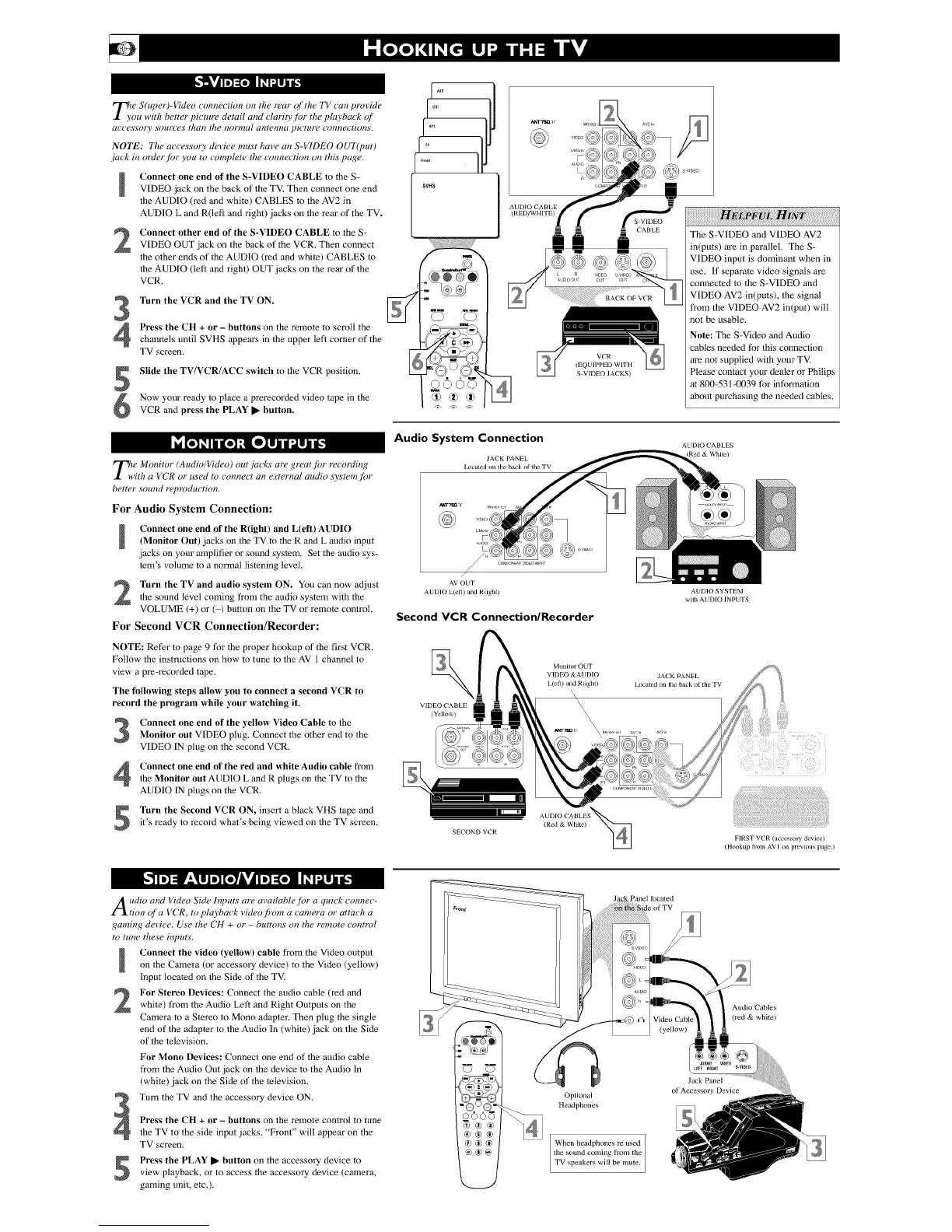
T_e S(uper)-Video com_ection on the mar of the "I'Vcan provide
ou with better picture detail and clarity,for the playback of
a_ cessory sources than the normal antem_a picture connections.
NOTE: The accessory device must have an S-VTDEO OU'l'(put)
jack in order f!)r you to complete the comwction on this page.
Connect one end of the S-VIDEO CABLE to the S-
VIDEO jack on the back of the TV. Then connect one end
the AUDIO (red and white) CABLES to the AV2 in
AUDIO L and R(lefl and right) jacks on the rear of the TV.
2
Connect other end of the S-VIDEO CABLE to the S-
VIDEO OUT jack on the back of the VCR, Then connect
the other ends of the AUDIO (red and while) CABLES to
the AUDIO (left and right) OUT jacks on the rear of the
VCR.
3
4
Turn the VCR and the TV ON.
Press the CH + or - buttons on the remote to scroll the
channels until SVHS appears in the upper lefl corner of the
TV screen.
Slide the TV/VCR/ACC switch to the VCR position.
Now your ready to place a prerecorded video tape in theVCP, and press the PLAY • button.
T_e Monitor (Audio/Video) out jacks are great f!Jr recotJing
,ith a VCR or used to com_ect an e:_ternal audio system f!Jr
better sound reproduction.
For Audio System Connection:
Connect one end of the R(ight) and LEe/t) AUDIO
(Monitor Out) jacks on the TV to the R and L audio input
jacks on your amplifier or sound system. Set the audio sys-
tem's volume to a normal listening level.
Turn the TV and audio system ON. YOUcan now adjust
the sound level coming from the audio system with the
VOLUME (+) or ( ) button on the TV or remote control.
For Second VCR Connection/Recorder:
NOTE: Refer to page 9 for the proper hookup of the first VCR.
Follow the instructions on how to tune to the AV 1 channel to
view a pre-recorded tape.
The following steps allow you to connect a second VCR to
record the program while your watching it.
Connect one end of the yellow Video Cable to theMonitor out VIDEO plug. Connect the other end to the
VIDEO IN plug on the second VCR.
Connect one end of the red and white Audio cable from
the Monitor out AUDIO L and P, plugs on the TV to the
AUDIO IN plugs on the VCP..
Turn the Second VCR ON, insert a black VHS tape and
it's ready to record what's being viewed on the TV screen.
I I
I
I" IP
..... IP
SVHS
m
©QQ
AUD[O CABLE
(RED/WHITE)
_mr
__=--
BACK OP VCR
VCR
(EQUIPPED WITH
S VIDEO JACKS)
Audio System Connection
JACK PANEL
Located on the back ol the TV
The S-VIDEO and VIDEO AV2
in(puts) are in parallel. The S-
VIDEO input is dominant when in
use. If separam video signals are
connected to the S-VIDEO and
VIDEO AV2 in(puts), the signal
from the VIDEO AV2 in(put) will
not be usable.
,_rr 7_-a_qr
,/
/
AV OUT
AtDIO L(eft) and R(ight)
Second VCR Connection/Recorder
Note: The S-Video and Audio
cables needed for this connection
are not supplied with your TV.
Please contact your dealer or Philips
at 800-531-0039 for information
about purchasing lhe needed cables.
Monilor OUT
VIDEO &AUD[O
L(eft) and R(ight)
\
VIDEO CABLE \
\
(Yellow) \
\
\
AUDIO CABLES
(Red & While)
SECOND VCR
AUDIO SYSTEM
wifll ALD[O INPUTS
JA(K PANEL
Lx)caled on Ihe hack o{ tile TV
FIRST VCR (accessor_ device)
(Hookup Bum AVI on pre_ious page)
udio and Video Side Inputs are ai ailable f!)r a quick COm_eC-
l.tion of a VCR, to playback _ideo from a camera or attach a
gaming devk e. Use the (1,14+ or - buttons on the remote control
to tune these inputs.
Connect the video (yellow) cable from the Video output
on the Camera (or accessory device) to the Video (yellow)
Input localed on the Side of the TV.
For Stereo Devices: Connect the audio cable (red and
white) from the Audio _t't and Right Outputs on the
Camera to a Stereo to Mono adap/er. Then plug the single
end of the adap/er to the Audio In (while) jack on the Side
of the lelevision.
5
For Mono Devices: Connect one end of the audio cable
from the Audio Out jack on the device to the Audio In
(white) jack on the Side of the television.
Turn the TV and the accessory device ON.
Press the CH + or - buttons on the remote control to tune
the TV to the side inp_ t jacks. "Front' will appear on the
TV screen.
Press the PLAY • button on the accessory device to
view playback, or to access the accessory device (camera.
gaming unit, etc.).
Co Co
oooo
®®®
®®®
Pal]el located
of TV
©
_ VIDEO
Optiomtl
Headphones
When headphones re used
the sound coming from the
TV speakers will be mute.
Audio Cables
(red & white)
(yellow)
Jack Panel
of Accessory Device


 To Previous Page
 Loading...