English
29
English
29
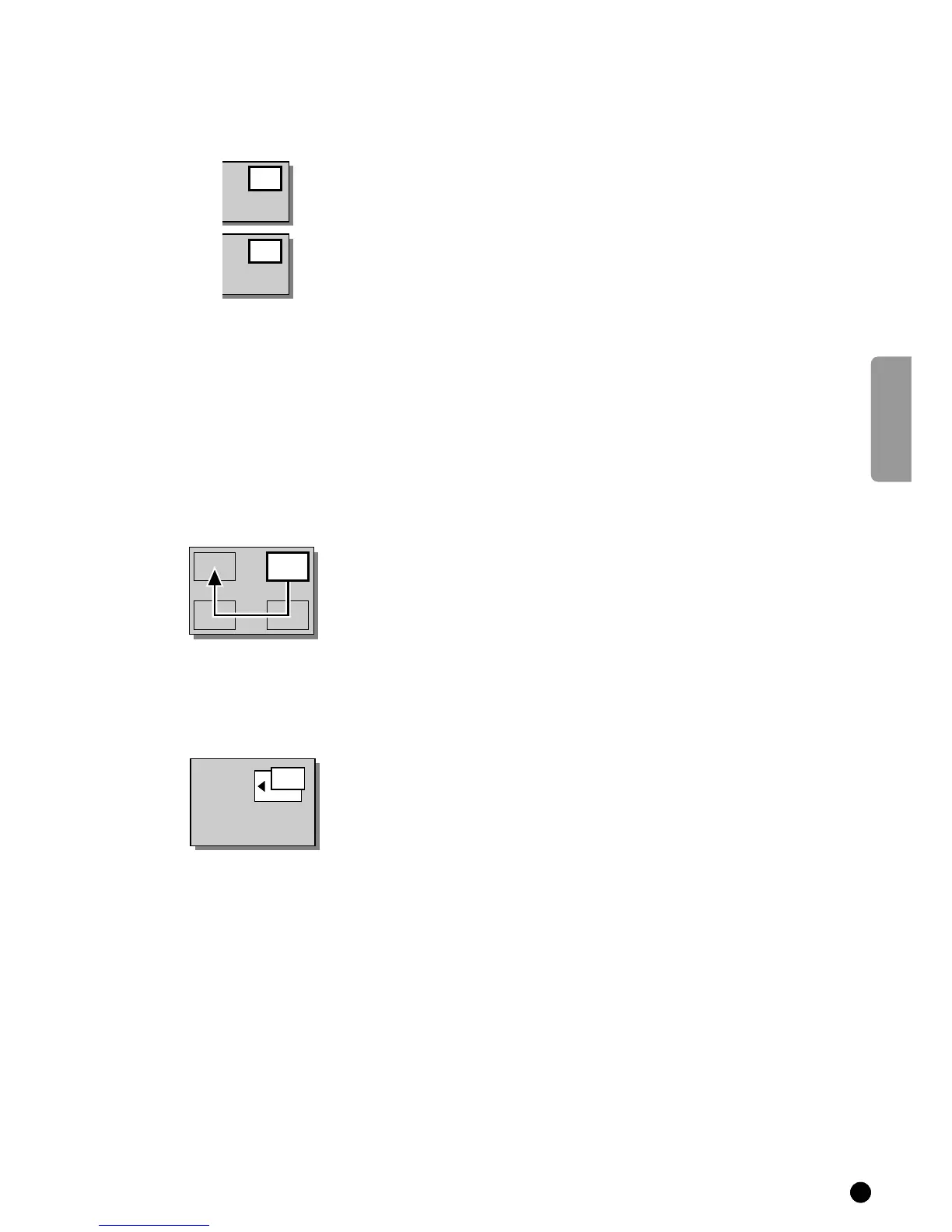
Switch screens
4 Press r.
5 The main screen and the pip screen exchange places.
If the TV channel is only in the pip screen and not in the main screen, then use
- P + of the pip keys in order to change your TV channel in the pip screen.
Select Still Picture
4 Press s.
5 The picture in the pip screen stands still.
Even when pip is not switched on, the main screen will appear as a still picture
in the pip screen. In this way you make a snapshot of the main screen picture.
4 Press s again or select another channel in the pip screen in order to cancel
the still picture.
4 Press p to switch pip off.
Move the pip screen
4 Press t.
5 Each time you press this key, the pip screen moves to another corner of the
main screen.
Select Pip size
4 Press MENU.
5 The MAIN MENU appears.
4 Select FEATURES with the keys W or V and press OK.
5 The FEATURES menu appears.
4 Select Pip Size with the keys W and V.
5 Pip Size lights up.
4 Press the keys C or B to select a Large or a Small pip format.
4 Keep MENU pressed for a short while to switch off each menu.



 To Next Page