EasyManua.ls Logo

Philips 3000 series - User Manual

Philips 3000 series
93 pages
Print Icon
To Next Page IconTo Next Page
Loading...
Register your product and get support at
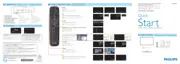
9005 series
www.philips.com/TVsupport
User Manual
50PUS9005
58PUS9005
70PUS9005

Table of Contents

Other manuals for Philips 3000 series

Questions and Answers

  • M
    Mr. George McdonaldSep 23, 2025
    Why can't I find the Bluetooth name of my Philips Home Cinema speakers?
    • M
      marilynmorrisSep 23, 2025
      If you can't find the Bluetooth name of your Philips Home Cinema speakers on your Bluetooth device, ensure that the AC cord is properly connected and that there is power at the AC outlet. Also, make sure the soundbar is turned on by pressing the standby button on the remote control or the soundbar itself.
  • J
    Jenna ThomasAug 23, 2025
    Why can't I find Philips Speaker System Bluetooth name on my device?
    • R
      Rebecca JonesAug 23, 2025
      If you can't find the Bluetooth name of your Philips Speaker System on your device: * Ensure that the Bluetooth function is activated on your Bluetooth device. * Try re-pairing the unit with your Bluetooth device.
  • A
    Antonio FoxAug 25, 2025
    Why can't I insert the brew group in my Philips Coffee Maker?
    • L
      Laura DeleonAug 26, 2025
      If you are having trouble inserting the brew group into your Philips Coffee Maker, ensure that the lever is in contact with the base and the hook is correctly positioned. If it still doesn't work, reset the machine by switching it on and off, replace the drip tray and coffee grounds container, leave the brew group out, close the maintenance door, switch the machine on and off again, and then try reinserting the brew group.
  • A
    angela00Aug 27, 2025
    Why do my Philips Speakers have no power?
    • B
      Brittney DunlapAug 27, 2025
      If your Philips Speakers have no power, make sure the AC cord is properly connected and that the AC outlet has power. Also, try pressing the standby button on the remote control or the soundbar to turn the soundbar on.
  • G
    Gregory RollinsAug 27, 2025
    What to do if the subwoofer of my Philips Speakers is idle?
    • S
      Shirley MorganAug 27, 2025
      If the subwoofer is idle or the indicator light is off on your Philips Speakers, unplug the power cord from the mains socket and plug it back in after 3 minutes to reset the subwoofer.
  • M
    Mr. David SchneiderSep 17, 2025
    What to do if there is no sound through digital input on Philips Home Cinema speakers?
    • C
      Cathy SheaSep 18, 2025
      If you're experiencing no sound through the digital input on your Philips Home Cinema speakers, try setting your TV output to PCM. If that doesn't work, connect your speakers directly to your Blu-ray player or another source, as some TVs might not pass through digital audio. Also, ensure that the audio output setting is set to FIXED or STANDARD, and not VARIABLE.
  • V
    Victoria WrightSep 14, 2025
    Why Philips Speaker System has no power?
    • M
      Matthew ClaytonSep 14, 2025
      If your Philips Speaker System has no power, check the following: * Ensure that the AC cord is properly connected. * Ensure that there is power at the AC outlet. * Press the standby button on the remote control or Soundbar to turn the Soundbar on.
  • R
    rebeccanguyenSep 15, 2025
    What to do if the subwoofer is idle in Philips Speaker System?
    • F
      fdavisSep 16, 2025
      If the subwoofer in your Philips Speaker System is idle or its indicator light is off: * Unplug the power cord from the mains socket and plug it in again after 3 minutes to reset the subwoofer. * If your TV is set to variable audio output, change it to FIXED or STANDARD. Consult your TV’s user manual for detailed instructions. * If using Bluetooth, make sure the volume on your source device is turned up and that the device is not muted.
  • D
    Dorothy SullivanSep 6, 2025
    What to do if my Philips Electric Pressure Cooker food is not cooked?
    • M
      mnguyenSep 6, 2025
      If your food isn't cooking properly, consider these possibilities: * You may have selected the incorrect function or cooking time; try increasing the cooking time or changing the cooking method. * Ensure there is no foreign residue on the heating element and the outside of the inner pot before turning on the cooker. * If the heating element is damaged, or the inner pot is deformed, take the cooker to your Philips dealer or a service center authorized by Philips.
  • J
    Jeffrey AtkinsSep 3, 2025
    Why does my Philips Speaker System turn off after 15 minutes?
    • X
      xbutlerSep 3, 2025
      Your Philips Speaker System might turn off after 15 minutes if the external input signal level is too low. To prevent this, increase the volume level of your external device.

Summary

User Manual

Whats New

Home and Channels

Explains the new Home launcher and its features like channels.

Apps and Philips TV Collection

Discusses finding and managing apps and the Philips TV Collection.

Setting Up

Read Safety

Instructions on reading safety information before using the TV.

TV Stand and Wall Mounting

Guidance on installing the TV stand and wall mounting.

Tips on Placement

Recommendations for optimal TV placement in the room.

Remote Control

Key Overview

Explains the function of each key on the remote control.

Pair Your Remote Control to TV

Details on how to pair the remote control with the TV using Bluetooth or IR.

Switching On and Off

On or Standby

How to turn the TV on, switch it to standby, and turn it off.

Channels

Install Channels

Instructions on how to install TV channels.

Channel Lists

Information about managing and viewing channel lists.

Favourite Channels

How to create, edit, rename, remove, and reorder favourite channels.

Channel Installation

Satellite Installation

Step-by-step guide to installing satellite channels.

Connect Devices

About Connections

General guidance on connecting devices and using HDMI ports.

CAM with Smart Card - CI+

Information on using CI+ modules and smart cards for premium content.

Smartphones and Tablets

How to connect smartphones and tablets using the Philips TV Remote App.

Connect your Android TV

Network and Internet

How to connect the TV to a network wirelessly or via wired connection.

Google Account

How to sign in to your Google Account for full Android TV capabilities.

Apps

Google Play

Using Google Play for movies, music, and games.

Lock Apps

Setting up app locks and restricted profiles for child safety.

Internet

Start Internet

How to open and use the TV's built-in Internet browser.

Quick Menu

Quick Menu

How to use the Quick Menu for fast access to TV functions.

Sources

Switch to a device

How to switch between connected input devices and sources.

Networks

Bluetooth

Pairing, selecting, and removing Bluetooth devices.

Settings

Picture

Adjusting picture settings like style, colour, contrast, sharpness, and brightness.

Sound

Adjusting sound styles, headphone volume, and personal sound modes.

Ambilight Settings

Turning Ambilight on/off and selecting Ambilight styles.

Eco Settings

Adjusting energy saving settings for lower power consumption.

Videos, Photos and Music

From a USB Connection

Viewing media files from a connected USB flash drive or hard drive.

Play your Videos

Playing video files from USB devices, including playback controls and options.

TV Guide

Using the TV Guide

How to open, tune to programmes, and search the TV Guide.

Recording and Pause TV

Recording

What is needed to record digital TV broadcasts and how to record.

Pause TV

How to pause and resume digital TV broadcasts.

Smartphones and Tablets

Philips TV Remote App

Using the Philips TV Remote App for TV control and media streaming.

Games

What You Need

Requirements for playing games from Philips TV Collection and Google Play.

Ambilight

Ambilight Style

Setting Ambilight to follow video, audio, or lounge light styles.

Top Picks

Now on TV

How to use the Now on TV feature for programme recommendations.

Freeview Play

About Freeview Play

Information about Freeview Play services and requirements.

Netflix

Netflix

How to open and use the Netflix app on the TV.

Alexa

About Alexa

Understanding Alexa voice control and its requirements.

Software

Update Software

How to update the TV software from the Internet or USB.

Specifications

Environmental

European Energy Label information and product disposal guidelines.

Power

Technical specifications related to power, such as mains power and ambient temperature.

Reception

Details on aerial and satellite reception capabilities.

Help and Support

Register your TV

Benefits of registering your TV and how to do it.

Troubleshooting

Solutions for common TV problems like no power or remote issues.

Safety and Care

Safety

Important safety instructions to prevent electric shock, fire, and injury.

Screen Care

Instructions for safely cleaning the TV screen.

Terms of Use

Terms of Use - TV

Legal terms and conditions for using the TV.

Copyrights

HDMI

Trademark information related to HDMI technology.

Disclaimer regarding services and;or software offered by third parties

Disclaimer regarding services and;or software offered by third parties

Disclaimer for services and software provided by third parties.

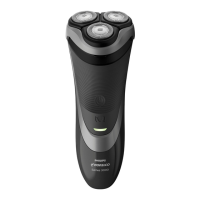
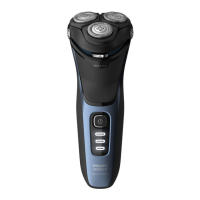
Philips 3000 series Specifications

General IconGeneral
Shaving SystemComfortCut Blade System
Contour Following4-direction Flex Heads
CleaningFully washable
Automatic Voltage100-240 V
Floating HeadsYes
Self-sharpening BladesYes
Pop-up TrimmerYes
Charging Time1 hour
Quick Charge5 minutes for 1 shave
DisplayBattery indicator
Battery TypeLithium-ion
Wet & DryWet and Dry use

Related product manuals