14.5
Play your Videos
Play Videos
Open video folder
1 - Press
SOURCES, select
USB and
press OK.
2 - Select
USB Devices and press
(right) to
select the USB device you need.
3 - Select Videos, you can press
Mark
favourite to add the video folder to favourite menu
-
Favourites.
Play a video
1 - Press
SOURCES, select
USB and
press OK.
2 - Select
USB Devices and press
(right) to
select the USB device you need.
3 - Select Videos and select one of video, you
can press
Play all to play all files in the folder or
press
Mark as favourite to add the selected
video to favourite menu -
Favourites.
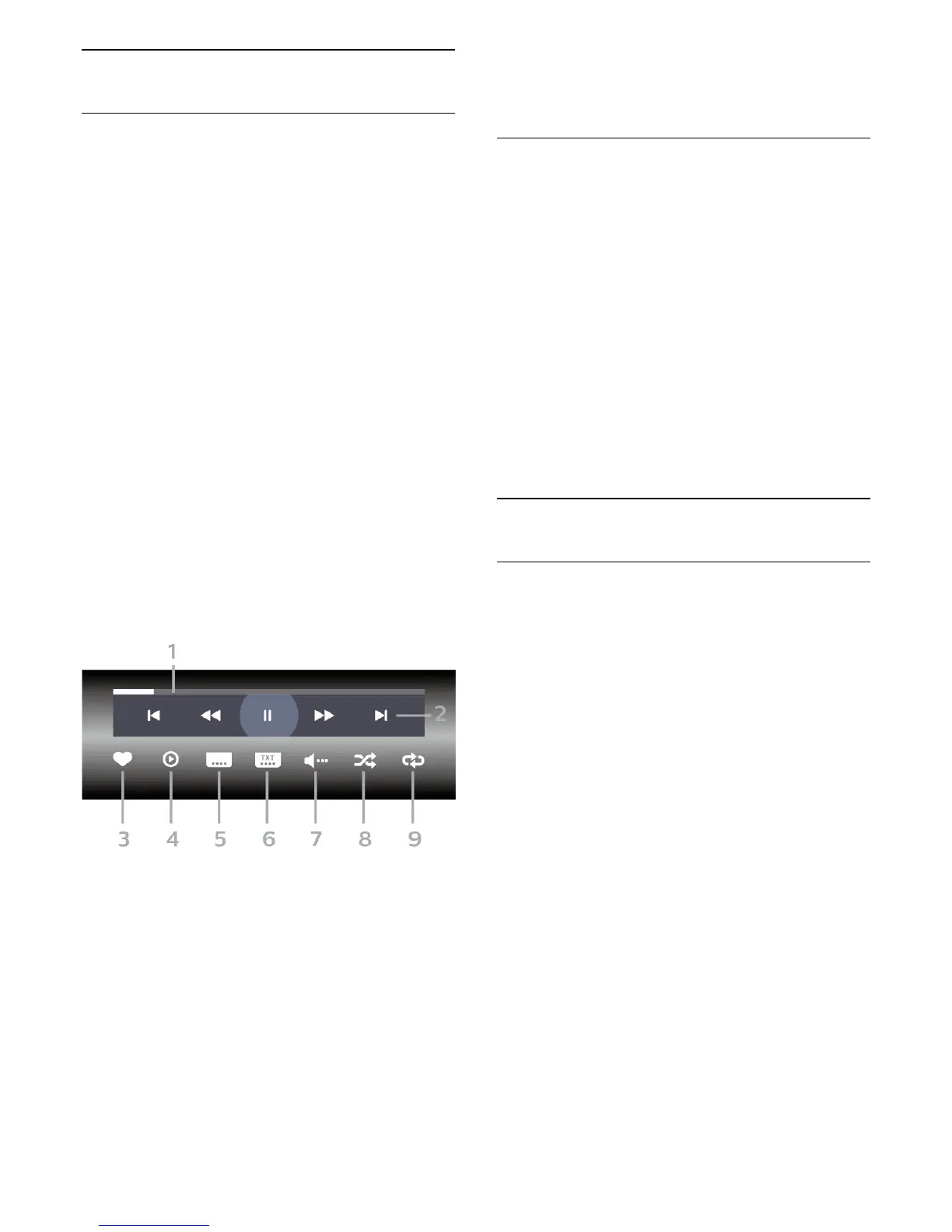
Control bar
To show or hide the control bar when a video is
playing, press OK.
1 - Progress bar
2 - Playback control bar
-
: Jump to the previous video in a folder
-
: Jump to the next video in a folder
-
: Rewind
-
: Fast forward
-
: Pause the playback
3 - Mark as favourites
4 - Play all videos
5 - Subtitle: switch subtitles On, Off or On During
Mute.
6 - Subtitle language: select a Subtitle Language
7 - Audio language: select an audio language
8 - Shuffle: play your files in a random order
9 - Repeat: plays all videos in this folder once or
continuously
Video Options
Browse video files...
• List/Thumbnails – List or thumbnails views
• Shuffle – Play your files in a random order
• Repeat – Plays all videos in this folder once or
continuously
• Info – Show video information
Playing video files...
• Mark as favourites – Mark the video as favourites
• Subtitle setting – Set subtitle font size, colour,
position...etc
• Info – Show video information
14.6
View your Photos
View Photos
Open photo folder
1 - Press
SOURCES, select
USB and
press OK.
2 - Select
USB Devices and press
(right) to
select the USB device you need.
3 - Select Photos, you can press
Mark
favourite to add the photo folder to favourite menu
-
Favourites or press
Sort for quickly
finding a photo.
View a photo
1 - Press
SOURCES, select
USB and
press OK.
2 - Select
USB Devices and press
(right) to
select the USB device you need.
3 - Select Photos and select one of photos, you
can press
Slide show to play all files in the
folder or press
Mark favourite to add the
selected photo to favourite menu -
Favourites.
Control bar
To show or hide the control bar when a slideshow is
playing, press OK.
55



 To Next Page