EN 57
Keyboard and mouse
USB keyboard
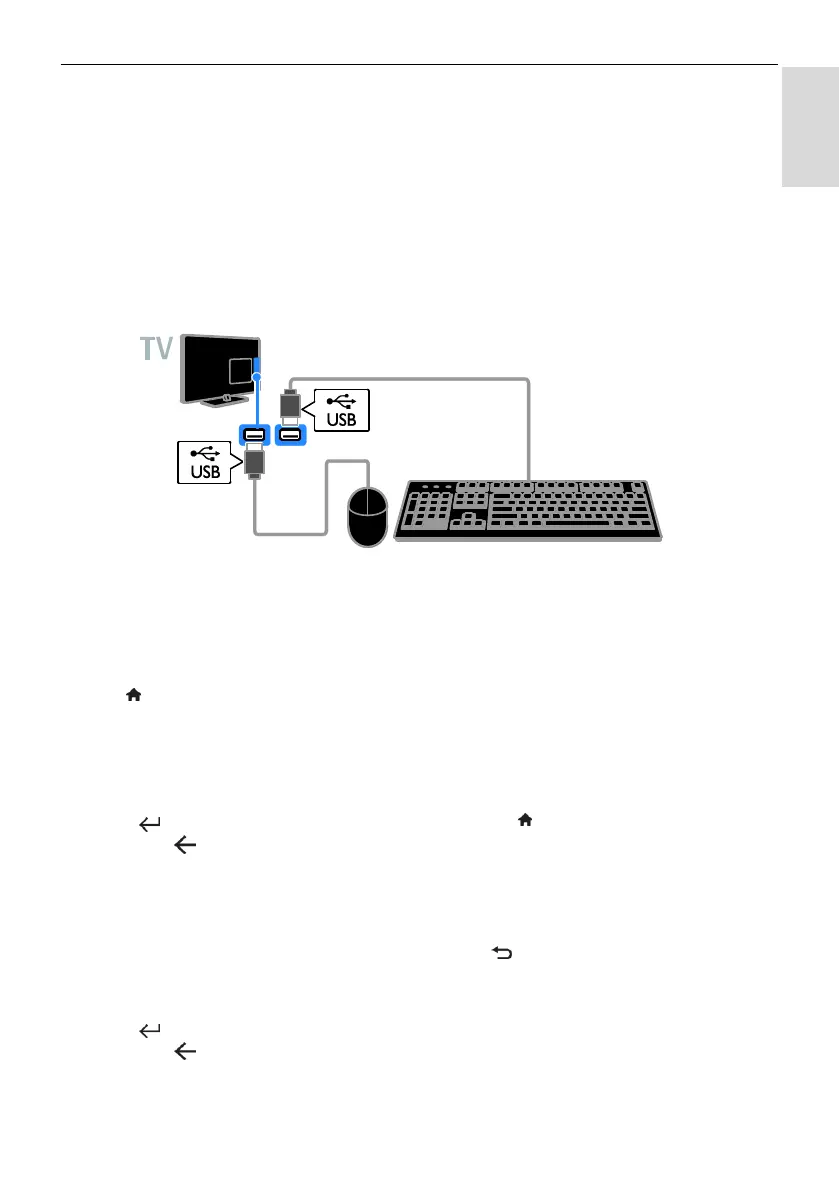
You can connect a USB keyboard to enter text such as device names on the TV or text for Smart
TV apps.
USB mouse
You can connect a USB mouse to navigate pages on the Internet and click on links.
Note:
If you need extra USB connectors, use a USB hub.
You can also connect the USB mouse to a connected USB keyboard.
Connect the keyboard and mouse to the TV with a USB cable.
When the TV detects the keyboard, you can
select the keyboard layout and test your
selection. If you have selected a Cyrillic or
Greek keyboard layout first, you can also
select a secondary Latin keyboard layout.
1. Press .
2. Select [Setup] > [TV settings] > [General
settings] > [USB keyboard settings].
3. Change the keyboard settings.
TV keys on your keyboard
To make a text entry, use the following keys:
Enter : Confirm an entry.
Backspace : Delete a character
before the cursor.
Navigation keys: Navigate within a text
field.
Alt + Shift: Switch between keyboard
layouts if multiple keyboard layouts are
set.
Smart TV keys on your keyboard
Enter : Confirm an entry.
Backspace : Go to the previous page.
Navigation keys: Navigate between
fields.
Tab: Go to the next field.
Tab and Shift: Go to the previous field.
Home: Scroll to the top of the page.
End: Scroll to the bottom of the page.
Page Up: Go to the previous page.
Page Down: Go to the next page.
+/-: Zoom in or out.
*: Fit to the width of the page.
When the TV detects the mouse, you can
set the tracking speed.
1. Press .
2. Select [Setup] > [TV settings] > [General
settings] > [Pointer/mouse settings].
3. Change the mouse settings.
Use the USB mouse with your TV
OK: Left mouse button (left-click).
(Back): Right mouse button
(right-click).
Scroll wheel: to scroll up and down an
Internet page.
Note: The USB mouse cannot navigate in
the TV menus.



 To Next Page