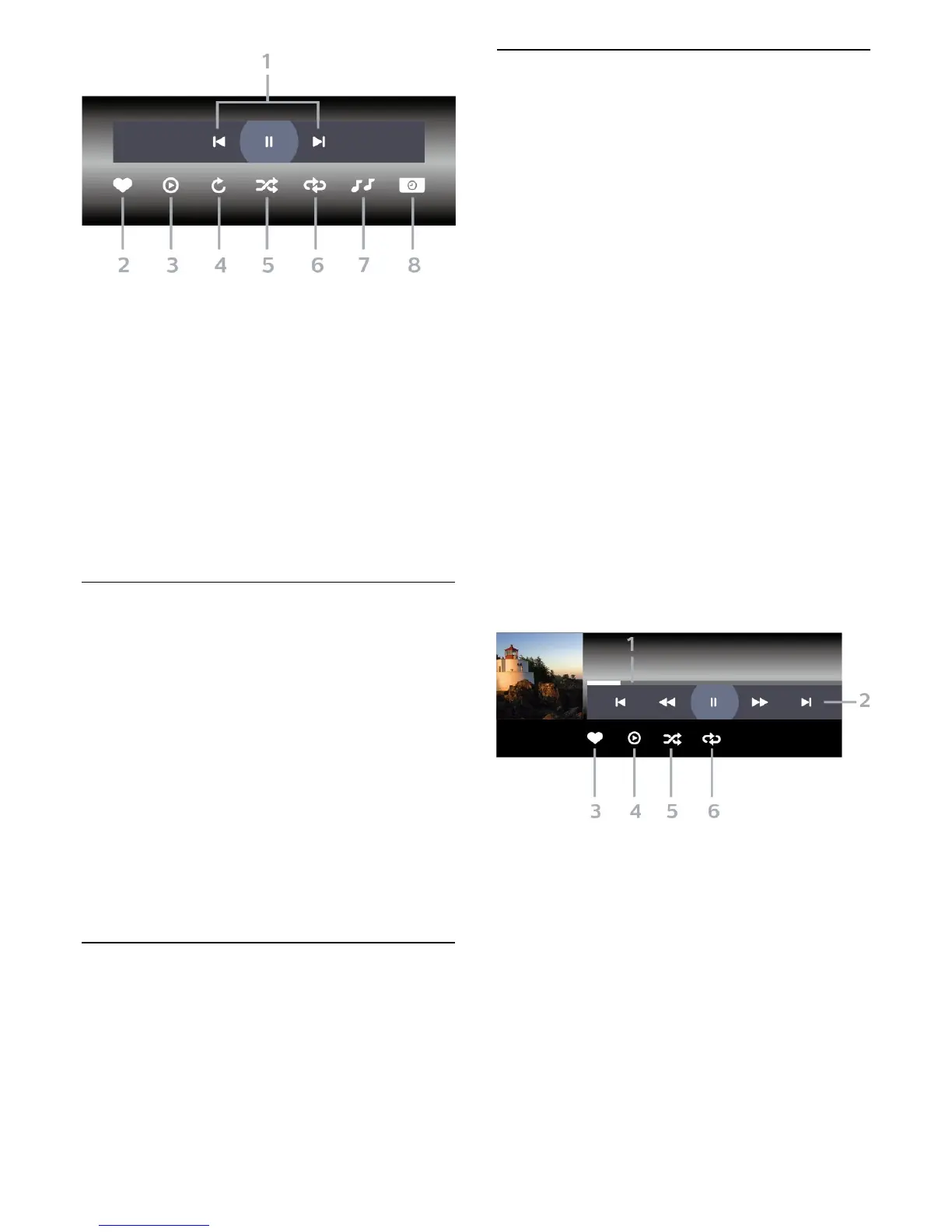
1 - Playback control bar
-
: Jump to the previous photo in a folder
-
: Jump to the next photo in a folder
-
: Pause the slideshow playback
2 - Mark as favourites
3 - Start a slideshow
4 - Rotate the photo
5 - Shuffle: play your files in a random order
6 - Repeat: plays all photos in this folder once or
continuously
7 - Stop the music playing in the background
8 - Set the speed of the slide show
Photo Options
Browse photo files...
• List/Thumbnails – List or thumbnails views
• Shuffle – Play your files in a random order
• Repeat – Play the slide show once or continuously
• Slide Show Speed – Set the speed of the slide
show
• Slide Show Transition – Set the style of the photo
transitions
Playing photo files...
• Mark as favourites – Mark the photo as favourites
• Info – Show video information
14.7
Play your Music
Play Music
Open photo folder
1 - Press
SOURCES, select
USB and
press OK.
2 - Select
USB Devices and press
(right) to
select the USB device you need.
3 - Select Music, you can press
Mark
favourite to add the music folder to favourite menu
-
Favourites.
4 - You can quickly find a music using classification
- Genres, Artists, Albums, Tracks.
Play music
1 - Press
SOURCES, select
USB and
press OK.
2 - Select
USB Devices and press
(right) to
select the USB device you need.
3 - Select Music and select one of classifications to
view music files.
4 - Select a music and you can press
Play
all to play all files in the folder or press
Mark
favourite to add the selected music to favourite
menu -
Favourites.
Control bar
To show or hide the control bar when a music is
playing, press OK.
1 - Progress bar
2 - Playback control bar
-
: Jump to the previous music in a folder
-
: Jump to the next music in a folder
-
: Rewind
-
: Fast forward
-
: Pause the playback
3 - Mark as favourites
4 - Play all music
5 - Shuffle: play your files in a random order
6 - Repeat: plays all music in this folder once or
continuously
56




 To Next Page