Preferences
You can set the unit to reduce the power consumption or adjust the
backlight brightness in Location setting.
EasyLink allows you to operate your connected EasyLink device.
S
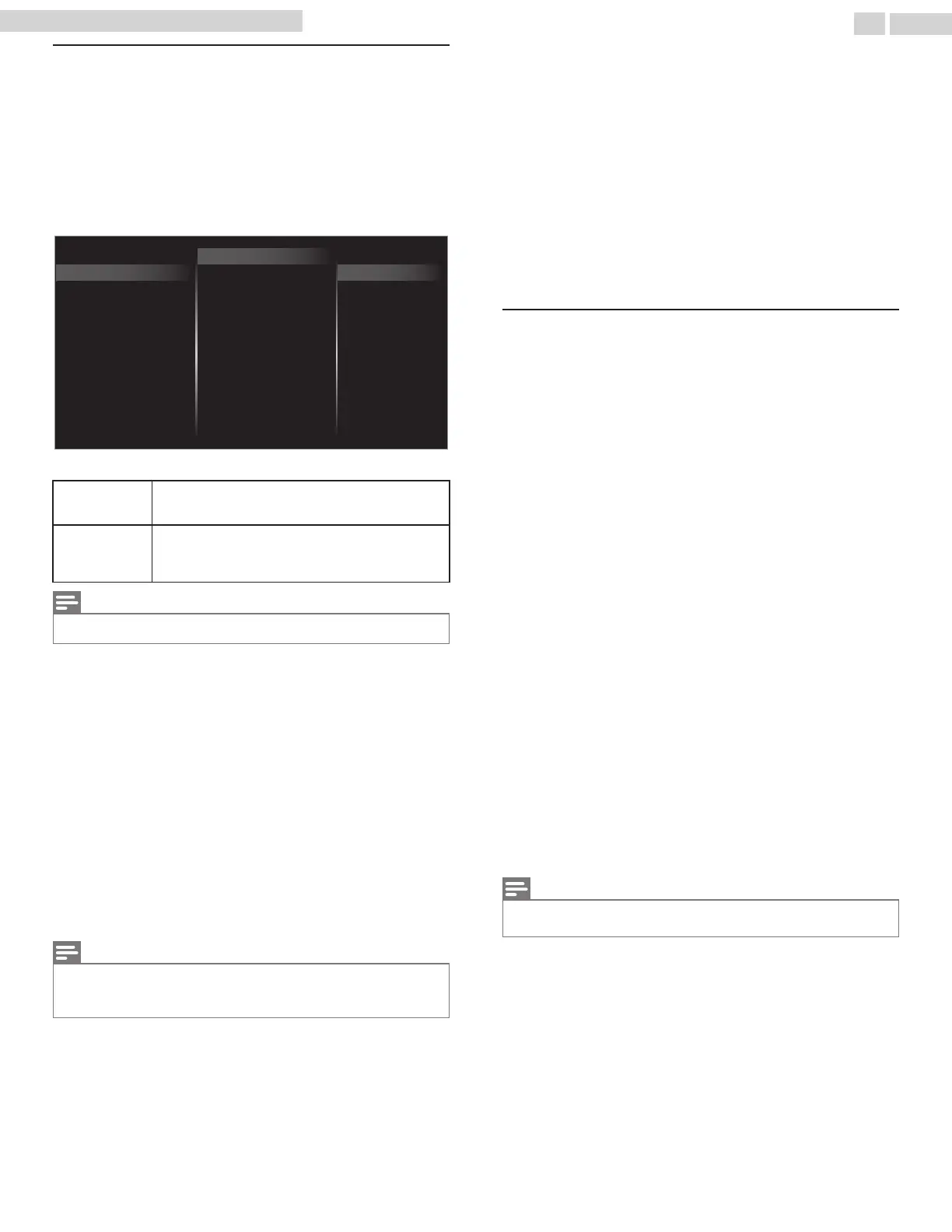
Setting your location to home
Choosing Home gives you full flexibility to change predefined settings for
picture and sound.
1
Use to select Preferences, then press OK.
2
Use to select Location, then press OK.
TV placement
Location
HDMI mode
Home
Retail
Restore default settings
Preferences
Language
EasyLink
Retail Demo
3
Use to select Home, then press OK.
Retail
The unit will be set up with predefined settings for
retail displays. In this setting, you can set the backlight
brighter.
Home
The unit is set to maximize the energy efficiency for
home setting and it can be adjusted through a choice
of picture and sound quality selections according to
your preference.
Note(s)
•
You must set Home in the menu. Otherwise, personalized picture and sound settings will not
be memorized after the unit goes into standby mode.
HDMI mode
If there are issues with picture/color and/or sound when connecting an
external device using the HDMI port, please try switching the HDMI mode
following the instructions below.
1
Press and use to select Setup, then press OK.
2
Use to select TV settings, then press OK.
3
Use to select Installation, then press OK.
4
Use to select Preferences, then press OK.
5
Use to select HDMI mode, then press OK.
6
Use to select HDMI1, HDMI2 or HDMI3, then press OK.
7
Use to select Normal or Legacy (Compatibility) depending on
the output capabilities of the external device, then press OK.
•
When switching the HDMI configuration (Legacy
Normal), the
screen will black out for a moment, then come back on.
Note(s)
•
The HDMI connector with HDMI mode set to Legacy (Compatibility) supports up to UHD 30P,
while The HDMI connector with HDMI mode set to Normal supports up to UHD 60P.
•
Switching the HDMI mode between Normal and Legacy (Compatibility) may cause loss of
HDMI CEC functionality in certain cases.
TV placement
To apply the best settings for your TV, select wall mount or stand mount.
1
Use to select Preferences, then press OK.
2
Use to select TV placement, then press OK.
3
Use to select Wall mounted or On a TV stand, then press OK.
Retail Demo
When you set Location to Retail, E-sticker (Electronic Sticker) is displayed.
E-sticker can be turned off using procedure below.
1
Use to select Preferences, then press OK.
2
Use to select Retail Demo, then press OK.
3
Use to select Off, then press OK.
Use Philips EasyLink
Your TV supports Philips EasyLink, which enables one-touch play and
one-touch standby between EasyLink-compliant devices. Compliant
devices must be connected via an HDMI connector.
One-touch play
When you connect your TV to devices that support one-touch play, you
can control your TV and the devices with one remote control. For
example, when you press (Play) on your DVD remote control, your TV
automatically switches to the correct channel to show the DVD content.
One-touch standby
When you connect your TV to devices that support standby, you can use
your TV remote control to put your TV and all connected HDMI devices
in standby mode. You can perform one-touch standby using the remote
control from any of the connected HDMI devices.
System audio control
When you connect your TV to HDMI CEC compliant devices, your TV can
switch automatically to play audio from the connected device. To use
one-touch audio, you must map the audio input from the connected
device to your TV. You can use the remote control from the connected
device to adjust the volume.
Remote control (RC) key forwarding
RC key forwarding allows you to control EasyLink-compliant devices
using your TV remote control.
HDMI-ARC (Audio Return Channel) (HDMI 1 only)
HDMI-ARC allows you to use Philips EasyLink to output TV audio directly
to a connected audio device, without the need for an additional digital
audio cable. Be sure that the device is HDMI CEC and ARC compliant, and
that the TV is connected to the device using an HDMI cable attached to
both HDMI-ARC connectors.
Note(s)
•
Philips does not guarantee 100% interoperability with all HDMI CEC devices.
•
The EasyLink-compliant device must be switched on and selected as the source.
32 .English
Continued on next page.
50PFL5601 serial numbers beginning with DS3 or higher numbers



 To Next Page