EasyManua.ls Logo

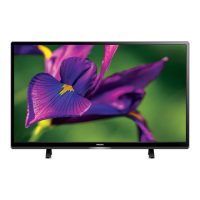
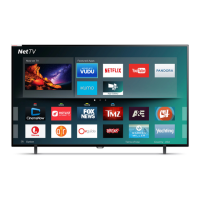
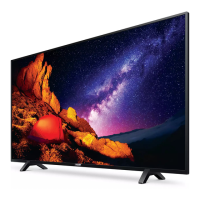
Philips 50PFL5604 - User Manual

Philips 50PFL5604
39 pages
Print Icon
To Next Page IconTo Next Page
Loading...
Telev isions
5704 series
5604 series
55PFL5704
55PFL5604
50PFL5704
50PFL5604
43PFL5704
43PFL5604
EN
User manual
FR
Manuel d’utilisation
Register your product and get support at
www.philips.com/support
EN For further assistance, please call the customer support in your
country or check the Philips website for chat support.
To obtain assistance, contact Philips customer care center;
In the U.S.A., Canada, Puerto Rico, or the U.S. Virgin Islands
1 866 309 5962
FR Pour plus de l’aide, s’il vous plaît contactez le service clientèle de
votre pays ou consultez le site Web de Philips pour obtenir une
assistance par chat.
Pour obtenir de l’aide, communiquez avec le centre de service à la
clientèle Philips au;
Dans le États-Unis, au Canada, à Puerto Rico ou aux Îles Vierges
américaines; 1 866 309 5962

Other manuals for Philips 50PFL5604

Questions and Answers

  • C
    Crystal DavidsonAug 7, 2025
    How to fix Philips TV cannot connect to network?
    • T
      thompsonpatrickAug 7, 2025
      If you cannot connect your Philips TV to the network, check that your router and/or modem is properly connected and that the Ethernet cable connection between the TV and your router or modem is properly secured. Try power cycling the router and/or modem. Also, verify your network settings.
  • J
    Joshua RojasAug 12, 2025
    What to do if Philips TV power is on but screen image is off?
    • M
      marksmithAug 12, 2025
      If your Philips TV power is on but the screen image is off, check if the connection for your source device is properly secured. Also, check if the correct input is selected by pressing the w (INPUTS) button. Verify that your HDMI mode for the selected input matches the resolution output of your source device. You can also try changing the source input until you get picture and sound.
  • I
    iortizAug 17, 2025
    How to fix slow data connection or buffering on Philips 50PFL5604?
    • R
      Reginald MillerAug 17, 2025
      If you are experiencing a slow data connection or buffering on your Philips TV, check the settings between your router and ISP modem or gateway (if applicable). Connect to a stable wireless connection from your home wireless or wired network. The use of mobile hot spots or public wireless connections is not recommended.
  • E
    Erin ScottAug 22, 2025
    How to turn off talkback on Philips TV?
    • T
      Thomas PrattAug 22, 2025
      To disable the talkback (text to speech) feature on your Philips TV, press the HOME button on your remote control, navigate to the settings icon in the upper right corner of the home screen and select accessibility, then select talkback, and press OK to toggle between on or off.
  • J
    Jordan TorresAug 27, 2025
    What to do if my Philips TV has no power?
    • J
      james88Aug 28, 2025
      If your Philips TV has no power, first ensure that the AC outlet supplies the proper voltage. Try plugging another electrical appliance into the same outlet to check if it works. If a power failure has occurred, unplug the AC power cord for 1 minute to allow the TV to reset.
  • C
    Charles CruzSep 1, 2025
    Why is my Philips 50PFL5604 remote response delayed during initial use?
    • B
      Brett LopezSep 1, 2025
      When you first use your Philips television, it automatically downloads and installs the latest applications to give you the best experience. During this process, the remote control's response might be slower than normal. Once the installation is done, the remote should work as expected.

Summary

Safety and Registration

Safety Symbols and Warnings

Understand key safety symbols like CAUTION and WARNING for safe operation.

Child Safety and TV Placement

Guidelines for safe TV placement and child safety to prevent accidents.

Important Safety Instructions

General Safety Guidelines

Comprehensive instructions for safe operation, handling, and environment.

Wall Mounting Safety Precautions

Safety measures and considerations for securely mounting the TV on a wall.

TV Handling and Environment

Safe TV Positioning and Placement

Instructions for stable, horizontal placement, avoiding direct sunlight and dust.

Installation Safety Warnings

Crucial warnings about securely attaching the TV to furniture/wall to prevent tipping.

Getting Started

Unpacking and Stand Installation

Installing the TV Stands

Instructions for attaching the TV stands securely using screws.

Remote Control Overview

Remote Control Buttons and Functions

Detailed description of all buttons on the remote control and their functions.

TV Terminals and Control Panel

Terminal Connections Explained

Descriptions of all input/output terminals on the TV for connectivity.

Connecting External Sources

Antenna and Set-Top Box Connections

Instructions for connecting antennas, cable, satellite, or IPTV set-top boxes.

Connecting Your Devices

HDMI Connection for Highest Quality

Details on connecting via HDMI for superior picture and sound quality.

Advanced Connectivity Options

HDMI-ARC Connection

Using HDMI-ARC for TV audio output to compatible audio devices.

Network and PC Connectivity

Wireless LAN Network Setup

Instructions for setting up a wireless network connection for internet access.

Using Your TV

Powering On;Off and Standby

How to turn the TV on, put it in standby mode, and fully power off.

Adjusting Volume and Muting

Steps to increase, decrease, or mute the TV volume.

Switching Channels

Methods for changing channels using the remote or number buttons.

Navigating TV Inputs and Menus

Watching from External Devices

Switching between TV and external devices using input modes.

Accessing the Home Menu

How to open the main Android TV home screen.

Guide to Home Menu Features

Overview of features accessible from the Home menu like Apps, Settings, and Google Assistant.

Apps and Google Assistant

Downloading and Installing Apps

Steps for downloading and installing applications from the Google Play Store.

Using Google Assistant

How to activate and use Google Assistant for voice commands and queries.

Exploring TV Settings

Device Settings Overview

Introduction to the Device settings menu and its functions.

Device Settings: Network and Channel

Network Configuration

Setting up network connection for apps and software upgrades.

Picture and Sound Adjustments

Sound Settings and Styles

Configuring sound styles, equalizer, and balance for optimal audio.

Accessibility Features

Troubleshooting: Frequently Asked Questions

Remote Control Issues

Troubleshooting common problems with the remote control.

Troubleshooting: Solutions

Power and Remote Troubleshooting

Solutions for power issues and non-responsive remote controls.

Picture and Sound Troubleshooting

Addressing problems with distorted pictures, no sound, or incorrect audio.

Troubleshooting: Connectivity and Streaming

Network Connectivity Problems

Diagnosing and fixing issues with connecting to the network or poor wireless quality.

Product Specifications

Limited Warranty Information

Warranty Coverage and Exclusions

Details on what is covered and excluded under the limited warranty.

Philips 50PFL5604 Specifications

General IconGeneral
BrandPhilips
Model50PFL5604
CategoryTV
LanguageEnglish

Related product manuals