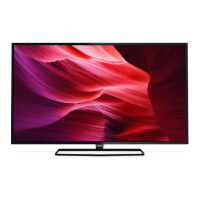
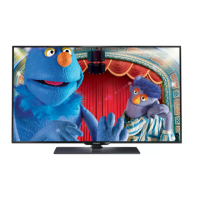
This document is a quick start guide for the Philips 5766 series Android TV. It provides instructions on setting up and using the television, including remote control usage, Google account setup, network configuration, live TV features, Google Assistant, Google Duo, connecting external devices, parental controls, and troubleshooting.
Function Description:
The Philips 5766 series Android TV is a smart television that offers a comprehensive entertainment experience. It integrates the Android TV platform, allowing users to access a wide range of apps, movies, TV shows, and music through the Google Play Store and Google Play app. The TV supports both wired and wireless network connections for streaming content, including 4K resolution. It features Google Assistant for voice control and smart home integration, as well as Google Duo for video calls. The television can connect to various external devices such as Blu-ray players, gaming consoles, cable boxes, and Bluetooth accessories. It also includes parental control features to manage content access for children.
Important Technical Specifications:
- Remote Control Batteries: Requires 2 AAA (1.5 V) batteries.
- Wireless Connectivity: Equipped with Wireless LAN 802.11ac MIMO for wireless streaming up to 4K content.
- Recommended Wi-Fi Router Placement: Within 15 feet of the TV for optimal wireless performance.
- Google Duo Video Call Requirements:
- 10 Mbps or faster internet access for 1080p video calls.
- A Google account.
- External USB camera with a built-in mic supporting Android 9.0 or later.
- Compatible USB Cameras for Google Duo: Logitech C920s and Logitech C922.
- USB Power Output: USB 5V 0.5A.
- HDMI EDID Versions: Supports EDID 1.4 (for 2K or 4K @ 30 Hz) and EDID 2.0 (for 4K @ 60 Hz and 4K with HDR 10).
- Low Power Standby: Consumes ≤0.5 W.
- Operating System: Android TV (Android 9.0 or later for Google Duo camera compatibility).
- Copyrights and Trademarks: Incorporates HDMI, Dolby Audio, and Bluetooth® technologies. Google, Android, Google Play, and Android TV are trademarks of Google LLC.
Usage Features:
- Remote Control:
- Power ( ): Turns the TV on/off into Quick Start Standby or Low Power Standby (hold for 1 second or more).
- TV Guide ( ): Accesses the Electronic Program Guide (EPG).
- Google Assistant Button: Activates Google Assistant for voice commands and questions.
- Back ( ): Returns to the previous menu screen.
- PREV.CH: Direct access to Live TV channels and displays the last selected terminal or channel.
- Options ( ): Displays a list of menu options applicable to the active screen.
- Cursor (▲▼◄►) and OK: Navigates menus and selects items.
- Home ( ): Accesses apps, Live TV, input devices, settings, and the Google Play Store.
- Input ( ): Changes input source and selects attached devices.
- Google Account Integration: Allows expansion of entertainment library via Google Play Store and Google Play app, and keeps apps up-to-date. Recommended for full functionality, including Google Assistant.
- Network Connectivity: Supports both wired (Ethernet) and wireless (Wi-Fi 802.11ac MIMO) connections for internet access and streaming.
- Android TV Setup: Can be quickly set up using an Android smartphone or tablet to wirelessly sync Wi-Fi credentials, Google account, and compatible apps.
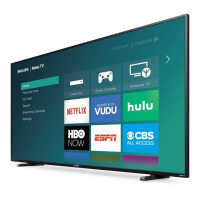
- Home Screen Navigation: Provides easy access to movies, TV shows, music, apps, input devices, and settings.
- Search: For content discovery.
- Home: Main screen.
- Discover: Recommendations based on watch history and trends.
- Apps: Gallery of pre-installed and user-installed apps.
- Highlights: Suggestions of movies and shows.
- Inputs: Toggles between source devices and RF tuner.
- Network Condition: Displays network status and settings.
- Settings: Configures TV settings and connects wireless devices.
- App Organization: Users can long-press OK on an app to move or remove it from favorites.
- Live TV/Antenna:
- Add Channels: Installs channels from Antenna/Cable via the "How to..." app, then Live TV, Setup, and selecting signal type.
- Channel List: Accessed by pressing OK while viewing Live TV.
- Program Guide: Accessed via the TV Guide button on the remote.
- Google Assistant:
- Voice Control: Press the Google Assistant button to ask questions or give commands.
- Bluetooth Connection: Remote must be connected via Bluetooth to the TV (Settings > Remotes & accessories > Add accessory).
- Privacy Protection: Voice-command history can be deleted by saying "Delete what I said."
- Google Duo:
- Video Calls: Simple, high-quality video calls directly from the TV using an external USB camera.
- Data Saving Mode: Can be enabled under Settings > Call Setup to reduce bandwidth and improve connectivity for 1080p calls.
- Connecting External Devices:
- Antenna/Cable/Satellite/IPTV Set-top Box: Connects via RF cable or HDMI cable.
- Input Switching: Use the Input button on the remote to switch between connected devices.
- EDID Version Adjustment: Can be adjusted under Settings > Device Preferences > Inputs > HDMI EDID Version for optimal picture quality from source devices.
- Chromecast built-in™: Allows mirroring favorite apps from a device to the TV, provided both are on the same Wi-Fi network.
- Bluetooth® Devices: Pairs wireless headsets, keyboards, game controllers, and other Bluetooth accessories via Settings > Remote & Accessories > Add accessory.
- Parental Controls:
- Rating Lock: Restricts programs/channels based on ratings (TV-Y, TV-Y7, TV-G, TV-PG, TV-14, TV-MA, G, PG, PG-13, R, NC-17, X).
- PIN Protection: Default PIN is "1234" (can be reset via Factory data reset).
- Program Restrictions: Only displayed when the last selected input is not HDMI.
- SafeSearch Filter: Blocks inappropriate or explicit images from Google search results (Settings > Device Preferences > Google Assistant > SafeSearch filter).
Maintenance Features:
- Troubleshooting Guide: Provides solutions for common issues such as:
- No Power: Check AC outlet, unplug/replug AC cord for 1 minute.
- Slow Start-up: Understands longer load times for Low Power Standby; Quick Start Standby offers faster boot.
- Remote Not Functional: Re-insert/replace AAA batteries, ensure Bluetooth connection for Google Assistant.
- Network Connectivity Issues: Check router/modem connection, Ethernet cable, power cycle router/modem, check network settings.
- Slow Data Connection/Buffering: Check router/ISP modem settings, use stable home wireless/wired network (public hotspots not recommended).
- Delayed Remote Response: Occurs during initial use while TV downloads/installs latest applications; normal operation resumes after installation.
- Google Duo Camera Issues: Check camera compatibility (Android 9.0+), connection, mute status, restart TV/camera.
- No Picture/Abnormal Picture: Check source device connection, correct input selection, HDMI mode/resolution, change source input.
- Television Speaking Prompts Out-Loud (TalkBack): Disable via Settings > Device Preferences > Accessibility > TalkBack.
- No Sound on HDMI: Check device connection to HDMI 2 (ARC) input.
- Firmware Updates: The TV automatically downloads and installs the latest applications for the best user experience.
- Customer Support: Provides a toll-free number (1-866-309-5962) for assistance in the U.S.A., Canada, Puerto Rico, or the U.S. Virgin Islands, and directs users to the Philips website for chat support and full user manual downloads.



 To Next Page
 General