4.11
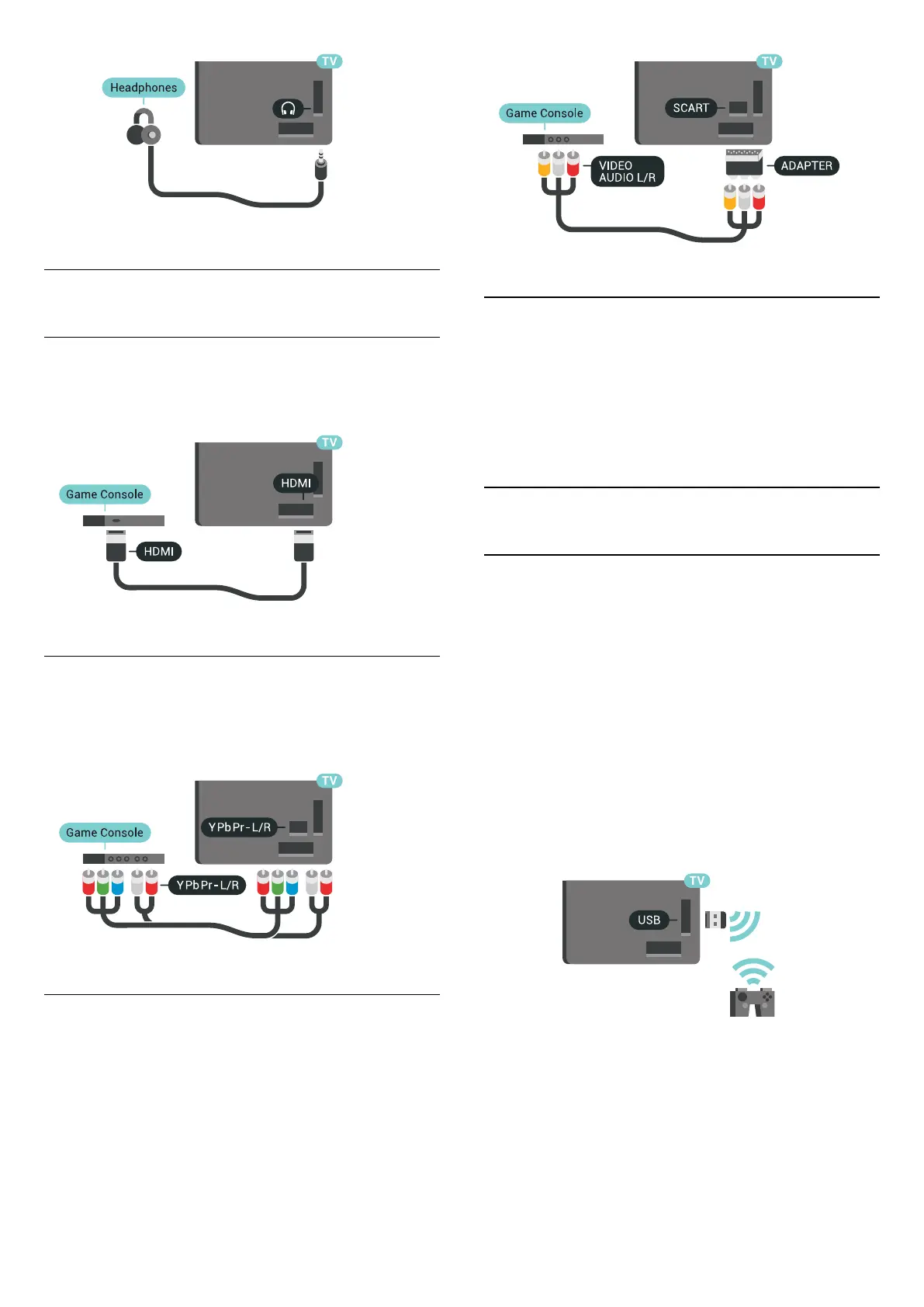
Game Console
HDMI
For best quality, connect the game console with a
High speed HDMI cable to the TV.
Y Pb Pr
Connect the game console with a component video
cable (Y Pb Pr) and an audio L/R cable to the
TV.
Scart
If your game console only has Video (CVBS) and
Audio L/R output, use a Video Audio L/R to SCART
adapter (sold separately) to connect to the SCART
connection.
Ideal Setting
Before you start playing a game from a connected
game console, we recommend to set the TV in the
ideal setting Game.
In Help, press the colour key
Keywords and look
up Game or Computer for more information.
4.12
Gamepad
Connect a Gamepad
To play games from the Internet on this TV, you can
connect a selected range of wireless Gamepads. You
can use Gamepads with a USB nano receiver or
gamepads with Bluetooth.
To connect a Gamepad with a USB nano receiver…
1 - Plug in the small nano receiver in one of the USB
connections on the side of the TV. The wireless nano
receiver comes with the Gamepad.
2 - If the Gamepad is switched on, you can use the
Gamepad.
You can connect a second Gamepad in the second
USB connection on the side of the TV.
Bluetooth
To connect a wireless gamepad with Bluetooth, press
the colour key
Keywords and look up Bluetooth,
Pairing.
22



 To Next Page