19
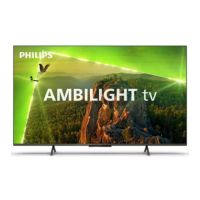
Ambilight
19.1
Ambilight Style
Follow Video
You can set Ambilight to follow the video or the audio
dynamics of a TV programme. Alternatively, you can
set Ambilight to show a preset colour style or you can
switch Ambilight off.
If you select Follow Video, you can select one of the
styles that follow the dynamics of the picture on your
TV screen.
1 - Press
AMBILIGHT.
2 - Select Follow Video and press OK.
3 - Select the style you want and press OK.
4 - Press
(left) to go back one step or
press
BACK to close the menu.
The available Follow Video styles are…
• Standard - Ideal for day to day TV watching
• Natural - Follows the picture or sound as truthful
as possible
• Immersive - Ideal for action movies
• Gaming - Ideal for gaming
• Vivid - Ideal for daylight conditions
• Comfort - Ideal for a quiet evening
• Relax - Ideal for a lounge feeling
Follow Audio
You can set Ambilight to follow the video or the audio
dynamics of a TV programme. Alternatively, you can
set Ambilight to show a preset colour style or you can
switch Ambilight off.
If you select Follow Audio, you can select one of the
styles that follow the dynamics of the sound.
1 - Press
AMBILIGHT.
2 - Select Follow Audio and press OK.
3 - Select the style you want and press OK.
4 - Press
(left) to go back one step or
press
BACK to close the menu.
The available Follow Audio styles are…
• Lumina - Mixes audio dynamics with video colours
• Colora - Based on audio dynamics
• Retro - Based on audio dynamics
• Spectrum - Based on audio dynamics
• Scanner - Based on audio dynamics
• Rhytm - Based on audio dynamics
• Party - A mix of all Follow Audio styles, one after
the other
Follow Colour
You can set Ambilight to follow the video or the audio
dynamics of a TV programme. Alternatively, you can
set Ambilight to show a preset colour style or you can
switch Ambilight off.
If you select Follow Colour, you can select one of the
preset colour styles.
1 - Press
AMBILIGHT.
2 - Select Follow Colour and press OK.
3 - Select the style you want and press OK.
4 - Press
(left) to go back one step or
press
BACK to close the menu.
The available Follow Colour styles are…
• Hot Lava - Red colour variations
• Deep Water - Blue colour variations
• Fresh Nature - Green colour variations
• Warm White - Static colour
• Cool White - Static colour
19.2
Ambilight Off
To switch off Ambilight…
1 - Press
AMBILIGHT.
2 - Select Off and press OK.
3 - Press
(left) to go back one step or press
BACK to close the menu.
19.3
Ambilight Settings
In Help, press the colour key
Keywords and look
up Ambilight, Settings for more information.
61



 To Next Page