Google Duo
Google Duo is an app that provides simple, high-quality video
calls
right from your TV. To start calling with Google Duo, below
items are required:
1
10 Mbps or faster internet access for 1080p video call.
1
2
Google account
2
3
External USB camera with a built-in mic which supports
Android 9.0 and later.
Below USB camera is compatible
3
with this 74 series Philips
Android TV. Check the Philips Android TV Hook Up Guide
(http://www.philips.com/support) for the latest compatibility
updates.
Brand Model
Logitech C920s
Logitech C922
1 If
connectivity issues arise, please turn on Data Saving Mode
under Settings > Call Setup > Data Saving Mode. This
reduces the necessary bandwidth as well as the call quality.
2 A Google account is required. Sign in with an existing
account or create a new one. If there is one already signed in
on your Android TV, select the account that you want to use.
3 Compatibility of USB cameras with this Philips 74 series
Android TV may change over time with USB camera
hardware and/or software updates.
For more details on how to get started, please visit
https://support.google.com/duo/answer/10079968?
hl=en&ref_topic=6376099
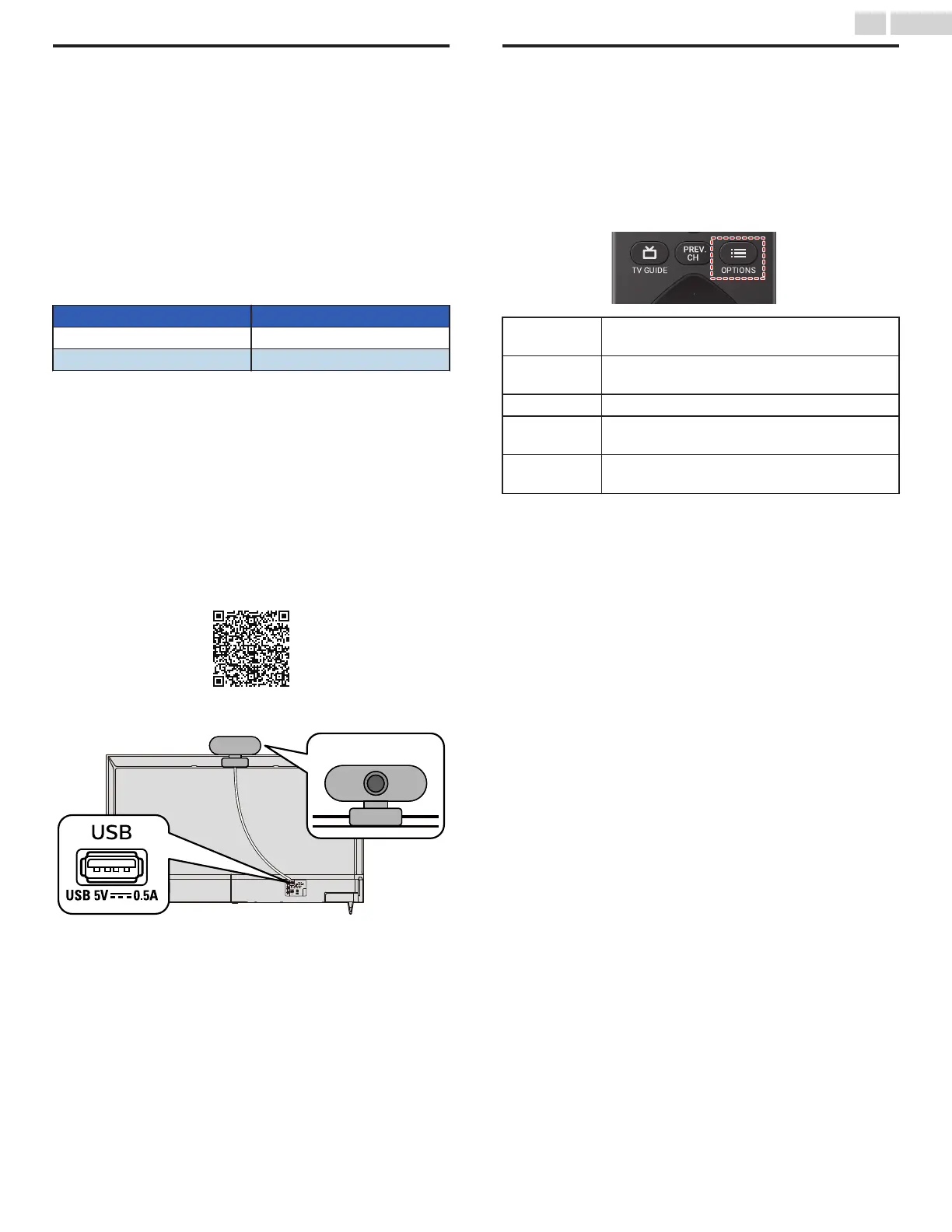
Below is an example of how to connect and place USB camera.
USB camera
Picture format
Display modes can be selected when your TV receives a 16:9 or
4:3 video signal.
1
Press y (OPTIONS) to display Options menu.
2
Use J K to select Picture format, then press OK.
3
Select each settings of following table and press OK to
switch the TV aspect ratio.
Automatic
Displays a picture at maker recommended
picrure format setting.
Full
Displays a picture that is stretched out of
proportion to fill the screen.
Unscaled Displays a picture at its original size.
4:3
Displays a 4:3 picture at its original size.
Sidebars appear on both edges of the screen.
Movie
expand
Displays a American vista 16:9 picture at its
original size.
22 .English
Continued on next page.



 To Next Page