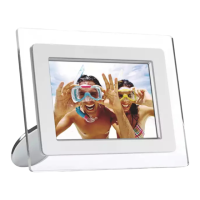
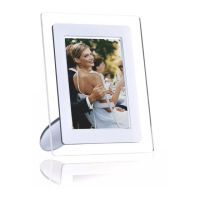
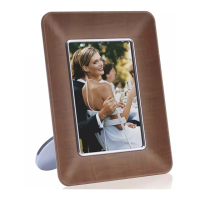
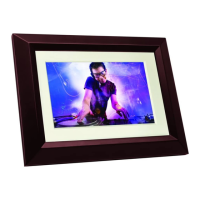
PhotoFrame™.
Copying from a memory card
You may copy photos one by one in Browse mode or several photos at once in Thumbnail
Mode
Copying photo one by one in Browse mode
•
Change view mode to Browse.
•
Insert the memory card into PhotoFrame™.
Photos from memory card will appear.
•
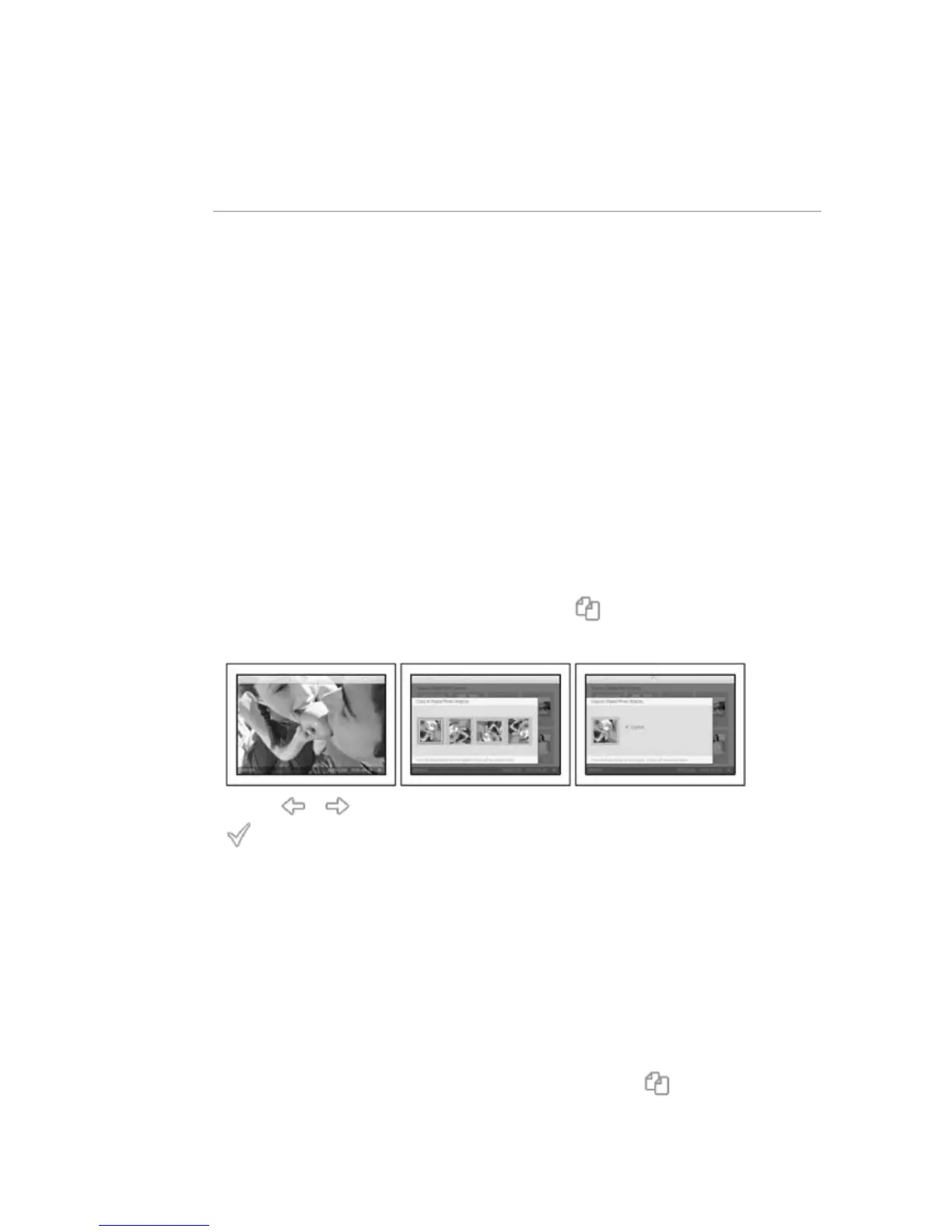
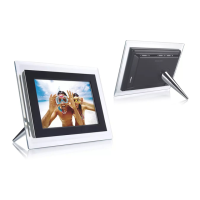
With the photo for copy shown on screen, press the key (the 4
th
key from the left
on the rear of PhotoFrame™). Four different orientations of the selected photo will
appear.
•
Use the or key to select the desired photo orientation and then press the
key.
Do not remove the memory card before the copy screen disappears upon completion.
If a warning message shows up indicating no free space for more photos, you may need
to remove some already stored photos first before copying more photos.
• After the copy screen disappears upon completion, a resized copy of the photo is stored
inside PhotoFrame™.
• You may move to other photos and continue this process until all the photos you want
are copied to Photos Frame.
Copy several photos at once in Thumbnail mode
•
Change view mode to Thumbnail.
• Insert the memory card into PhotoFrame™.
Photos from memory card will appear.
•
Highlight the photo for copy in Thumbnail mode and press the key (the 4
th
key from
the left on the rear of PhotoFrame™).
A multi-photo copy screen with small photos from current thumbnail screen will appear.


 To Next Page