10
Take pictures
1
Switch the mode switch button to .
» The le size and remaining number
of pictures that can be taken are
displayed on the swivel touch screen.
2 Hold the camcorder steadily and aim the
lens as needed.
3 Press T/W to zoom in/out if necessary.
4 Press the shutter button down halfway to
adjust the focus.
5 Press the shutter button down completely
to take a picture.
» [Picture saved!] is displayed briey.
Play
1
In viewnder mode, tap on the swivel
touch screen to enter play mode.
» The last recorded media is played
automatically.
2 Swipe to the left/rights to select a picture
or video clip for play.
3 If the selected le is a video clip, tap in
the middle of the screen to start play.
• To pause play, tap any place of the
swivel touch screen.
Preview
• In play mode, tap .
» The thumbnails of 9 les are displayed
on each page.
» To select a le, tap the le directly.
» Tap
/ to view the previous/next
page.
4 Use your
camcorder
Record video
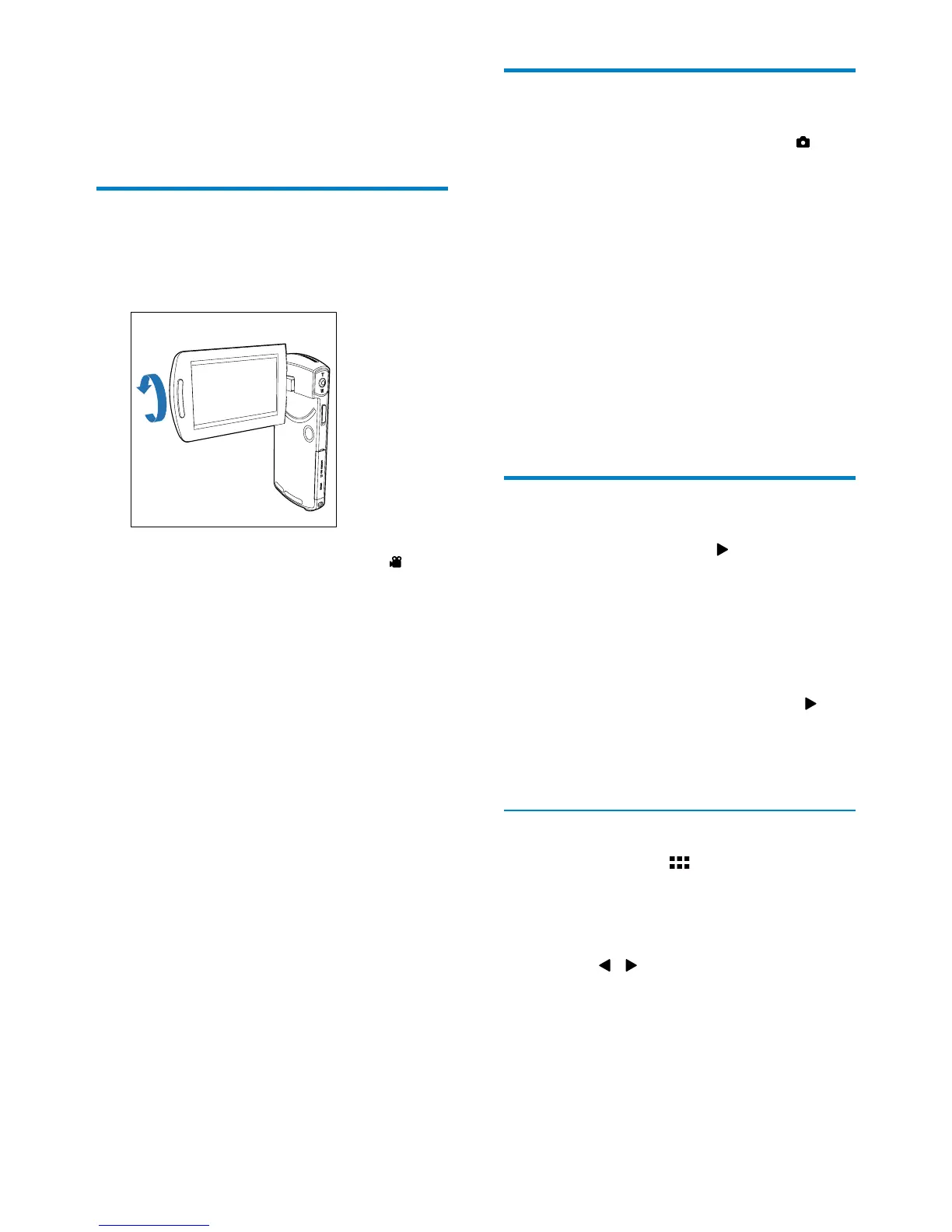
1
Adjust the swivel touch screen to an
appropriate position.
2 Switch the mode switch button to .
» The selected resolution and remaining
recording time are displayed on the
swivel touch screen.
3 Hold the camcorder steadily and aim the
lens as needed.
4 Press the shutter button to start recording.
» A red time indicator is displayed on
the display panel.
» The status indicator on the shutter
button starts ashing in red.
5 Press T/W to zoom in/out if necessary.
6 Press the shutter button again to end
recording.
» [Recording saved!] is displayed briey.
EN




 To Next Page