7EN
3 Get started
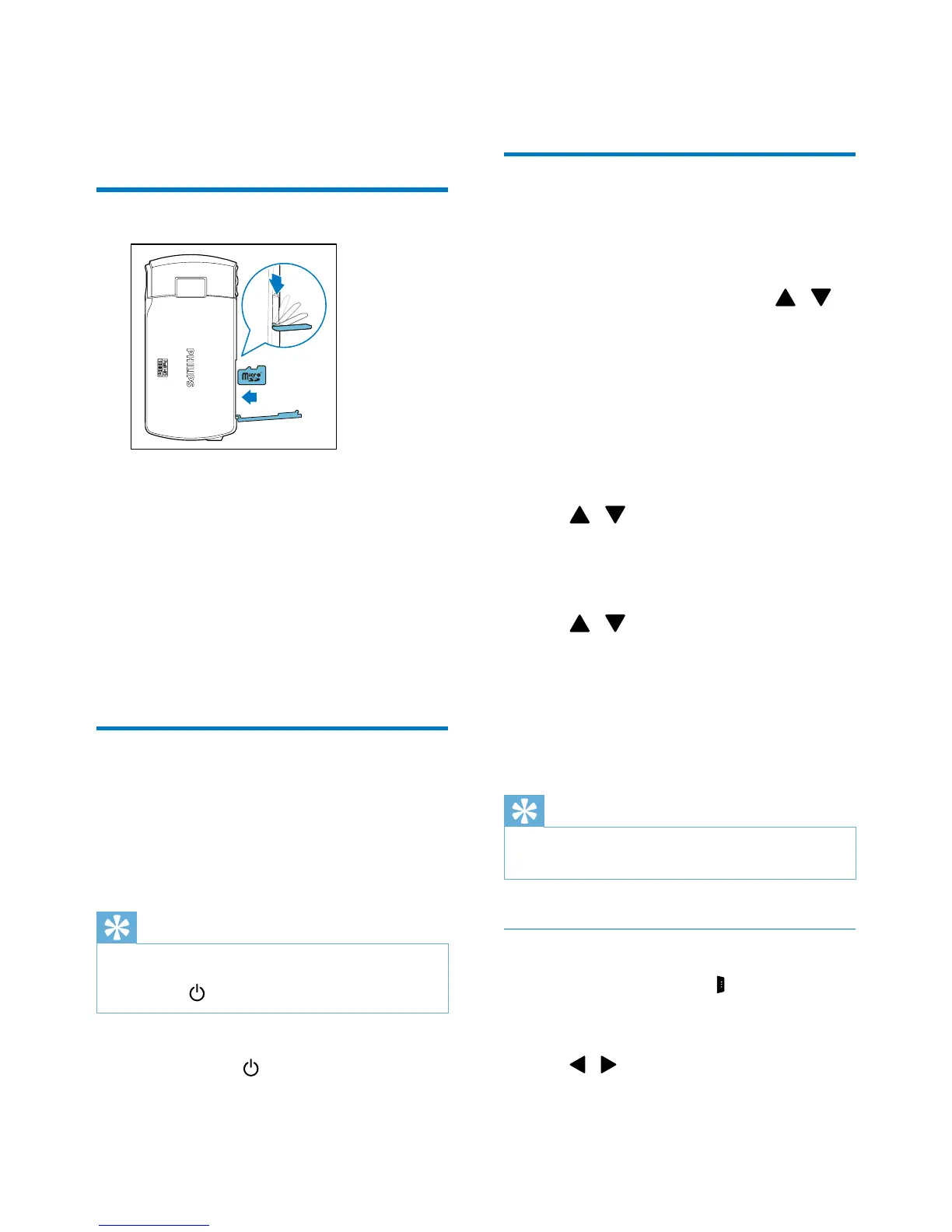
Load the Micro SD card
1 Flap open the protective cover on the
Micro SD card socket.
2 Insert a Micro SD card (not supplied) into
the socket.
• Make sure that the the Micro SD card
is not write-protected.
• Make sure that the metal contact of
the card faces down.
3 Close the protective cover securely.
Turn on
• Flip open the swivel touch screen.
» For rst-time users, a menu for OSD
language selection is displayed (See
''Get started - First-time setup).
Tip
•
To save energy, the camcorder turns off automatically
after being idle for 3 minutes. To turn on the camcorder
again, press
.
To turn off the camcorder:
• Press and hold
.
• Or close the swivel touch screen.
» The backlight on the swivel touch
screen turns off.
First-time setup
When you turn on the camcorder for the rst
time, a menu for OSD language selection is
displayed.
1 On the swivel touch screen, tap / to
select a language.
2 Tap [OK] to conrm.
» A welcome message is displayed briey.
» An inquiry box for date and time
setting is displayed.
3 Tap [Yes] to conrm.
» A date setting menu is displayed.
4 Tap / to set the day, month and year
successively.
5 Tap [OK] to conrm the date setting.
» A time setting menu is displayed.
6 Tap / to set the hour and minute
successively.
7 Tap [OK] to conrm the time setting.
» The rst-time setup is complete.
» The camcorder enters viewnder
mode.
Tip
•
See 'Use your camcorder - Adjust settings' for more
settings.
Select a scene
1 In viewnder mode, tap to show the
system setting menu.
2 Tap [Scene] to enter scene setting.
3 Tap / to select a scene you like.
4 Tap [OK] to conrm the setting.




 To Next Page