5.3 THE SERVICE SHELL
Introduction.
For
service purposes the CD-I set
has
built-in software
modules. These modules can be activated via the service
shell by menu.
The modules are for the testing
of:
- Video circuitry, by means
of
a colorbar testpatern
- CDM and servo circuitry
-
Input/
Output ports
- Audio circuitry
Testing the COM, servo and audio cicuitry
in
the service
shell is only possible with a CD-DA disc.
5.3.1
Starting
the
service shell
The service shell can be started by connecting the RXD and
TXD
lines of port
1
(pin2 and pin3) during start up (insert
testplug before
power
on or reset).
5.3.2
Layo.i.Jt
info
selectable/non selectable items
Each menu of the
service ~hell
consist
of
a number
of
boxes
and text strings.
Some
of these boxes can be selected by
moving the screen cursor above
the box and
clicking
on
one
of the joystick buttons. Only the colored boxes can be
selected. Clicking on one
of
the other boxes wil I have no
effect.
(error) messages on the screen
The service shell will provide information and errors in a box
at the top of the screen. To remove such a message and
continue with the
test
a button must be clicked on the
remote control joystick.
menu structure
When the service shell is started, the main menu appears
with a number
of
boxes on it. Selecting some boxes will
result
in
a submenu being displayed, other boxes may result
in
immediate action. Selecting the EXIT box will stop the
service shell and restart the player. Selecting EXIT
in
a
submenu will return you
to
the previous menu.
5.3.3
Subject dependent information
Main menu
The main menu contains four test item boxes and the EXIT
box. Selecting
TEST
IMAGE will give immediate action, the
other three test items will display a submenu.
CD
test
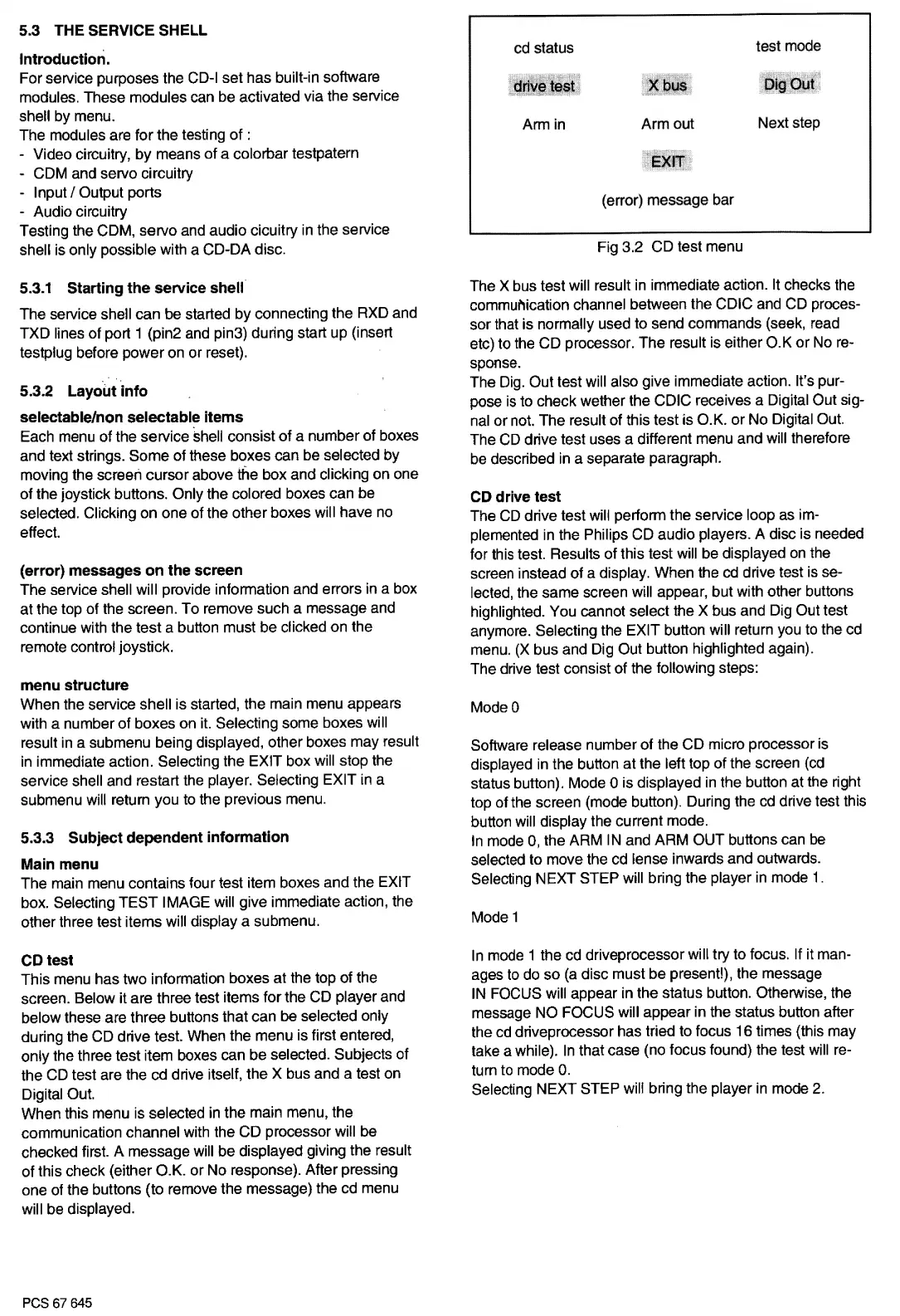
This menu has two information boxes at the top of the
screen. Below it are three test items for the CD player and
below these are three buttons that can be selected only
during the CD drive test. When the menu is first entered,
only the three test item boxes can
be
selected. Subjects of
the CD test are the cd drive itself, the X bus and a test on
Digital Out.
When this menu is selected in the main menu, the
communication channel with the
CD
processor will be
checked first. A message will be displayed giving the result
of
this check (either O.K. or No response). After pressing
one of the buttons (to remove the message) the cd menu
will be displayed.
PCS 67 645
cd status
test
mode
Arm in Arm out Next step
(error) message bar
Fig 3.2 CD test menu
The X bus test will result
in
immediate action. It checks the
commul'lication
channel between the CDIC and CD proces-
sor that is normally used to send commands (seek, read
etc) to the CD processor. The result is either O.K
or
No re-
sponse.
The Dig. Out test will also give immediate action. It's pur-
pose
is
to check wether the CDIC receives a Digital Out sig-
nal or not. The result of this test is O.K. or
No
Digital Out.
The CD drive test uses a different menu and will therefore
be
described
in
a separate paragraph.
CD drive test
The
CD
drive test will perform the service loop as im-
plemented
in
the Philips
CD
audio players.
A
disc is needed
for this test. Results
of
this test will be displayed
on
the
screen instead
of
a display. When the cd drive test is se-
lected, the same screen will appear, but with other buttons
highlighted. You cannot select the X bus and Dig Out test
anymore. Selecting the EXIT button will return you to the cd
menu. (X bus and Dig Out button highlighted again).
The drive test consist
of
the following steps:
ModeO
Software release number
of
the
CD
micro processor is
displayed
in
the button at the left top of the screen (cd
status button). Mode O is displayed
in
the button at the right
top of the screen (mode button). During the cd drive test this
button will display the current mode.
In
mode 0, the ARM IN and ARM OUT buttons can
be
selected to move the cd lense inwards and outwards.
Selecting
NEXT
STEP will bring the player
in
mode
1.
Mode
1
In
mode 1
the cd driveprocessor
wi
II
try to focus. If it man-
ages to do
so
(a
disc must be present!), the message
IN
FOCUS will appear in the status button. Otherwise, the
message NO FOCUS will appear in the status button after
the cd driveprocessor has tried to focus
16
times (this may
take a while).
In
that case (no focus found) the test will
re-
turn to mode
0.
Selecting
NEXT
STEP
will
bring the player
in
mode
2.


 To Next Page
 Loading...