English
23
Storing names
1 Select the TEXT EDIT submenu.
➜ TEXT EDIT appears on the display.
2 Press EASY JOG/ENTER or ENTER on the remote control to
confirm.
3 Rotate EASY JOG/ENTER to select the required option in
the submenu: CD Artist, CD Title,Track 1 Artist, Track 1 Title,
etc.
4 Press EASY JOG/ENTER or ENTER on the remote control to
confirm.
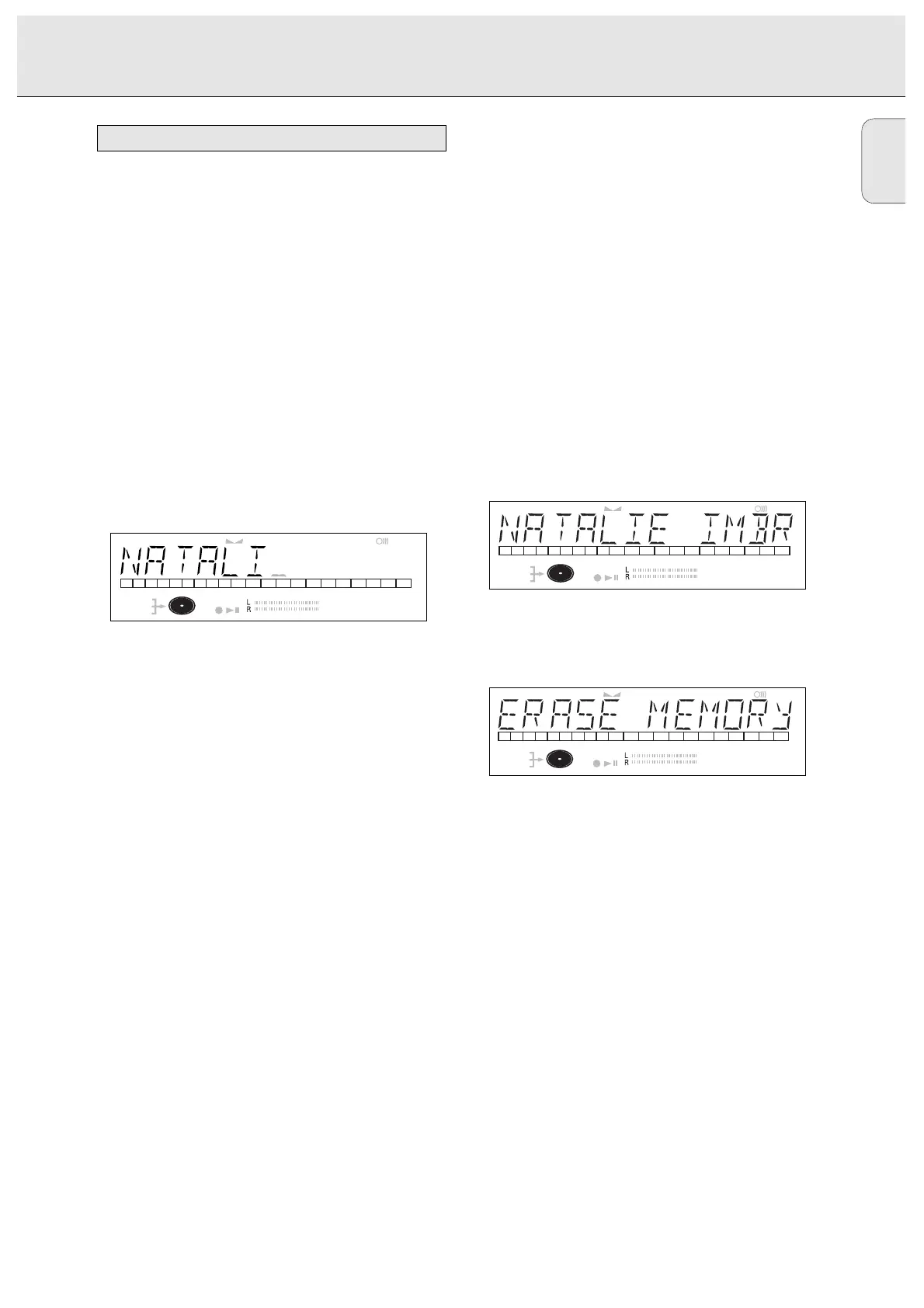
5 Select the characters by rotating the EASY JOG/ENTER key
or by pressing the corresponding numeric/alphabet key on
the remote control.
6 Press EASY JOG/ENTER or ENTER on the remote control to
store the characters and move to the next cursor position.
7 Press STORE/MENU to store a name you have entered and
return to the submenu or STOP 9 to exit.
Note:
- A maximum of 60 characters can be stored per item.
- By pressing the EASY JOG/ENTER key or ENTER on the
remote control without selecting a character first, you can
insert a space between characters.
- With the 56keys you can move to a required cursor
position.
- With the CANCEL key you can delete a character.
- When an artist’s name has been stored for a certain track,
the name will automatically be copied for the next track.
The name can be confirmed by pressing STORE/MENU or a
new name can be entered as described above.
Erasing names
1 Select the TEXT ERASE submenu.
➜ TEXT ERASE appears on the display.
2 Press EASY JOG/ENTER or ENTER on the remote control to
confirm.
3 Rotate EASY JOG/ENTER to select the required option in
the submenu: All Text, CD Title, CD Artist, Track 1 Title,
Track 1 Artist, etc.
4 Press EASY JOG/ENTER or ENTER on the remote control to
confirm.
➜ The display will ask you to reconfirm your selection.
5 Press EASY JOG/ENTER or ENTER on the remote control to
reconfirm.
6 Press STORE/MENU to return to the submenu or STOP 9 to
exit.
Text Memory Review/Erase Text Memory
1 Select the MEMORY VIEW submenu.
➜ MEMORY VIEW appears on the display.
2 Press EASY JOG/ENTER or ENTER on the remote control to
confirm.
3 Select the disc you wish to erase.
4 Press EASY JOG/ENTER or ENTER on the remote control to
confirm.
➜ ERASE MEMORY appears on the display.
5 Press EASY JOG/ENTER or ENTER on the remote control to
reconfirm.
6 Press the EASY JOG/ENTER key or ENTER on the remote
control to confirm the erasure of the text for that particular
disc.
7 Press STORE/MENU to return to the submenu or STOP 9 to
exit.
Note:
- If there are no discs in the memory, the message MEMORY
EMPTY appears on the display.
- When the text memory of your CD recorder is full, the
message MEMORY FULL will appear, followed by
FINALIZE CD. If you want to add a CD to the list of
discs for which text is stored, you have to erase a disc from
this list or finalize another disc. (“for which text is stored”)
- MEMORY FULL/FINALIZE CD may also appear when
unfinalizing a CDRW disc for which text was stored (see
‘Unfinalizing CDRW discs’). The same action(s) should be
taken in order to obtain memory space.


 To Next Page