10
The language options may vary from •
different regions.
3 Press to select a language, then press
OK .
Turn on progressive scan
Note
To use the progressive scan feature, you •
must connect a progressive scan TV with the
component video jacks (see “Connect” >
“Connect video cables” > “Option 1: Connect
to the component video jacks” for details).
1 Turn on the TV to the correct viewing
channel for this product.
2 Press SETUP .
3 Press to select [Video Setup] .
4 Select [Progressive] > [On] , then press
OK .
Auto Standby
DivX(R) VOD Code
OSD Language
Disc Lock
Sleep Timer
General Setup
English
Melayu
Video Setup
Picture Setting
TV Display
TV System
Progressive
On
Off
4 Get started
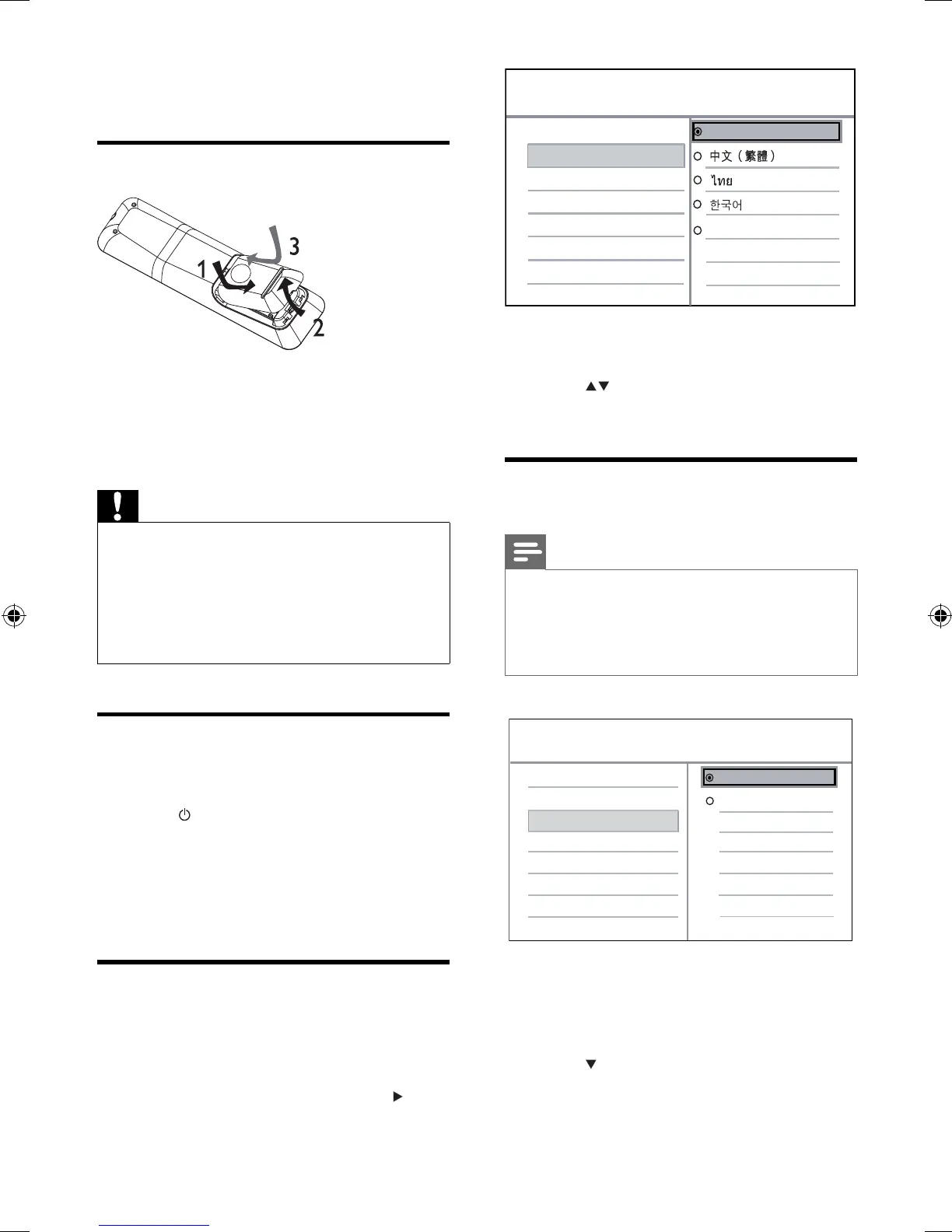
Prepare the remote control
1 Open the battery compartment.
2 Insert two R03 or AAA batteries with
correct polarity (+/-) as indicated.
3 Close the battery compartment.
Caution
Remove batteries if they are exhausted or if •
the remote control is not to be used for a long
time.
Do not mix batteries (old and new or carbon •
and alkaline, etc.).
Batteries contain chemical substances, so they •
should be disposed of properly.
Find the correct viewing
channel
1 Press to turn on this product.
2 Turn on the TV and switch to the correct
video-in channel. (Refer to the TV user
manual on how to select the correct
channel.)
Select menu display language
1 Press SETUP .
» [General Setup] menu is displayed.
2 Select [OSD language] , then press .
EN
EN.indd Sec1:10EN.indd Sec1:10 2009-7-29 11:27:432009-7-29 11:27:43



 To Next Page