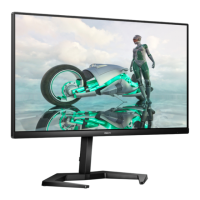
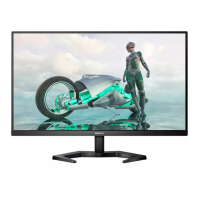
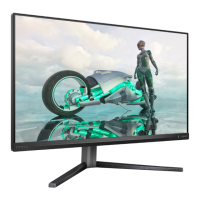
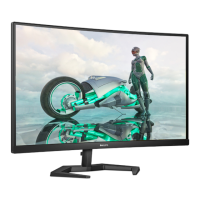
This document describes the Philips 27M1C3200VL monitor, an electronic display designed for various computing tasks, including gaming and general productivity.
The monitor's primary function is to display visual content from a connected computer. It supports a maximum resolution of 1920 x 1080 at 165 Hz (via HDMI/DP) and a recommended resolution of 1920 x 1080 at 60 Hz. The display incorporates several features to optimize the viewing experience and enhance user comfort.
Usage Features:
The monitor offers a user-friendly On-Screen Display (OSD) menu, accessible via a single toggle button on the backside of the display bezel. This joystick-like button allows users to navigate and select various options to adjust screen performance.
Key OSD menu options include:
- Game Setting: This section provides specific modes tailored for gaming.
- Adaptive Sync: This feature synchronizes the monitor's refresh rate with the GPU's frame rate, aiming to eliminate screen tearing and stuttering for smoother gameplay. It's important to note that Adaptive Sync and MPRT (Motion Picture Response Time) cannot be enabled simultaneously.
- MPRT: Designed to reduce motion blur, MPRT achieves this by strobing the LED backlight synchronously with the screen refresh. Users should be aware that MPRT requires a 75Hz refresh rate or higher and may cause noticeable brightness changes or screen flickering. It is recommended to turn off MPRT when not using gaming functions. MPRT also affects brightness adjustments, as brightness cannot be adjusted while MPRT is active.
- Low Input Lag: Reduces the delay between user input and on-screen action.
- SmartResponse: Optimizes response time.
- Crosshair: Displays an on-screen crosshair, useful in certain gaming scenarios.
- SmartFrame: Allows a user-selected portion of the screen to be highlighted, with adjustable picture quality for that highlighted area, particularly useful in RTS games.
- SmartImage: An exclusive Philips technology that dynamically analyzes displayed content and optimizes brightness, contrast, color, and sharpness in real-time. This feature offers several presets:
- FPS (First Person Shooters): Improves dark theme black level details for FPS games.
- Racing: Provides faster response time and high color saturation for racing games.
- RTS (Real Time Strategy): Optimizes display for RTS games, allowing for highlighted portions of the screen.
- Gamer 1 & Gamer 2: User-defined preference settings.
- LowBlue Mode: A wellbeing feature that uses smart software technology to reduce harmful shortwave blue light, which can cause eye damage and affect vision over time.
- EasyRead: Improves reading of text-based applications like PDF ebooks by increasing contrast and boundary sharpness, adjusting brightness, contrast, and color temperature for stress-free reading.
- Off: Disables SmartImage optimization.
- SmartContrast: A unique technology that dynamically analyzes displayed content and automatically optimizes the monitor's contrast ratio. It steps up backlighting for clearer, crisper, and brighter images or dims backlighting for dark backgrounds, enhancing visual clarity and viewing enjoyment, especially for videos and games. It also contributes to reduced power consumption.
- Picture Settings: Allows manual adjustment of brightness, contrast, sharpness, gamma, and other visual parameters.
- Color Settings: Offers various color temperature presets (Native, 5000K, 6500K, 7500K, 8200K, 9300K, 11500K) and an sRGB mode for color accuracy. Users can also define custom color settings by adjusting red, green, and blue levels.
- Audio Settings: Includes volume control and a mute option.
- OSD Settings: Controls OSD transparency, timeout, and position.
- Input Selection: Allows users to switch between HDMI and DisplayPort inputs.
- Power Management: The monitor is VESA DPM compliance, automatically reducing power consumption when not in use and waking up upon detecting input from a keyboard, mouse, or other device.
The monitor supports tilt adjustment from -5 to +20 degrees. When adjusting the tilt, users should grasp only the bezel and avoid pressing the screen to prevent damage. Tilting downward beyond -5 degrees is not recommended as it may cause panel peeling and is not covered under warranty.
Maintenance Features:
- Cleaning: For normal cleaning, a clean, soft cloth is recommended. For extensive cleaning, isopropyl alcohol can be used. Organic solvents such as ethyl alcohol, ethanol, acetone, or hexane should never be used.
- Burn-in/Ghost Image Prevention: To prevent "burn-in" or "ghost imaging" (a phenomenon in LCD panels caused by uninterrupted display of static images), users should always activate a moving screen saver program when leaving the monitor unattended and activate a periodic screen refresh application if static content is displayed for extended periods. Failure to do so may result in severe, irreparable damage not covered by warranty.
- Physical Handling: When moving the monitor, grasp the frame to lift it, and avoid placing hands or fingers on the LCD panel to prevent excessive pressure and potential damage. The monitor should not be subjected to severe vibration or high impact.
- Environmental Conditions: The monitor should be kept out of direct sunlight, strong bright lights, and away from heat sources. It should be operated within a temperature range of 0-40°C (32-104°F) and humidity of 20-80% RH. For storage, the temperature range is -20°C to 60°C and humidity 10-90%.
- Power Cord: Only use the approved power cord provided by Philips. If the power cord is missing, contact the local service center.
- Ventilation: Do not block ventilation holes on the cabinet to ensure proper cooling.
- Oil Exposure: Keep the display away from oil, as it can damage the plastic cover and void the warranty.
- Liquid/Dust Exposure: To avoid shock or damage, do not expose the monitor to dust, rain, water, or excessive moisture. If it gets wet, wipe it immediately with a dry cloth. If foreign substances or water enter the monitor, turn off the power, disconnect the cord, remove the substance/water, and send it to a maintenance center.
- Service: The casing cover should only be opened by qualified service personnel. For repair or integration documents, contact the local service center.
The monitor is Plug-and-Play compatible with Windows 11/10/8.1/8/7 and Mac OSX. It also supports VESA mounting (100mm x 100mm) using M4 screws.

 Need help?
 General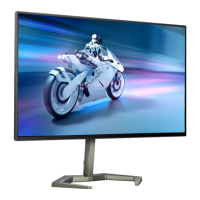





 To Next Page