EasyManua.ls Logo

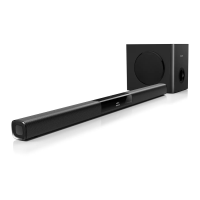
Philips HTL3110B/F7 - User Manual

Philips HTL3110B/F7
14 pages
Print Icon
To Next Page IconTo Next Page
Loading...
www.philips.com/welcome
User manual
Always there to help you
Register your product and get support at
Question?
Contact
Philips

Other manuals for Philips HTL3110B/F7

Questions and Answers

  • M
    Ms. Kimberly HintonAug 13, 2025
    Why won't my device connect to my Philips Home Cinema speakers?
    • M
      mollynelsonAug 13, 2025
      A device might fail to connect to the Philips Home Cinema speakers for several reasons. It could be that the device doesn't support the necessary profiles or that Bluetooth isn't enabled on the device. Ensure Bluetooth is enabled. Also, verify that the device is correctly connected. If the SoundBar is already connected to another Bluetooth device, disconnect that device and try again.
  • G
    gutierrezjulieAug 17, 2025
    What to do if there is no sound from my Philips Home Cinema speakers?
    • G
      guerrerodebraAug 17, 2025
      If you're not getting any sound from your Philips Home Cinema speakers, here are a few things to check: First, ensure the audio cable is properly connected from your SoundBar to your TV or other devices (this isn't needed if you're using HDMI ARC). Next, try resetting your SoundBar to its factory settings. Also, make sure you've selected the correct audio input on the remote control and verify that the SoundBar isn't muted.
  • J
    John PriceAug 21, 2025
    How to synchronize audio and video on Philips Home Cinema speakers?
    • R
      Ricky RaymondAug 21, 2025
      If the audio and video aren't synchronized on your Philips Home Cinema speakers, you can synchronize them by pressing the AUDIO SYNC +/- buttons.
  • H
    Hannah BenjaminAug 25, 2025
    Why is there distorted sound or echo from my Philips Home Cinema speakers?
    • M
      Michael BonillaAug 26, 2025
      If you're experiencing distorted sound or an echo with your Philips Home Cinema speakers, and you're playing audio from the TV through the SoundBar, ensure that the TV is muted.
  • C
    carolyn95Aug 28, 2025
    Why does my Bluetooth device keep disconnecting from my Philips Home Cinema speakers?
    • D
      Donald ChanAug 28, 2025
      If your Bluetooth device is constantly connecting and disconnecting from your Philips Home Cinema speakers, it could be due to poor Bluetooth reception. Try moving the device closer to the SoundBar or removing any obstacles. You can also try turning off the Wi-Fi function on the Bluetooth device to avoid interference. Note that some Bluetooth devices might automatically deactivate the Bluetooth connection to save power; this doesn't indicate a malfunction of the SoundBar.
  • B
    Brooke NobleAug 31, 2025
    Why is the audio quality poor when playing from a Bluetooth device on my Philips Home Cinema speakers?
    • T
      Toni SmallSep 1, 2025
      If the audio quality is poor when playing from a Bluetooth device on your Philips Home Cinema speakers, the Bluetooth reception might be weak. Try moving the device closer to the SoundBar, or remove any obstacles that might be interfering with the signal.
  • K
    Kimberly SimmonsSep 4, 2025
    What to do if the buttons on my Philips Home Cinema SoundBar do not work?
    • Y
      youngjasonSep 4, 2025
      If the buttons on your Philips Home Cinema SoundBar aren't working, disconnect the SoundBar from the power supply for a few minutes, and then reconnect it.
  • L
    Linda GouldSep 8, 2025
    How to connect a device to Philips Home Cinema speakers via NFC?
    • D
      Dana WeaverSep 8, 2025
      To connect a device to your Philips Home Cinema speakers via NFC, first ensure that the device supports NFC and that NFC is enabled on the device. For pairing, tap the NFC device on the NFC tag of the SoundBar.

Summary

Important

Help and support

Provides access to online support, user manuals, tutorials, FAQs, email, and chat support for product assistance.

Important safety instructions

Covers essential safety guidelines for installation, operation, cleaning, and battery handling to prevent hazards.

Your SoundBar

Main unit

Overview of the main unit's buttons, indicators, and display panel for operational control.

Remote control

Details the buttons and functions of the remote control for operating the SoundBar effectively.

Connectors

Details all available connectors on the SoundBar for audio, power, and data inputs/outputs.

Wireless subwoofer

Information on the wireless subwoofer, including pairing procedures and connection status.

Connect and set up

Pair up with the subwoofer

Instructions for wirelessly pairing the SoundBar with its subwoofer for optimal audio performance.

Placement

Guidance on optimal subwoofer placement relative to the SoundBar and walls for best results.

Connect to TV

Steps to connect the SoundBar to a TV via HDMI ARC for seamless audio playback.

Connect audio from TV and other devices

Methods for connecting audio sources like TV, digital coaxial, or analog devices to the SoundBar.

Use your SoundBar

Adjust the volume

Controls for increasing, decreasing, and muting the SoundBar's audio volume.

Choose your sound

Selection of sound modes (AUTO, POWERFUL, BALANCED, BRIGHT) for tailored audio experiences.

Surround sound mode

Enables or disables surround sound mode for an immersive, multi-dimensional audio experience.

Equalizer

Adjusts bass and treble frequencies to customize the SoundBar's audio output to user preference.

Synchronize picture and sound

Aligns audio with video using the Audio Sync feature when synchronization issues occur.

Night mode

Activates night mode for quiet listening by reducing the volume of loud sounds during playback.

Play audio through Bluetooth

Connects and plays audio from Bluetooth-enabled devices like smartphones and tablets.

Play music via NFC

Uses NFC for easy pairing and playing music from NFC-enabled mobile devices.

USB storage devices

Plays music files from USB storage devices such as MP3 players and flash drives.

Auto standby

Automatic standby function that activates after a period of inactivity to save power.

Set display brightness

Adjusts the brightness level of the SoundBar's front display panel.

Apply factory settings

Resets the SoundBar to its original factory default settings for a fresh start.

Update software

Check software version

Procedure to check the current software version installed on the SoundBar.

Update software via USB

Step-by-step guide for updating the SoundBar's software using a USB storage device.

Wall mount

Screw length;diameter

Guidance on selecting appropriate screw length and diameter for secure wall mounting.

Product specifications

Amplifier

Technical details of the amplifier, including FTC total output power and frequency response.

Audio

Specifications for audio inputs, covering S/PDIF digital and analog audio connections.

USB

Details on USB compatibility, supported file formats, and sampling frequency specifications.

Bluetooth

Specifications for Bluetooth connectivity, including profiles, version, and range.

Main unit

Technical specifications for the main unit, covering power supply, dimensions, and weight.

Subwoofer

Specifications for the subwoofer, including power supply, dimensions, impedance, and weight.

Remote control batteries

Information regarding the type of batteries required for operating the remote control.

Troubleshooting

Main unit

Resolves common issues with the SoundBar's main unit buttons, power, and general operation.

Sound

Addresses sound issues such as no audio, distorted sound, or audio-video synchronization problems.

Audio and video are not synchronized

Steps to fix audio and video synchronization issues using the Audio Sync feature.

Error message is displayed on the display panel

Interprets and provides solutions for error messages appearing on the SoundBar's display.

Bluetooth

Troubleshoots Bluetooth connection problems, poor audio quality, and intermittent disconnections.

NFC

Resolves issues related to connecting devices via NFC for Bluetooth pairing and playback.

Notice

Notice of compliance

Declarations of compliance with FCC rules and other relevant regulatory standards.

FCC Radiation Exposure Statement

Details FCC compliance for radiation exposure, specifying safe operating distances.

Warning

Highlights warnings against unauthorized modifications and user authority to operate the equipment.

Canada

Provides compliance information for Canada, including ICES/NMB-3(B) standards.

Philips HTL3110B/F7 Specifications

General IconGeneral
TypeSoundbar
Number of Channels2.1
BluetoothYes
HDMI Input1
Optical Input1
USB PlaybackYes
HDMI ARCYes
Audio in (3.5mm)Yes
Remote ControlYes
Wall MountableYes
ConnectivityBluetooth, HDMI, Optical, USB
Sound ModesMovie, Music

Related product manuals