2 - 12 - 1
System , Region Code , etc. Setting Produre
1)System Reset
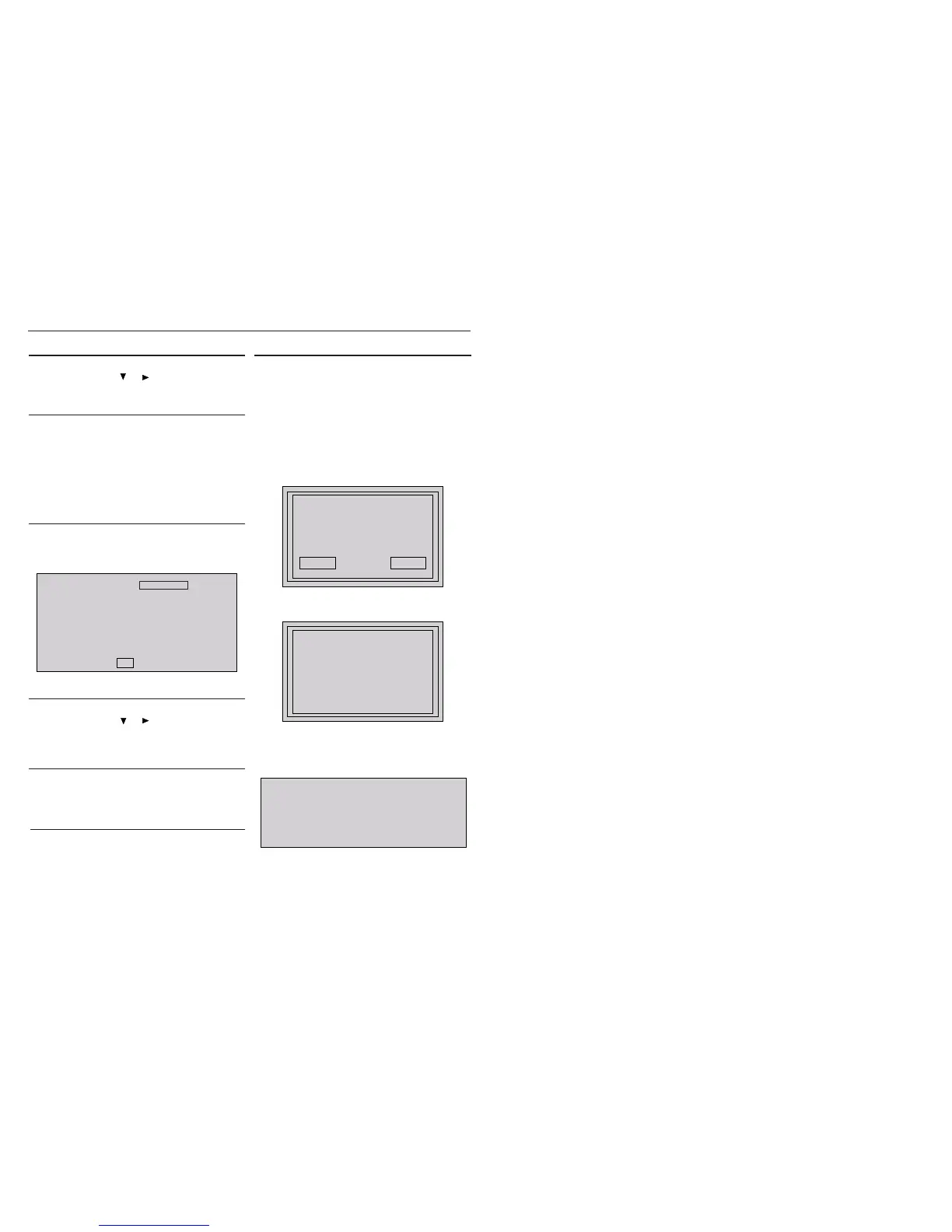
a) Press “SETUP“ button on R/C,TV will show setup menu
b) Select the menu using the and
on R/C
c) Go preference page to do system reset
2)Region Code Change
a) In open mode, press”9” “9“ “9“ “9“ on R/C,then input desired
number to change region code :
1 USA
2 EU
3 AP
4 Australia ,NZ , Latam
5 Russia , INDIA
6 CHINA
3)Version Control Change
a) In open mode, press “1“ “5“ “9“ on R/C
b) Press “ok” button to con rm
c) TV will show message as below:
7) Upgrading new software
a) Copy “software les” into a CD-R
b) Open the CD Door,then insert the CD-R program disc
c) Close the CD Door
d) VFD will show:
“Loading“
“Erase” -- erase the ash memory
“Writing” about 1 minute
“done “
* the system will switch off and on again automatically.
e) OSD will show:
Current model HTS3371D/F7
Version: XX.XX.XX Release:XXXX.XX.XX
region :1 Servo:XX.XX.XX.XX
8032:XX.XX.XX.XX RISC: XX.XX.XX.XX
MCU:XX.XX
If current model does not match you set use down arrow
key on the remote to change
OK
CAUTION!
This information is confi dential and may not be
distributed.Only a qualifi ed se rvice person should
reprogram the Region Code.
4)Password Change
a) Press “SETUP“ button on R/C,TV will show setup menu
b) Select the menu using the and on R/C
c) Go preference page select “password“ to change
* 000000 is default password supplied.
5)Check on the Software Version
a) Open the CD Door
b) Press “INFO“ button on R/C
c) TV will show the version on screen
upgrade le detected
Do you wish to continue with
the software upgrade?
OK Cancel
f) Select “OK”, OSD will show:
upgrade in progress...
V337X
please do not unplug or
switch off the device.
6)Trade model
a) Press “Open/Close “ button on R/C
b) Press “2” “5” “9” on R/C,VFD will display “TRA ON “ or “TRA
OFF“




 To Next Page