9
7.0 UPLOADING PICTURES
Images may be uploaded to a PC at any time whether or not the camera memory is full. Follow
steps to install software in section 6.0 before attempting any uploads. After the appropriate
application/driver software is installed, attach the USB connector to the camera and PC and
follow these steps
7.10 Uploading digital still pictures/AVI Video Clip
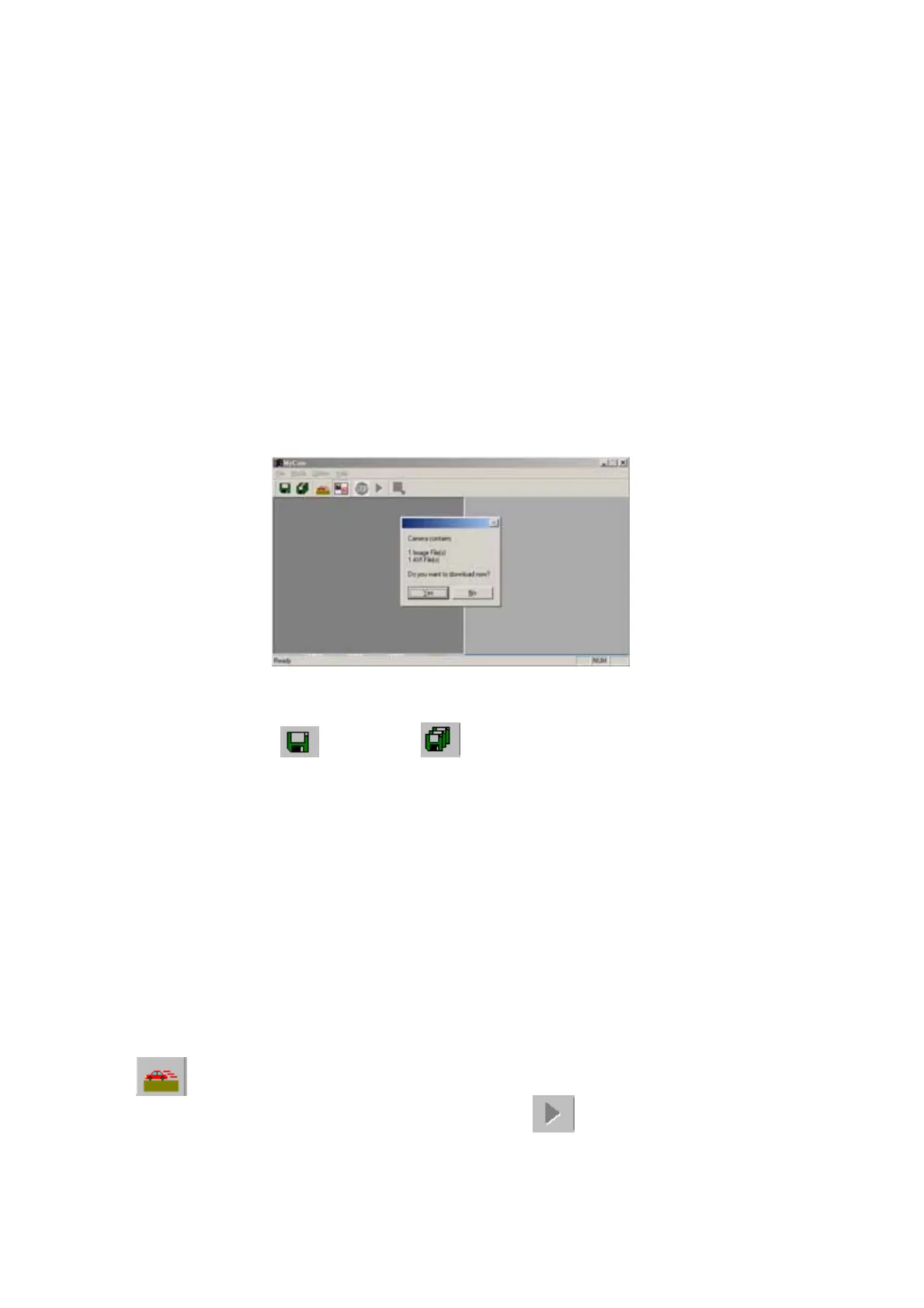
1. Double click the “MyCam CIF” shortcut icon on the desktop or from Windows
Taskbar (Start->Programs->MyCam CIF). The “MyCam” dialogue box will appear as
below :
2. Select YES to load thumbnails of the images.
3. After loading images, select images for download.
4. Click the SAVE
or SAVE ALL icon to save the selected picture(s).
Note: A recorded video clip will be shown with a small filmstrip icon in the lower
right corner of the thumbnail in the dialogue box
Note: To save multiple images press & hold the “Ctrl” button on the keyboard
while left clicking the desired pictures.
7.20 Playing AVI video
1. Follow the steps in 7.10 to upload Avi Video files. Then select the desired Avi clip.
2. Click the SAVE icon to save the desired Video file.
Once video is saved to the PC, double-click the Avi file to launch Media Player.
7.30 Using Video Mode
1. Select the “PC camera” mode under the “Mode” option menu or by pressing this icon
2. Then go to “Option” menu and choose “ Preview”
3. A real-time video will be displayed


 To Next Page