18Frequently asked questions
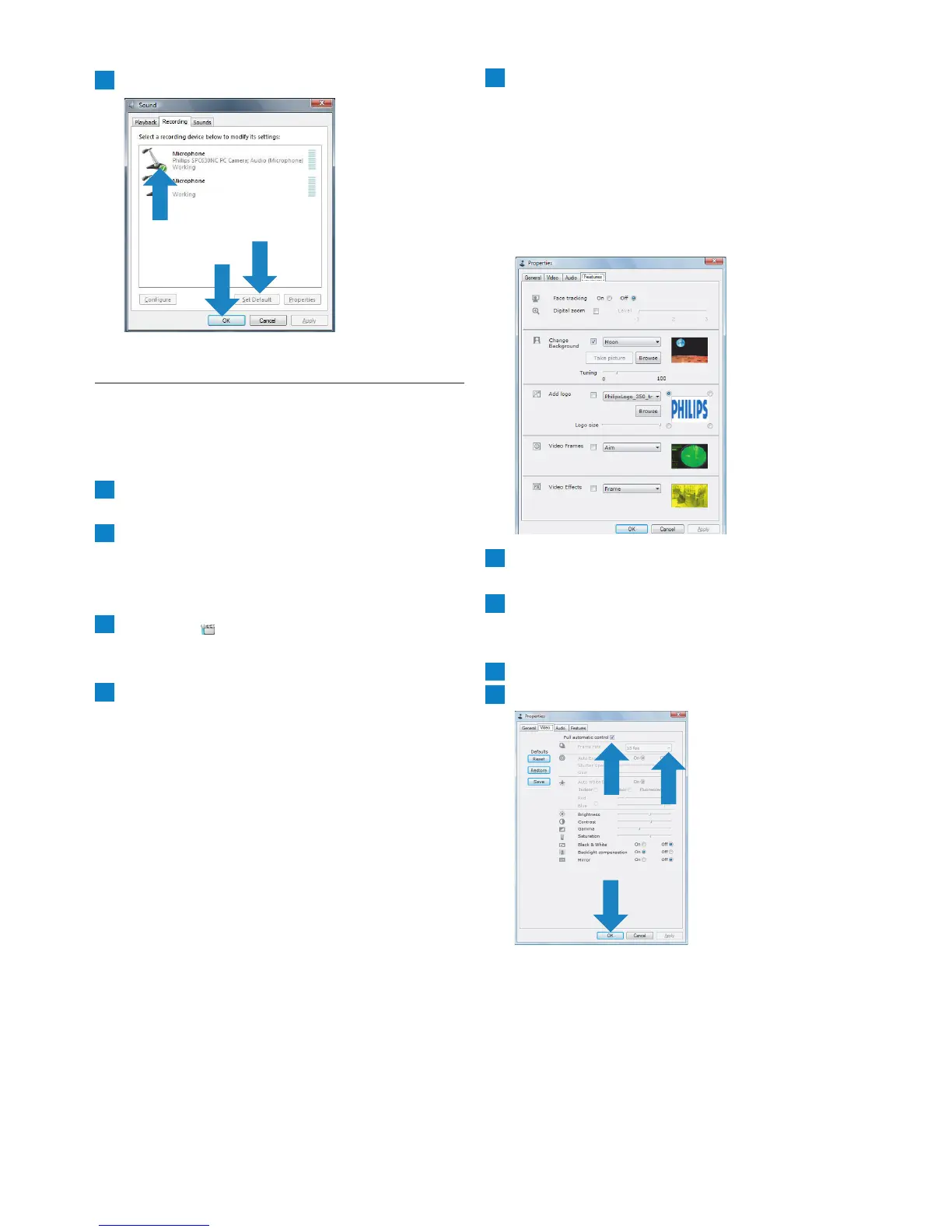
Click ‘OK’ to save your settings.
9.3 Using my Philips WebCam makes
my PC / laptop run slow.What
should I do?
Close software applications that do not
necessarily need to run.
Open the Philips CamSuite control panel by
double clicking the Philips CamSuite icon in
the Windows taskbar (bottom right of your
screen).
Click the ‘ ’ button to open the property
pages.
• The General settings screen appears.
Click the Features tab.
• The Feature settings screen appears.
4
3
2
1
7
Check whether the following features are
enabled (boxes checked):
- Change Background;
- Add logo;
- Video Frames;
- Video Effects.
If enabled, disable these features by
dischecking the boxes.
Click the Video tab.
• The Video settings screen appears.
Check whether Full automatic control is
enabled (box checked). If enabled, disable Full
automatic control by dischecking its box.
Set Frame rate to a minimum of 5 fps.
Click ‘OK’ to save your settings.
9
8
7
6
5



 To Next Page