ENGLISH SORTING AND CLEARING OF TV CHANNELS MANUALLY
15
15
SSoorrttiinngg aanndd cclleeaarriinngg ooff TTVV cchhaannnneellss mmaannuuaallllyy
After you have performed the automatic channel search you may
not agree with the sequence in which the individual TV channels
have been allocated to the programme positions of the video
recorder. You can use this function to individually sort the TV
channels found or to delete unwanted TV channels or those with
poor reception. If your TV set supports the Easylink function, you
will not need to rearrange the TV channels later. The sequence
corresponds to the channel assignment of your TV set.
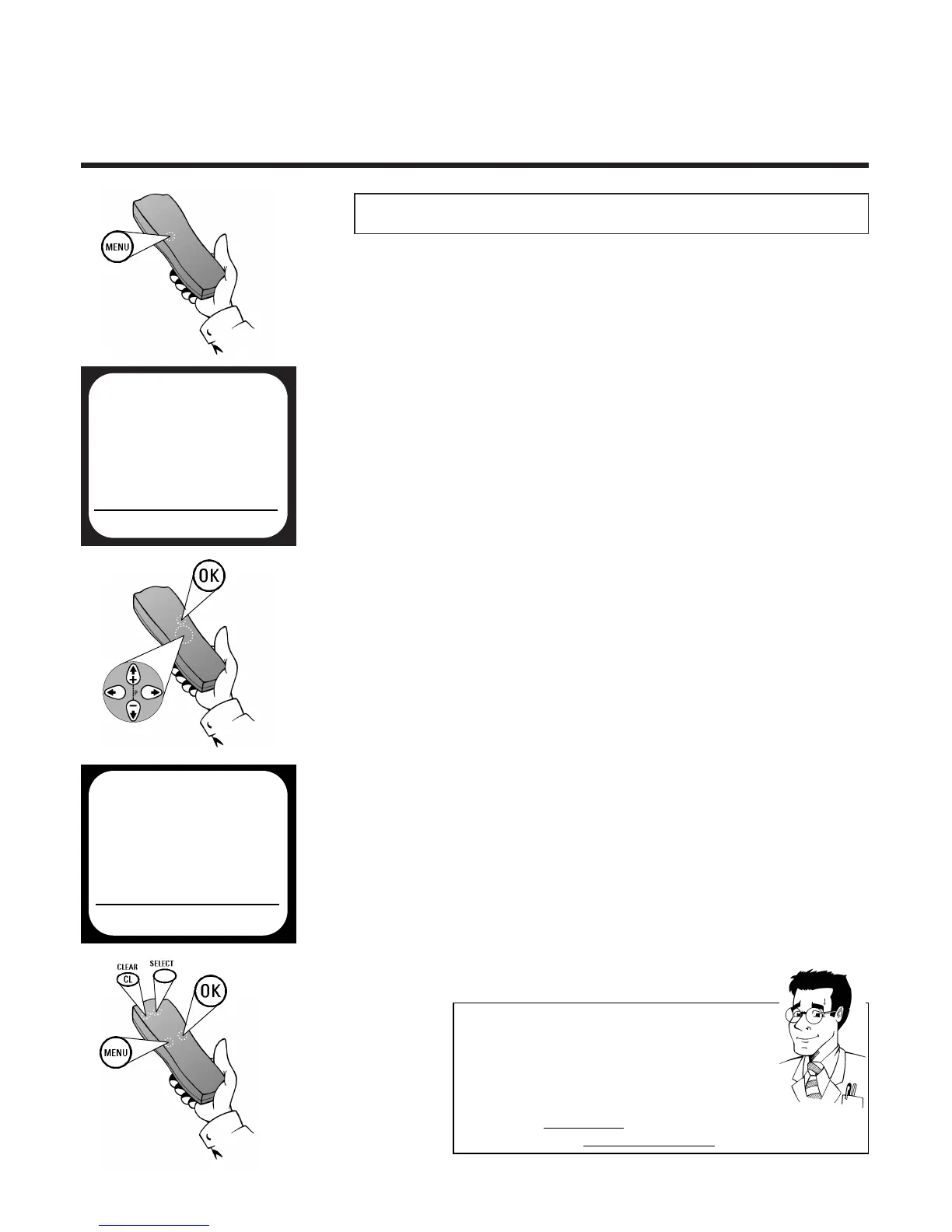
1 Switch on the TV set and - if necessary -
select the programme number set for video
recorder operation
3 Use
==PP--
or
;;PP++
to select the option
TV CHANNEL ALLOC. and confirm
with
OOKK
2 Press the
MMEENNUU
button on the remote
control.The on-screen menu appears
4 Use
PP
or
QQ
to select the TV channel, to be
allocated a programme position
5
SSoorrttiinngg::
Press
SSEELLEECCTT
, to allocate the TV
channel to the programme
position set P01
DDeelleettee::
Delete the TV channel which
has been set with
CCLLEEAARR ((CCLL))
6 Continue repeating the steps
4 and 5,to
allocate additional TV channels (P02, P03,...)
or to delete additional TV channels and
confirm with
OOKK
7 Finish the manual sorting / clearing of TV
channels with the
MMEENNUU
button
MAIN MENU
CLOCK
AUTO INSTALL
MANUAL SEARCH
TV CHANNEL ALLOC.
RECORD SPEED
AUTO STANDBY
TV SYSTEM
SPECIAL SETTINGS
EXITPMENU OK
TV CHANNEL ALLOC.
ALLOCATE ON QP01P
TV CHANNEL BBC1
ALLOCATEPSELECT EXITPMENU
FFOORR
EEXXPPEERRTTSS
NNeeww sseeqquueennccee rreeggaarrddlleessss ooff EEaassyylliinnkk
If your TV set supports the Easylink function, you
cannot change the sequence of the TV channels on
the video recorder. If you do not agree with the
sequence of the channels,you must change the chann-
nel allocations on the TV set and then start the auto-
matic channel search on the video recorder afresh.



 To Next Page