L
INING UP RECORDINGS
/
RECORDING SPEED
E
NGLISH
26
26
LLiinniinngg uupp mmaannuuaall rreeccoorrddiinnggss
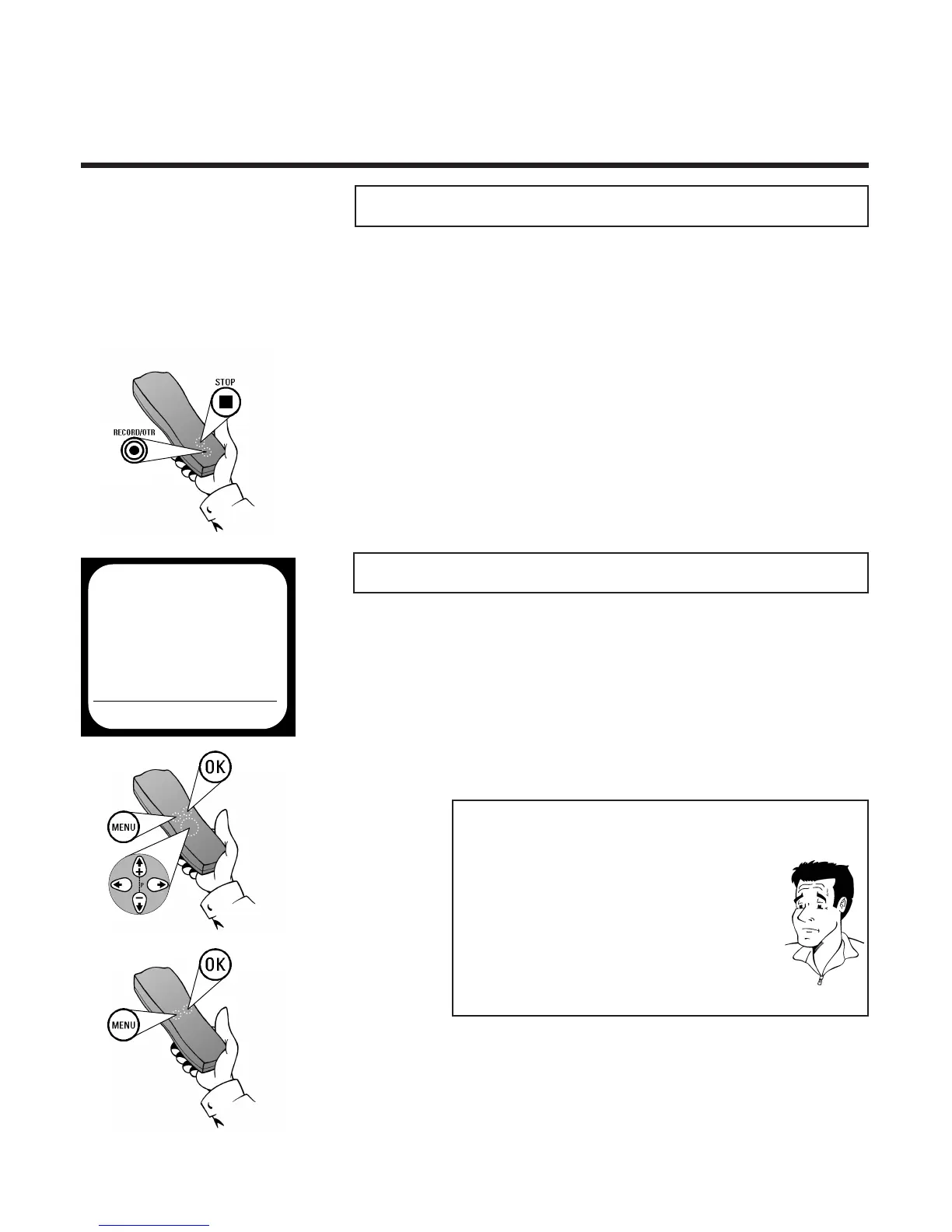
2 Press the Stop button h at the point where you
want the new recording to start (the display will
show 9)
3 Press the Record button n in the usual way to
start the new recording
1 Look at the last minute of the old recording
(playback)
When you add a further recording to a cassette, which
already has a recording on it, a short blank (flicker) usually
appears between the old and the new recording.This is how
to avoid such an effect.
SSeelleeccttiinngg tthhee rreeccoorrddiinngg ssppeeeedd
1 Press the
MMEENNUU
button on the remote
control.The on-screen menu appears
3 Use
PP
or
QQ
to select the desired recording
speed (SP - Standard Play or
LP - Long Play or AUTO - Auto Long Play)
4 Confirm with
OOKK
.The screen will briefly show
STORED
5 Stop selection of recording speed with
MMEENNUU
PP
AARRDDOONN
??
SSttaannddaarrdd PPllaayy // LLoonngg PPllaayy // AAuuttoo LLoonngg PPllaayy
Standard Play (SP) offers the usual first-class picture
quality. By using Long Play (LP), you can (with somew-
hat reduced picture quality) for example record about
360 minutes of programmes on a 180 minute cassett-
te.With the Auto Long Play (AUTO) setting, the video
recorder calculates, before starting the recording,how
much playing time remains on the cassette inserted.
Depending on the calculated remaining playing time
and the duration of the programmed recording, the
recording will be made in Standard Play or Long Play.
2 Use
==PP--
or
;;PP++
to select the option
RECORD SPEED and confirm with
OOKK
MAIN MENU
CLOCK
AUTO INSTALL
MANUAL SEARCH
TV CHANNEL ALLOC.
RECORD SPEED
AUTO STANDBY
TV SYSTEM
SPECIAL SETTINGS
EXITPMENU OK


 To Next Page